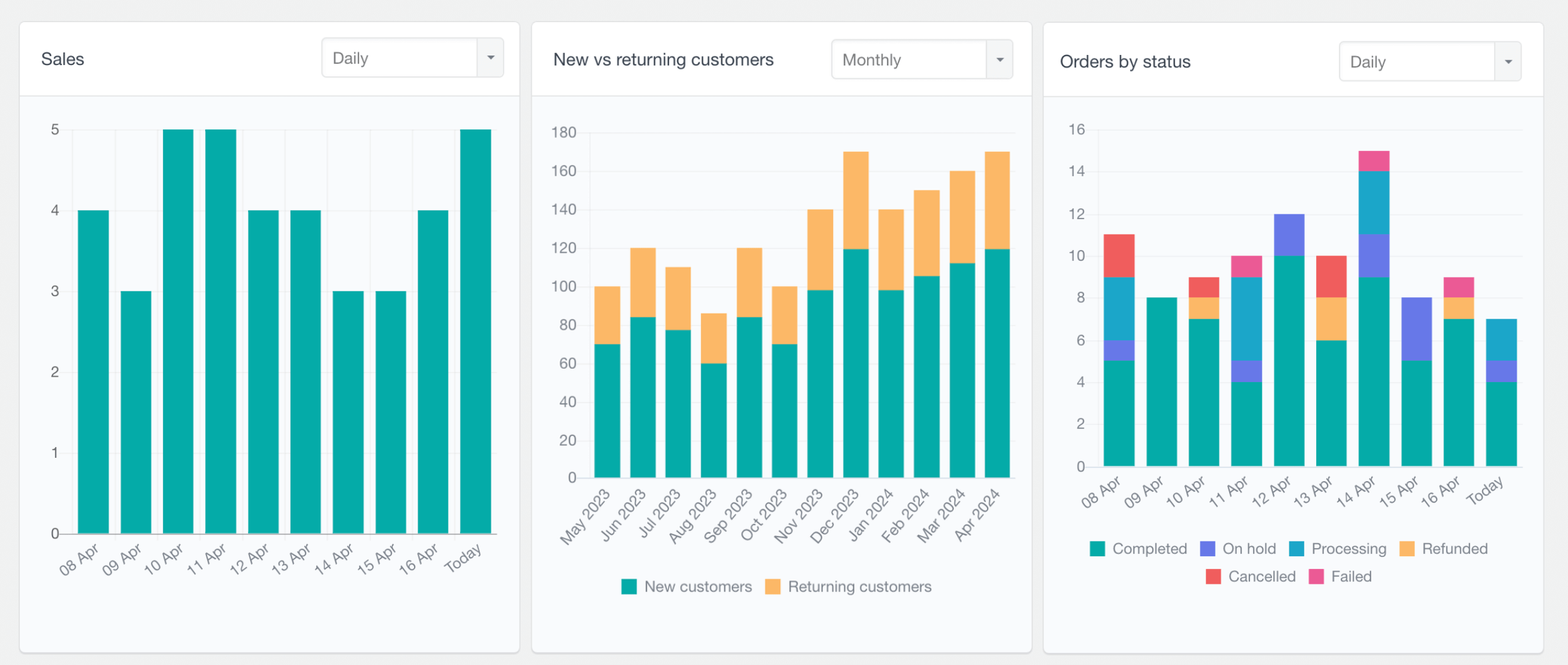
Users Insights includes a WooCommerce Subscriptions reports section, helping you analyze the subscription activity in your store. The reports bring together subscription orders, subscription revenue, subscription statuses, and changes to subscriptions over time.

WooCommerce Subscriptions analytics dashboard
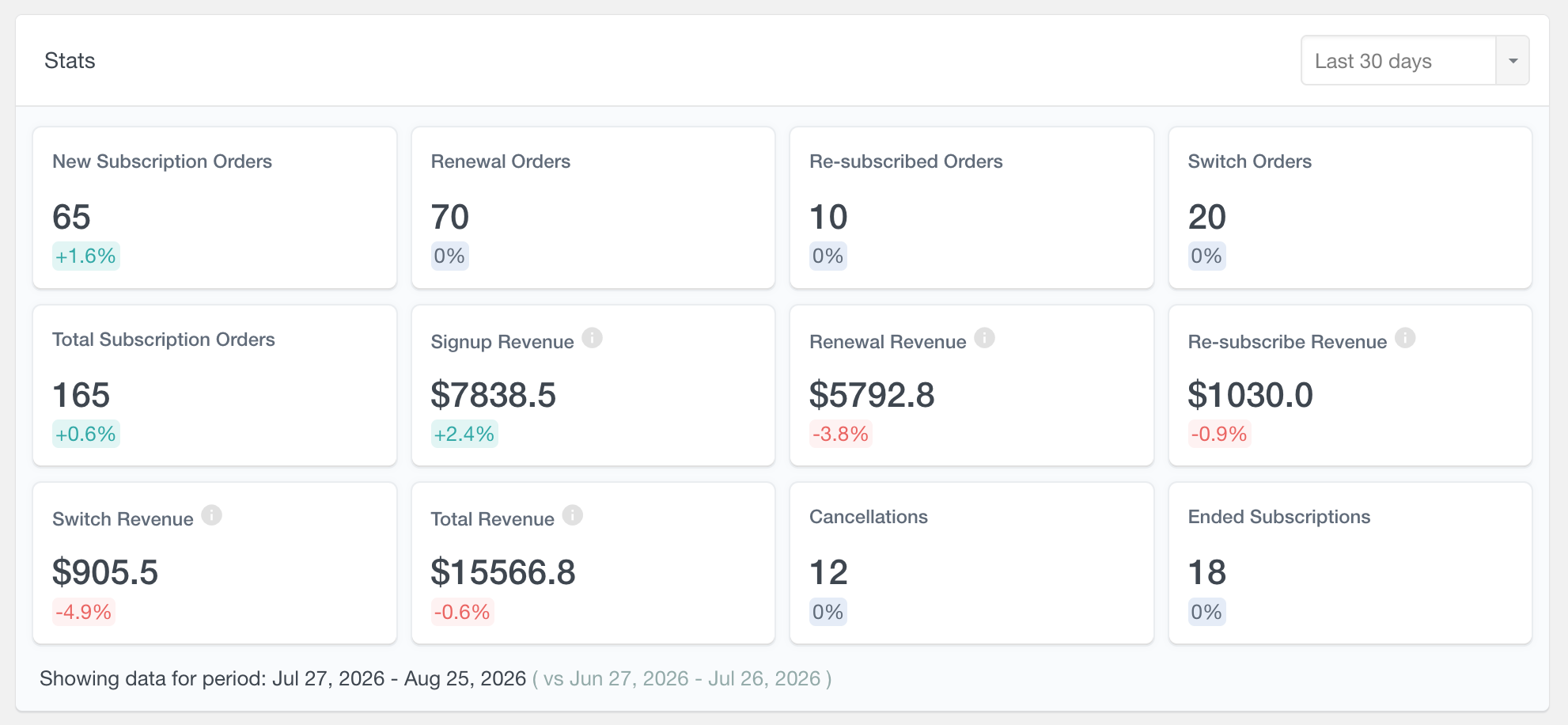
The Stats dashboard provides an overview of subscription activity for the selected period. It includes the following metrics:
- New Subscription Orders: The number of orders associated with new subscription signups.
- Renewal Orders: The number of orders generated by recurring subscription renewals.
- Re-subscribed Orders: The number of orders from customers who subscribed again.
- Switch Orders: The number of orders related to customers switching subscription plans.
- Total Subscription Orders: The total number of new, renewal, re-subscribe, and switch orders.
- Signup Revenue: Revenue generated by new subscription signups.
- Renewal Revenue: Revenue generated by recurring subscription renewals.
- Re-subscribe Revenue: Revenue generated by customers who subscribe again.
- Switch Revenue: Revenue generated by customers switching subscription plans.
- Total Revenue: The combined revenue from subscription signups, renewals, re-subscriptions, and switches.
- Cancellations: The number of subscriptions cancelled during the selected period. These could be subscriptions that are still active.
- Ended Subscriptions: The number of subscriptions that ended during the selected period.
These figures provide a quick way to compare subscription activity with changes in the subscription base.
When a predefined period is selected, such as the last 7 days or the last 30 days, the dashboard metrics can be compared with the corresponding previous period. This makes it possible to see whether the number of orders, the revenue, or the number of subscription changes has increased or decreased.
The revenue figures are calculated from the total amount of the relevant orders. Partial refunds are not deducted from these amounts. The order and revenue metrics use the WooCommerce sale order statuses, which are usually Completed, Processing, and On hold.
Subscription revenue report
The Subscription revenue report shows subscription revenue over time. It is displayed as a stacked report, so the different types of subscription revenue can be viewed separately while still seeing how they contribute to the total.
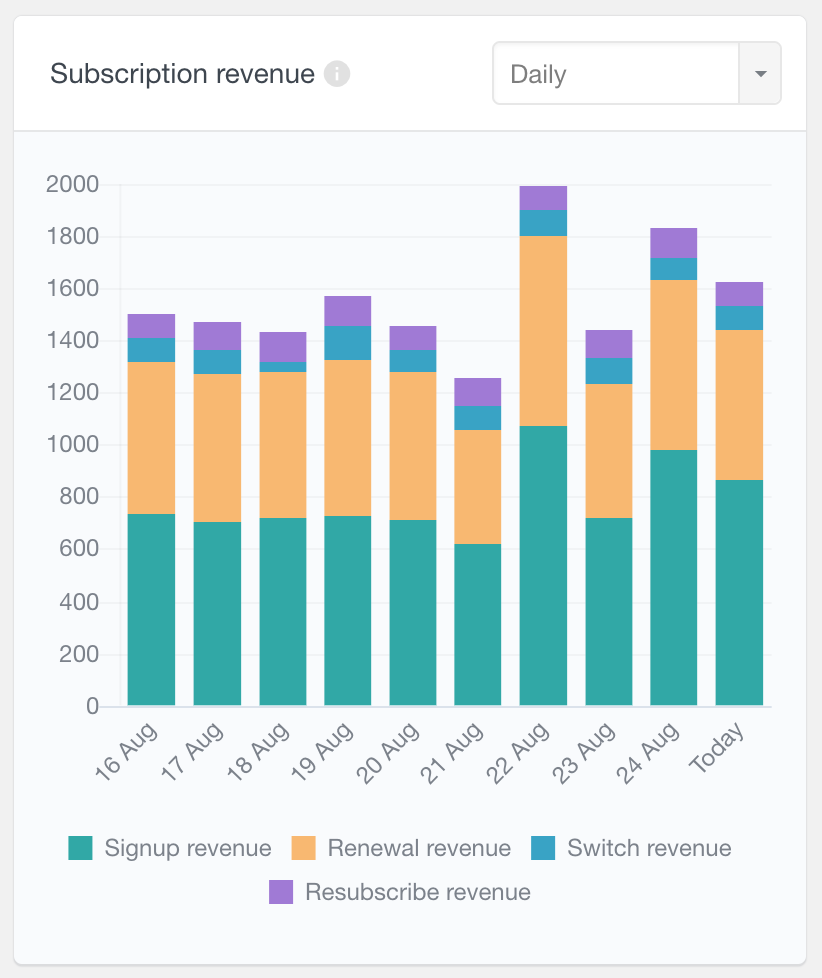
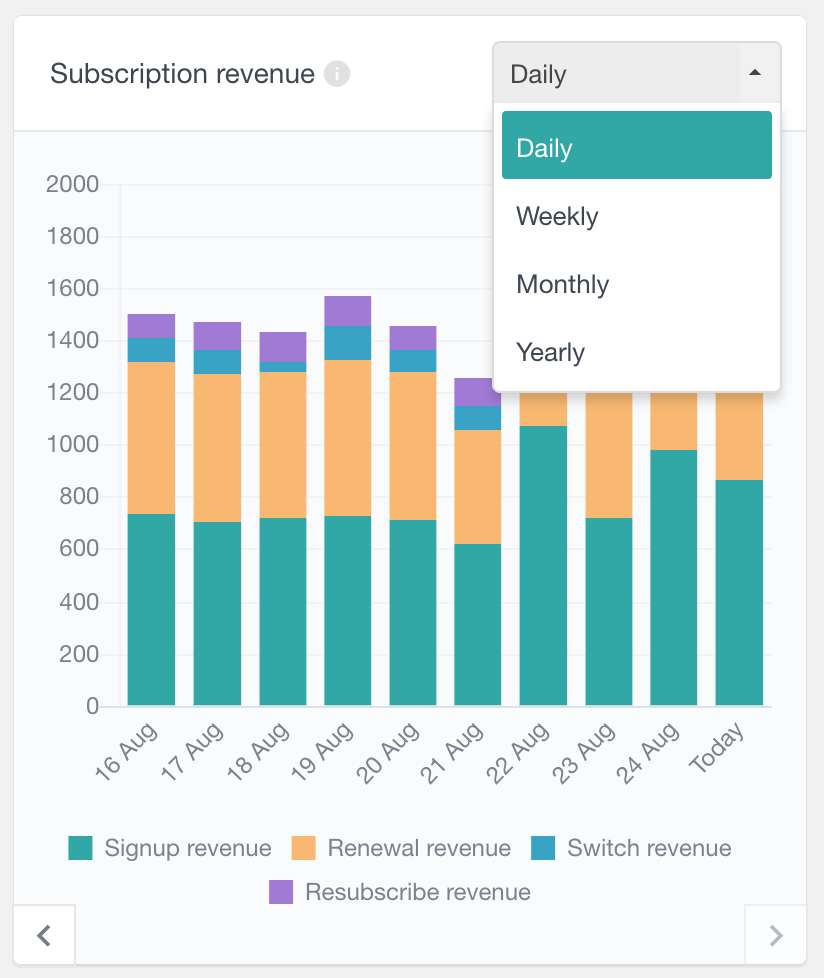
The report includes signup revenue, renewal revenue, switch revenue, and re-subscribe revenue and it can be viewed over different time periods, such as days, weeks, months, or years. The period selector can be used to review recent activity or to move back and look at an earlier period. This can help show whether revenue is mainly coming from new signups or from recurring payments from existing subscribers.
As with the dashboard, the revenue values represent the total amount of the qualifying subscription orders and do not reflect partial refunds.
Subscription orders report
The Subscription orders report shows the number of subscription orders over time. The orders are divided into new orders, renewal orders, switch orders, and re-subscribe orders.
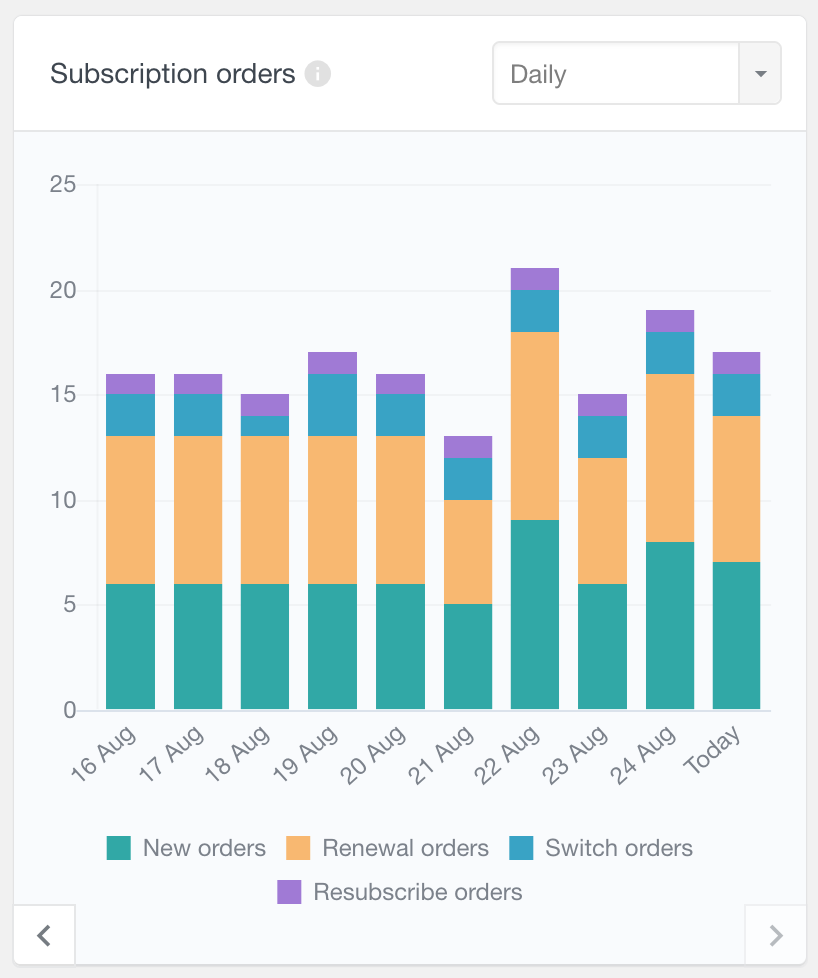
New orders are the orders associated with the initial subscription signup. Renewal orders are created when an existing subscription renews. Switch orders are related to customers changing their subscription plan, and re-subscribe orders are related to customers subscribing again after a previous subscription.
The stacked report makes it possible to see both the total number of subscription orders and the contribution of each order type. For example, a store may have a period with fewer new signups but a larger number of renewal orders. Looking at the individual sections of the chart can make this difference easier to identify than looking at the total alone.
Subscription status breakdown report
The Subscription status breakdown report shows how many subscriptions currently have each status. The results are presented as a breakdown of the available WooCommerce Subscriptions statuses, such as Active, Pending cancellation, On hold, Cancelled, Expired, Pending, or Switched, depending on the statuses used by the store.
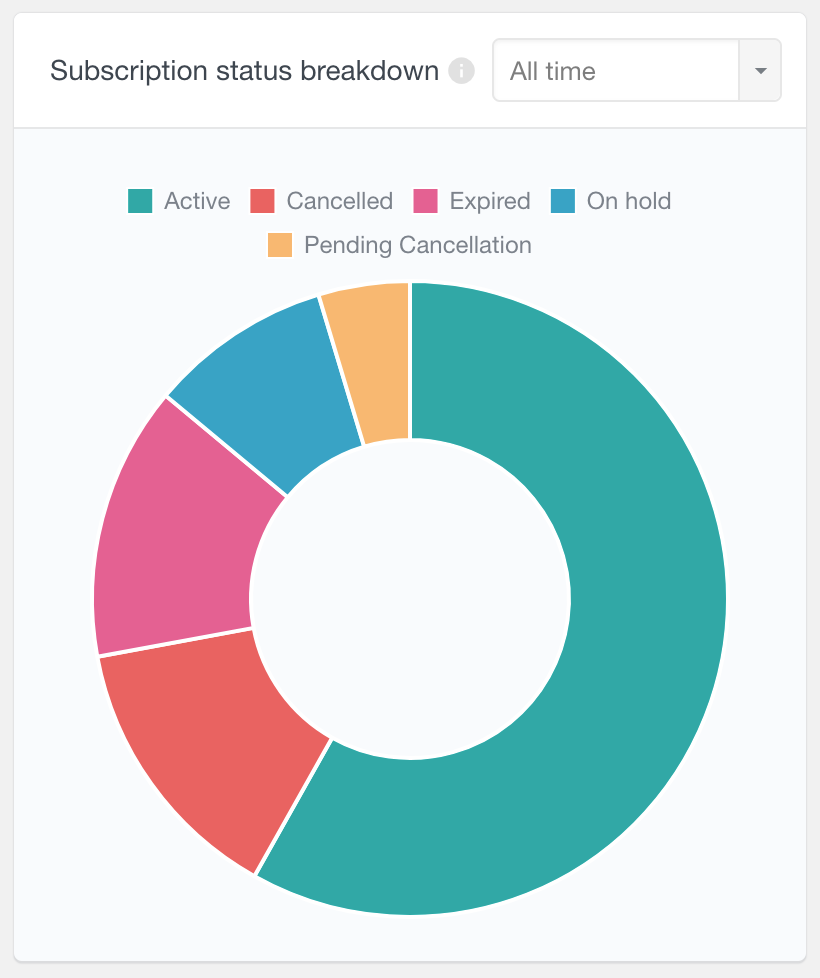
The report includes a date filter based on the subscription start date. This means that the filter can be used to look at the statuses of subscriptions that started during a particular period.
Started subscriptions report
The Started subscriptions report shows how many subscriptions started over time. It can be viewed by day, week, month, or year, depending on the selected reporting period.
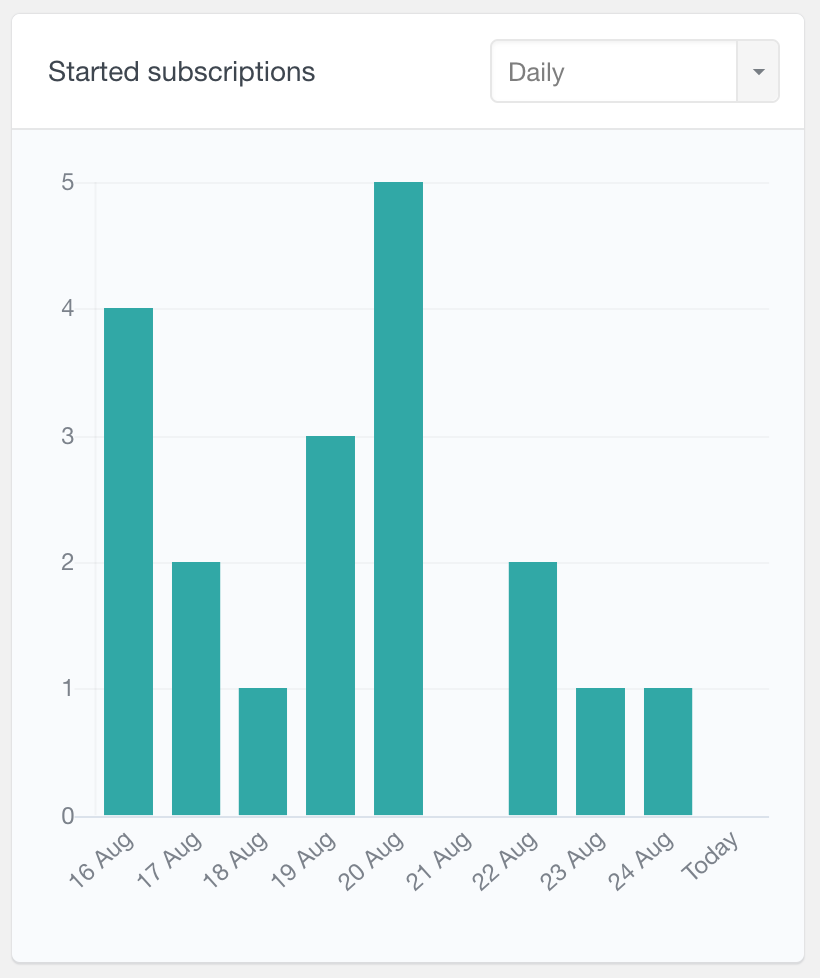
This report is useful for reviewing subscription signups independently from subscription orders. It focuses on the subscriptions themselves and shows when they started, while the Subscription orders report focuses on the orders generated by new signups, renewals, switches, and re-subscriptions.
The report can help identify periods with more or fewer new subscriptions and can be compared with the revenue and order reports to put signup activity into context.
Ended subscriptions report
The Ended subscriptions report shows the number of subscriptions that ended within each period. This includes subscriptions that ended because they were cancelled or expired.
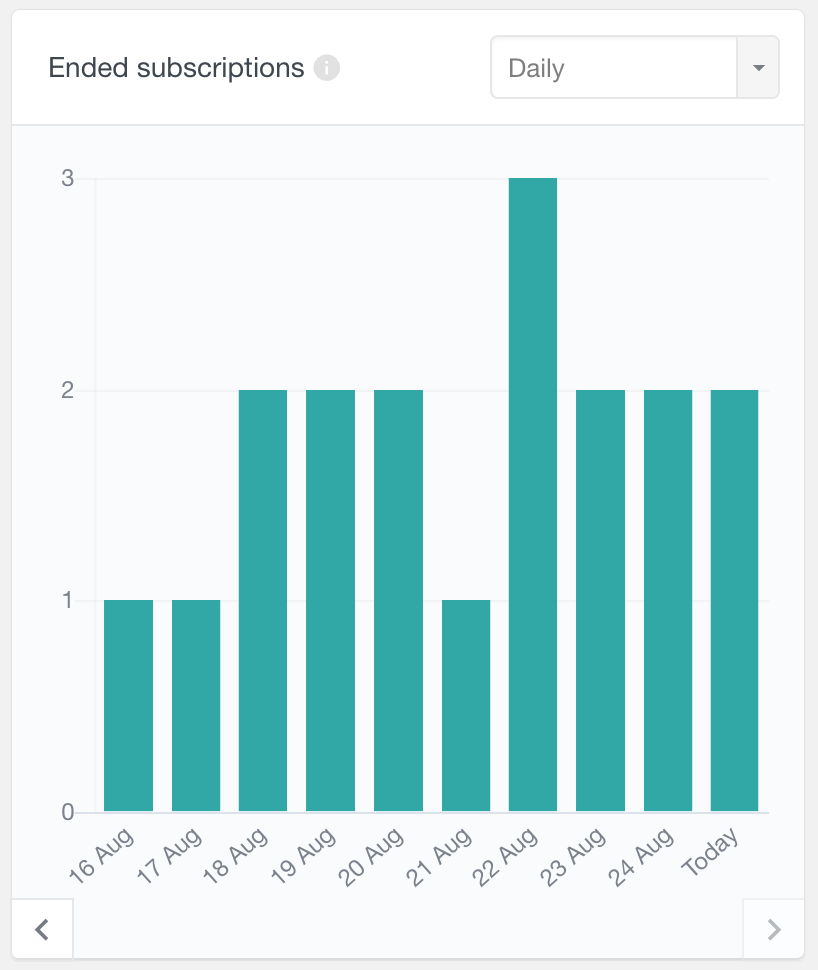
The report uses the end date recorded for each subscription rather than counting all subscriptions that currently have an inactive status. This distinction is useful because it shows when subscriptions ended, not only how many subscriptions are currently no longer active.
Reviewing ended subscriptions over time can help show whether the number of subscriptions leaving the store is changing. When used together with the Started subscriptions report, it provides a simple view of how the subscription base is changing over different periods.
Cancelled subscriptions report
The Cancelled subscriptions report shows the number of subscriptions that were cancelled within each period. It uses the cancellation date recorded for the subscription.
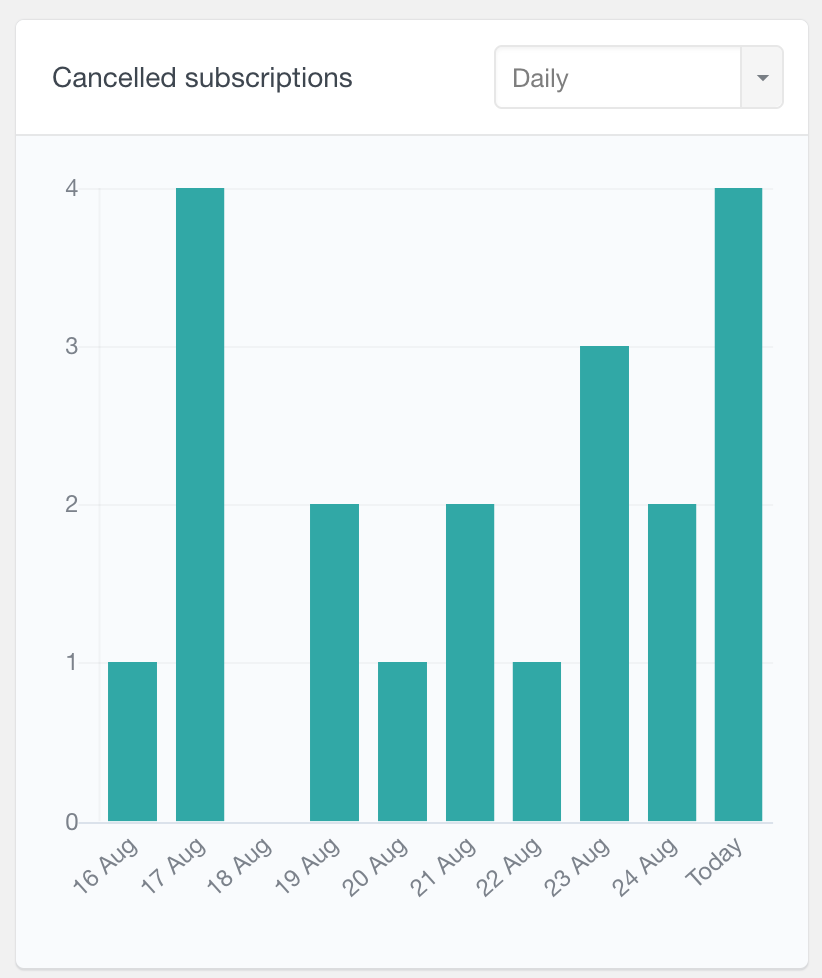
Cancelled subscriptions can include subscriptions that are still active. For example, a customer may cancel a subscription that remains available until the end of the current billing period. In this case, the subscription has a cancellation date even though it has not ended yet.
This is why the Cancelled subscriptions report and the Ended subscriptions report can show different numbers. The cancellation report records when cancellation was requested or scheduled, while the ended subscriptions report records subscriptions that have reached their end date.
WooCommerce Subscriptions data in the user table
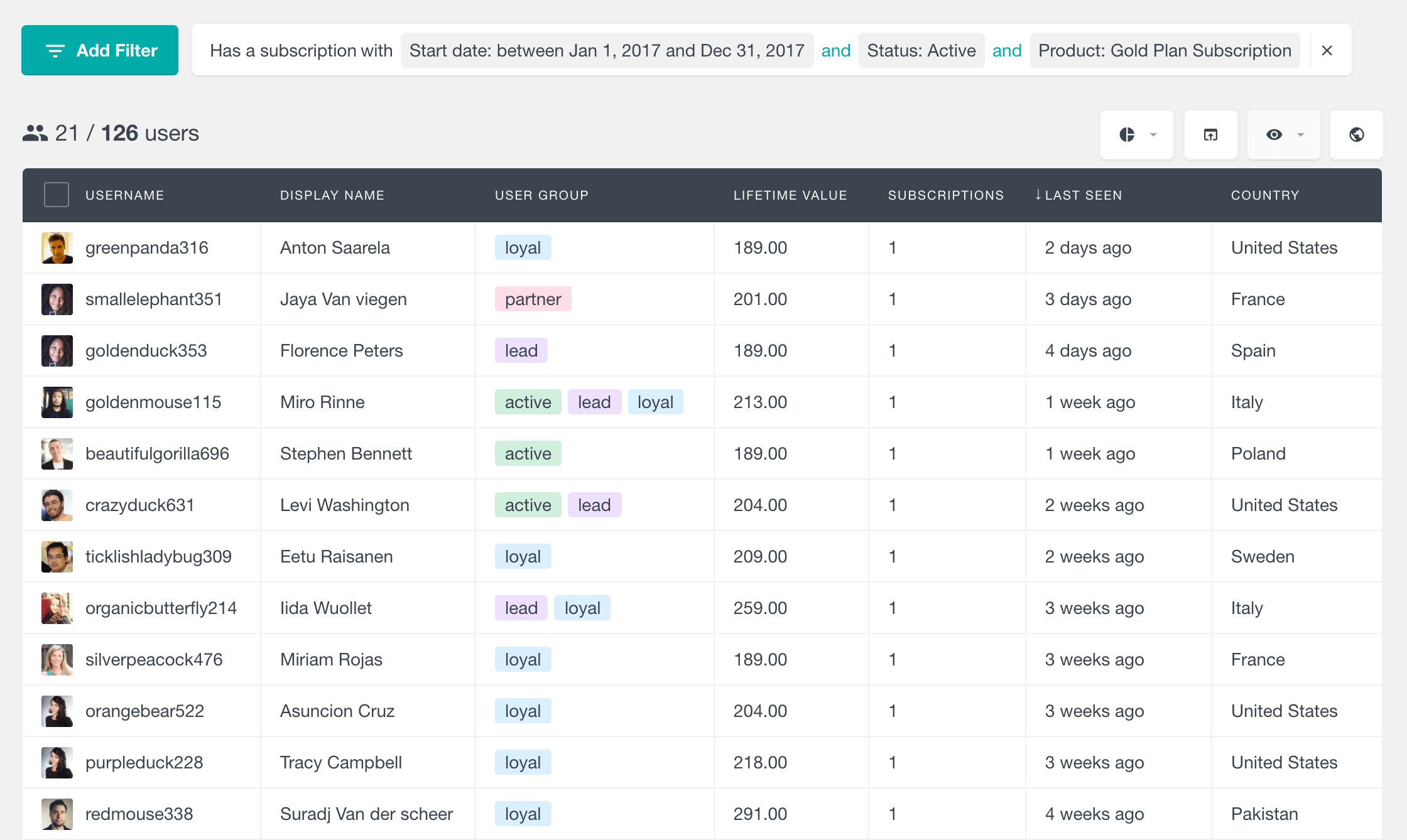
In addition to the reports, the WooCommerce Subscriptions module adds subscription information to the Users Insights user table and profiles. You can see the number and statuses of a user’s subscriptions, filter users by subscription status or product, and search by subscription start or end dates. The module also provides details such as the next payment date and lifetime value, which can be used alongside the other user data and exported when needed. To learn more, visit the WooCommerce Subscriptions page.
General WooCommerce reports
The general WooCommerce reports provide a broader view of store activity beyond subscriptions. They include reports for orders, sales, revenue, customers, products, order statuses, payment methods, coupons, and other WooCommerce data. Using these reports together with the WooCommerce Subscriptions reports can help compare subscription activity with the overall performance of the store. You can learn more on the WooCommerce Reports page.