
Users Insights brings WooCommerce sales reports, order analytics, product performance, and customer insights into your WordPress dashboard. See how your store is performing, explore the products and customers driving your results, and use advanced customer filters when you need more than a chart.
Analyze your existing WooCommerce order history without starting a new data collection period. Order-based reports include orders placed by registered customers and guests; customer-level filters and exports focus on registered WordPress users.
Plans start at $139 USD for one site. 14-day money-back guarantee.
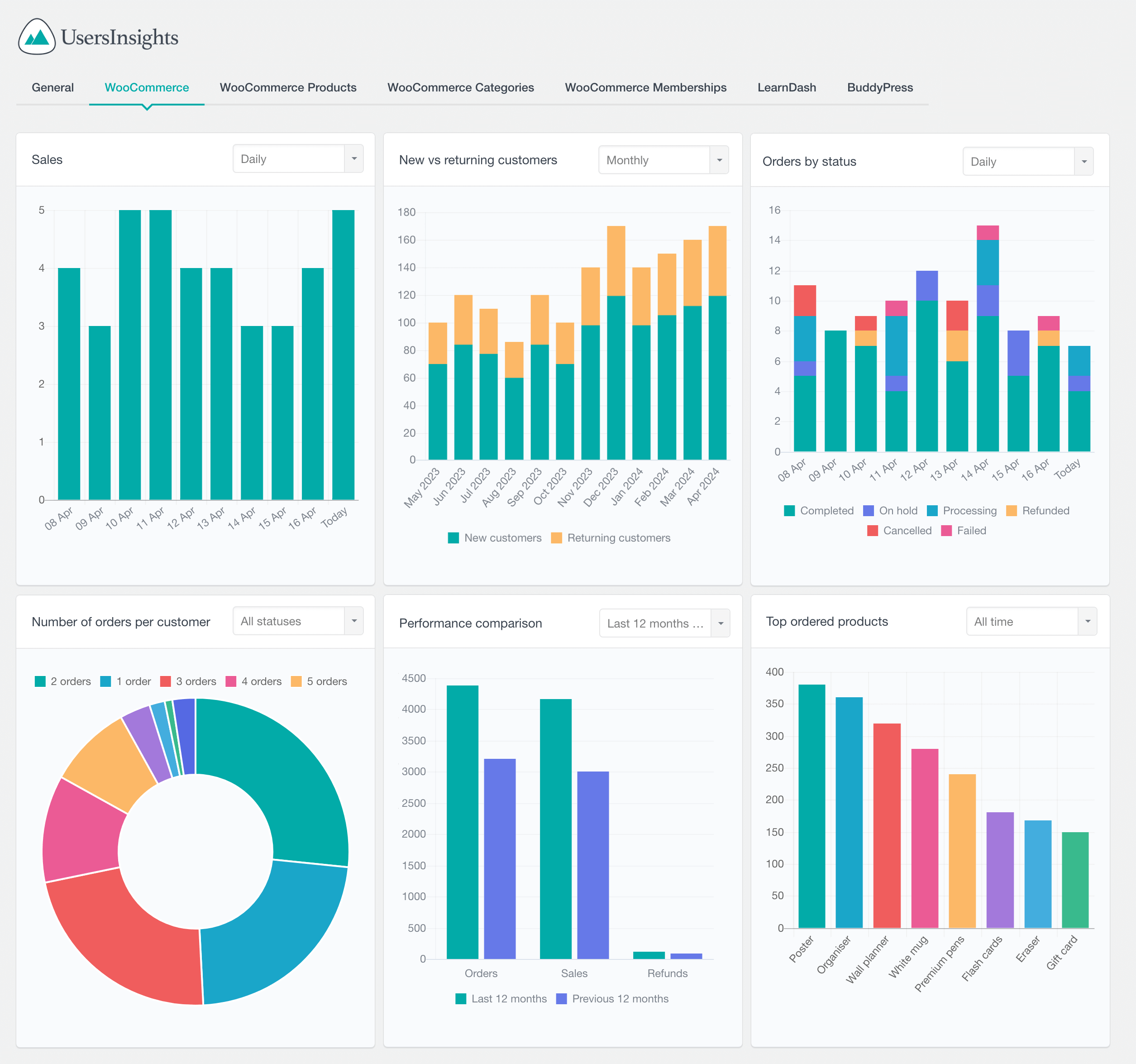
Why use Users Insights for WooCommerce reporting?
WooCommerce already includes useful analytics for sales, orders, products, and customers. Users Insights builds on that reporting with customer-level views and practical ways to act on your data—without switching to a separate analytics platform.
- See the bigger picture: review sales, revenue, order statuses, refunds, products, coupons, and customer trends in one WordPress reporting area.
- Find the people behind the numbers: explore registered customer profiles and purchase history, including orders placed and lifetime spending.
- Build useful customer lists: use Smart Filters to find customers by product purchased, order date, purchase frequency, lifetime value, or location, then export the filtered user data to CSV.
- Explore existing history: analyze WooCommerce information already stored in your WordPress database after activating the plugin.
- Investigate individual products: use dedicated product and category reports to go beyond overall store totals.
Explore the WooCommerce reports
Looking for a particular metric? Jump to the reporting area you need, or browse the examples below to see how Users Insights works.
Sales & order reports | Customer analytics | Product & category reports | Cart & marketing reports | Country, state & city reports | Customer filters & CSV exports
WooCommerce sales and order reports
Start with the numbers that tell you whether your store is improving: orders, sales totals, average order value, refunds, and changes over time. Users Insights shows these metrics in a visual WooCommerce analytics dashboard inside WordPress.
Store dashboard and key performance metrics
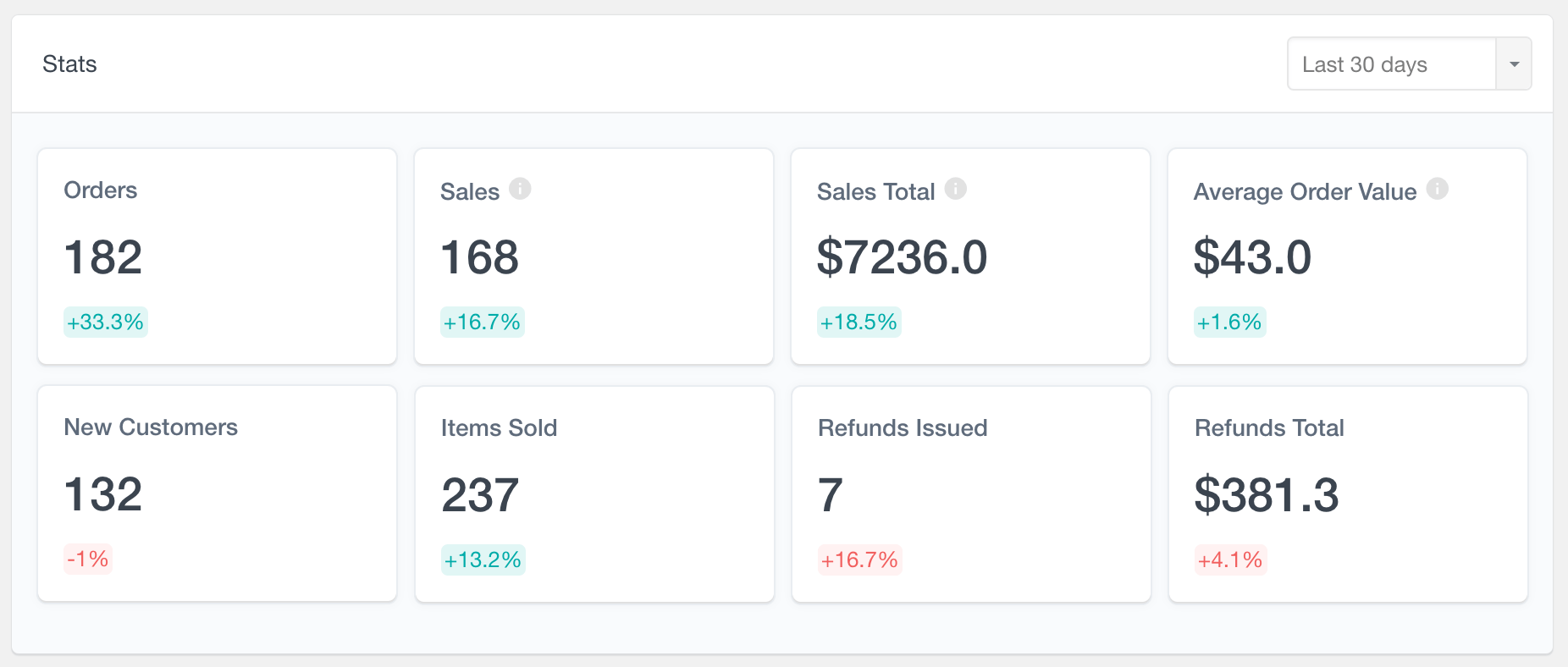
Need a quick health check before investigating individual reports? The Stats dashboard shows your key figures for a selected period and their change compared with the previous period.
- Orders: total orders placed.
- Sales: orders with Completed, Processing, or On Hold status.
- Sales Total: total value of orders counted as sales; partial refunds are not deducted.
- Average Order Value: average value of qualifying sales orders; partial refunds are not deducted.
- New Customers: customers making their first purchase.
- Items Sold: total items sold.
- Refunds Issued: refunds issued in the selected period, potentially for orders from earlier periods.
- Refunds Total: value of refunds issued during that period.
Choose a preset such as the last 30 days or six months, or select your own date range.
WooCommerce sales report: spot trends and slowdowns
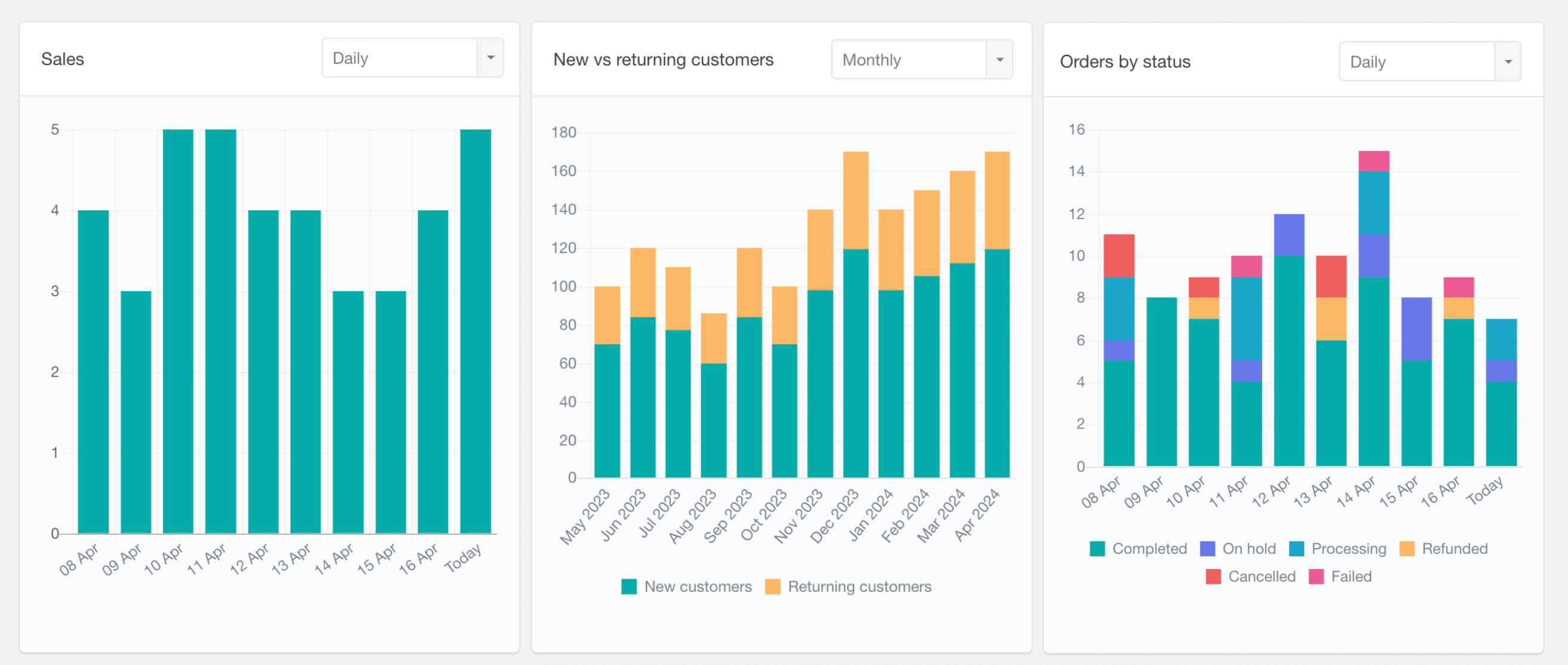
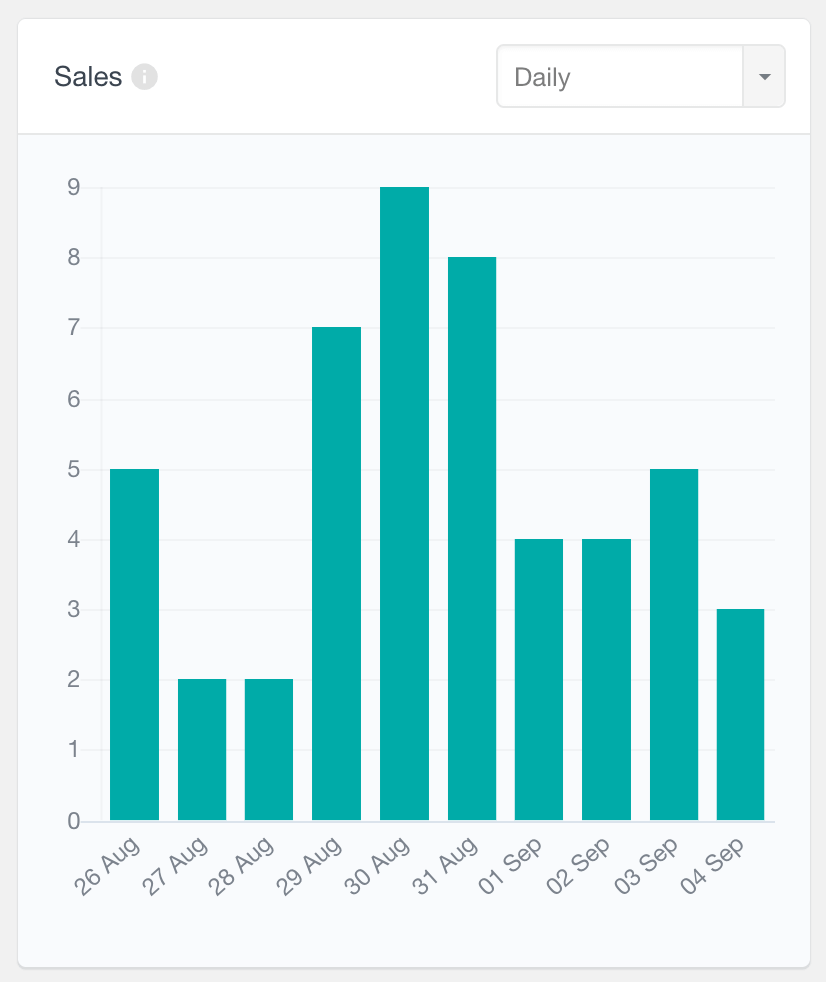
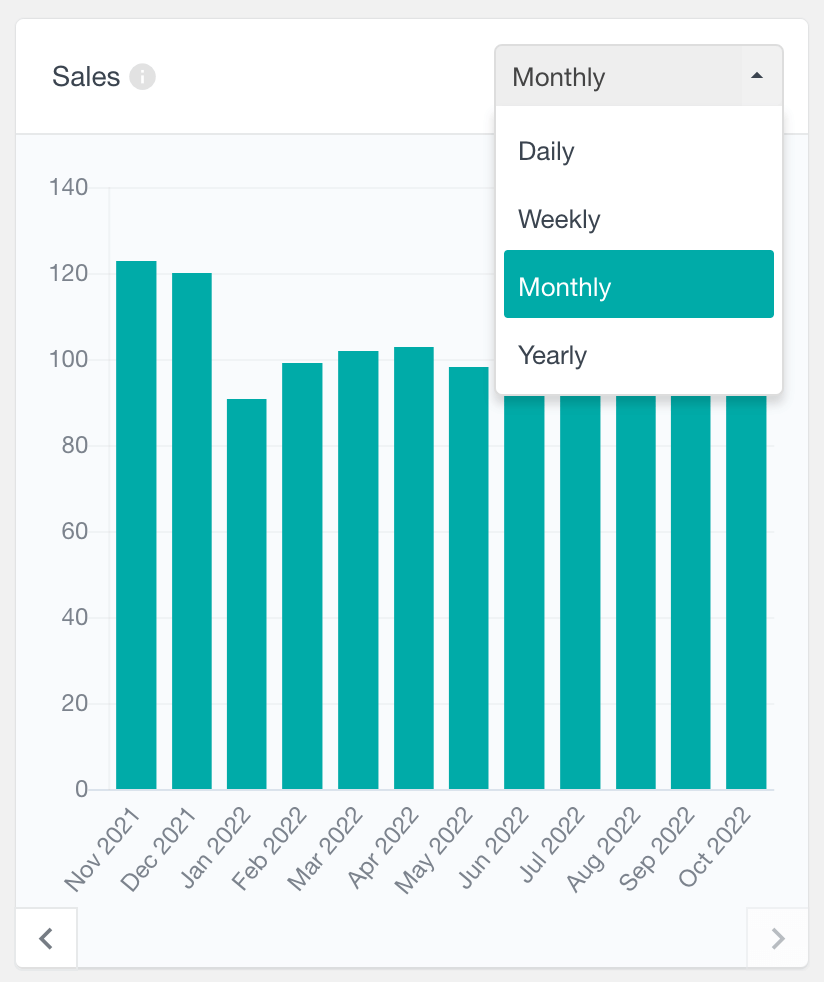
Are orders rising, declining, or following a seasonal pattern? The Sales report tracks the number of qualifying sales over days, weeks, months, or years. Use it to examine sales after a promotion, identify an unexpected slowdown, or compare activity in different seasons.
The sales count includes orders with Completed, Processing, or On Hold status; cancelled and failed orders are not counted as sales. Navigate backward to analyze earlier periods.
WooCommerce sales total report: follow revenue over time
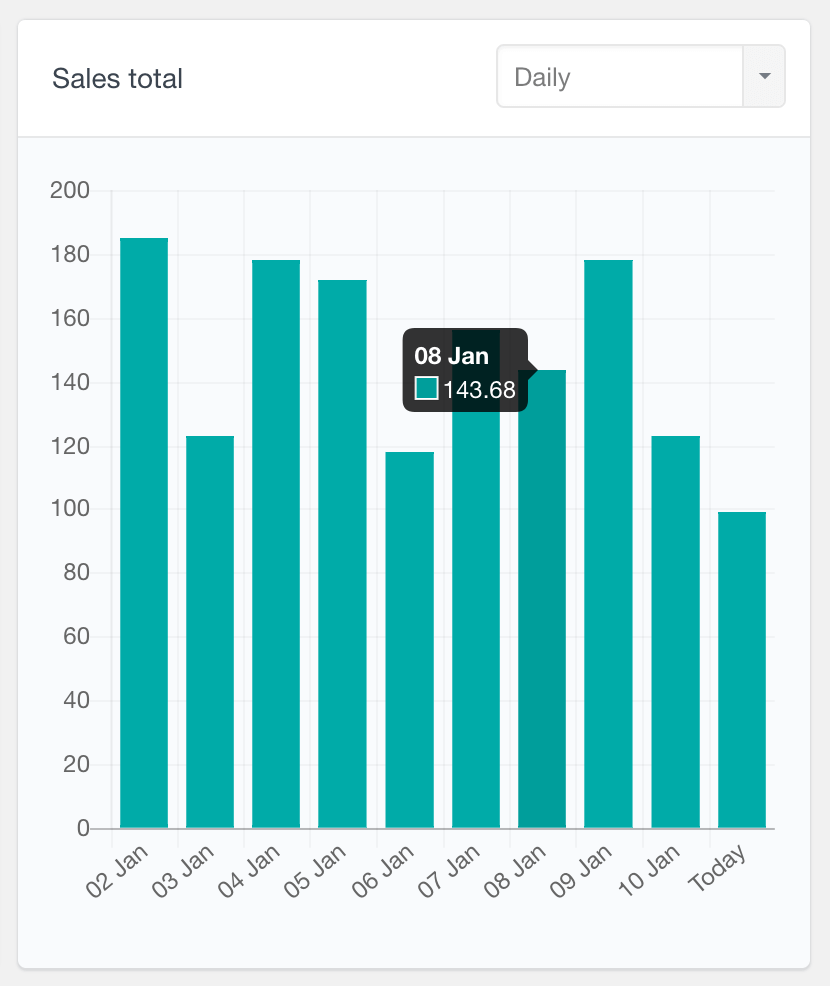
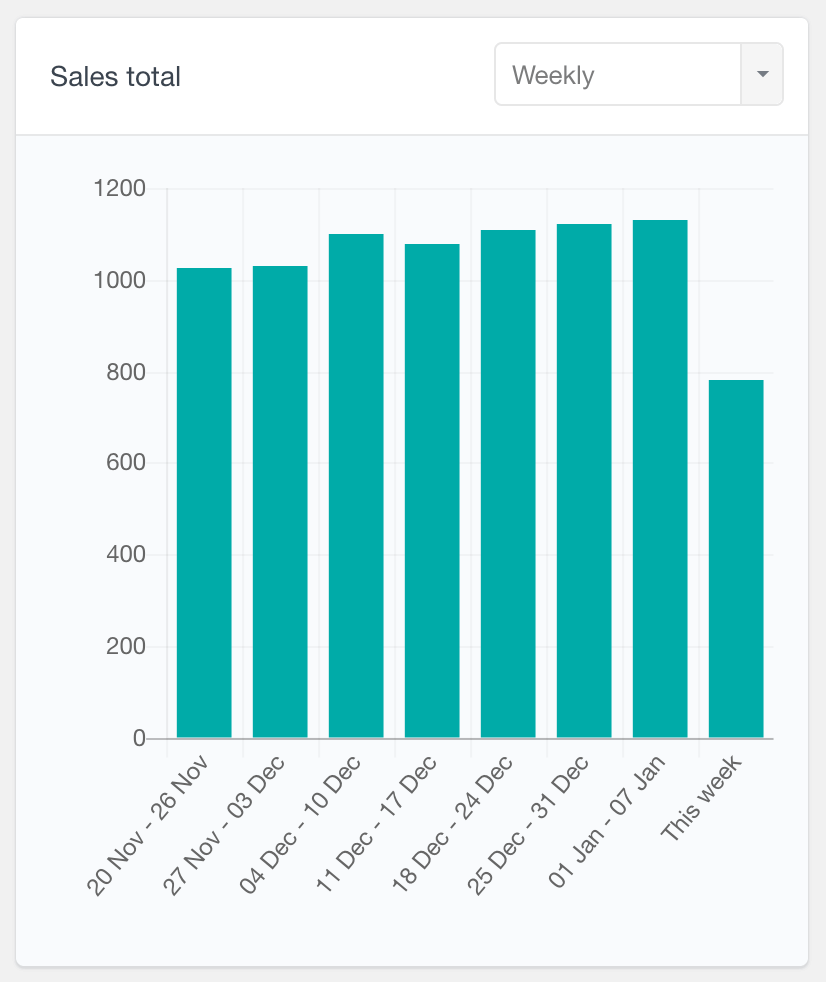
Order counts tell you how often customers buy. Sales totals show the value of those orders. Track the combined value of Completed, Processing, and On Hold orders by day, week, month, or year to see whether revenue trends follow order volume.
Metric note: this is a form of gross sales based on qualifying order totals; partial refunds are not deducted. It should not be mistaken for WooCommerce net sales or profit.
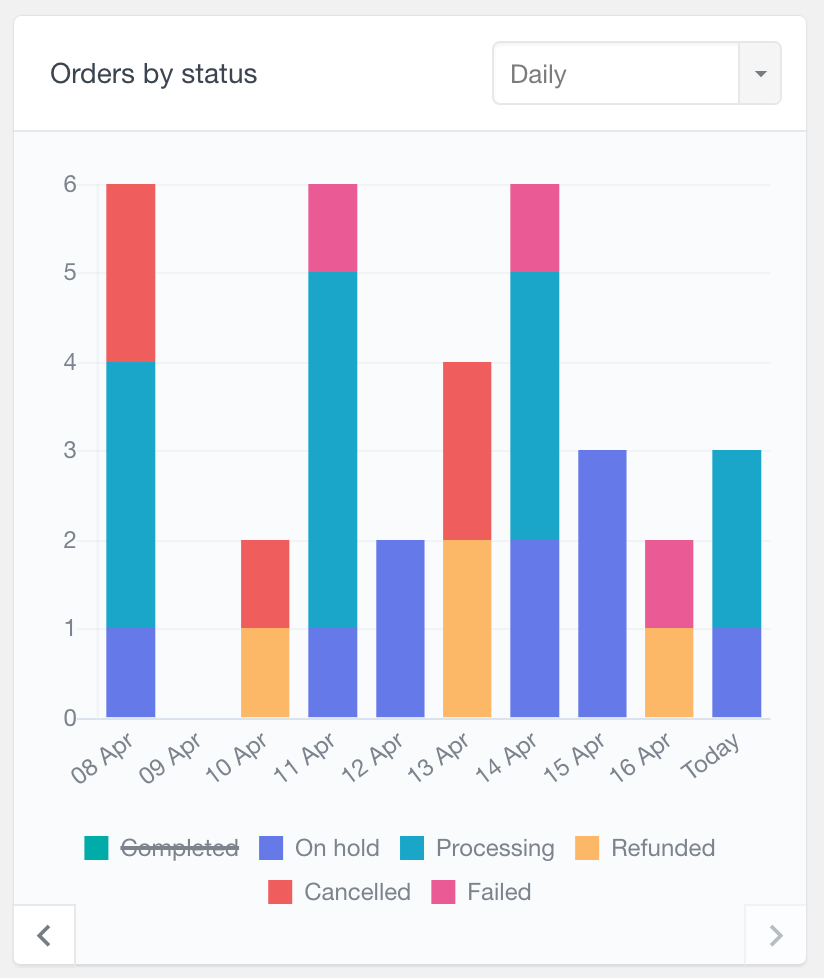
Orders by status: find changes in failed, refunded, and on-hold orders
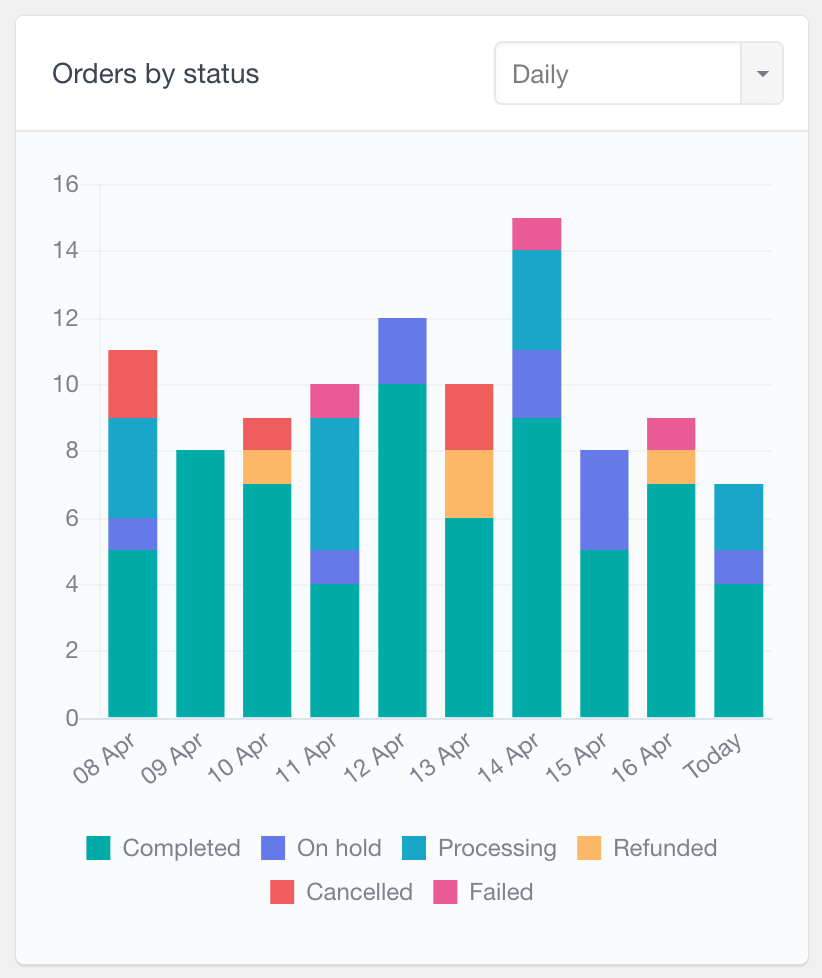
Not every order turns into a completed sale. The Orders by Status report uses a stacked bar chart to show how statuses change over time. View Completed, Processing, On Hold, Cancelled, Failed, and Refunded orders together, then toggle individual statuses to investigate a particular trend.
For example, an increase in failed orders after a checkout change is a reason to investigate payment and checkout issues.
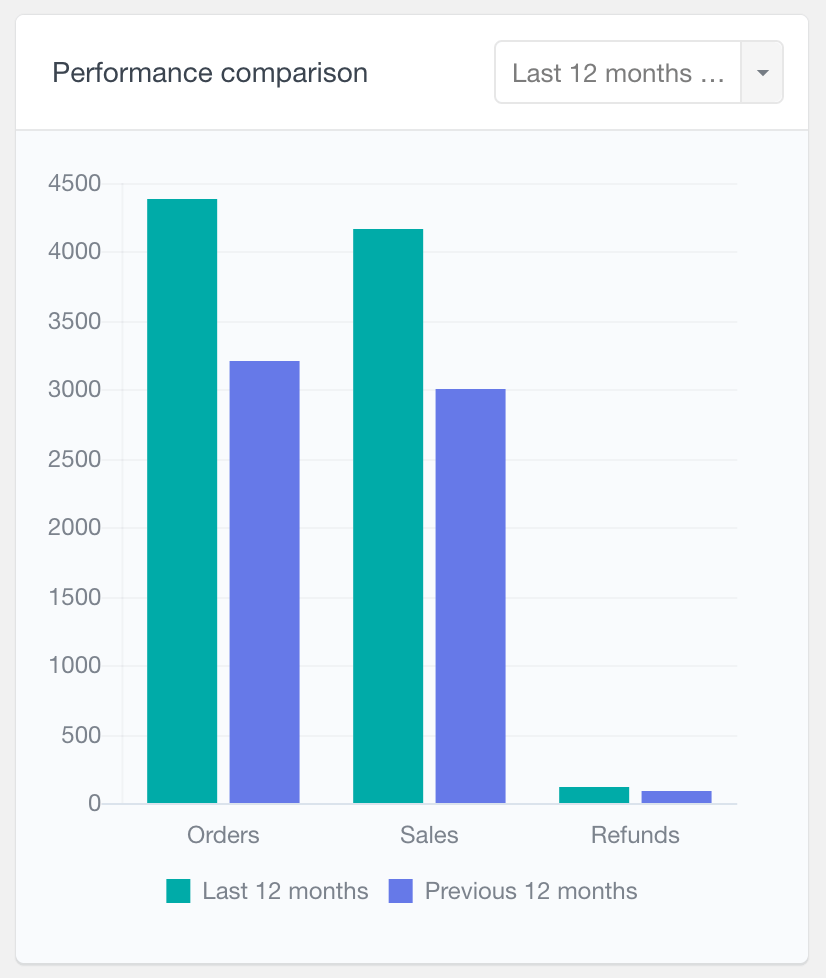
Performance comparison: see how this period compares with the previous one
Is your store actually improving compared with the previous period? The Performance Comparison report puts orders, sales, and refunds side by side for the last 7 days, 30 days, 6 months, or 12 months versus the matching previous period. Hover over the chart for the underlying values.
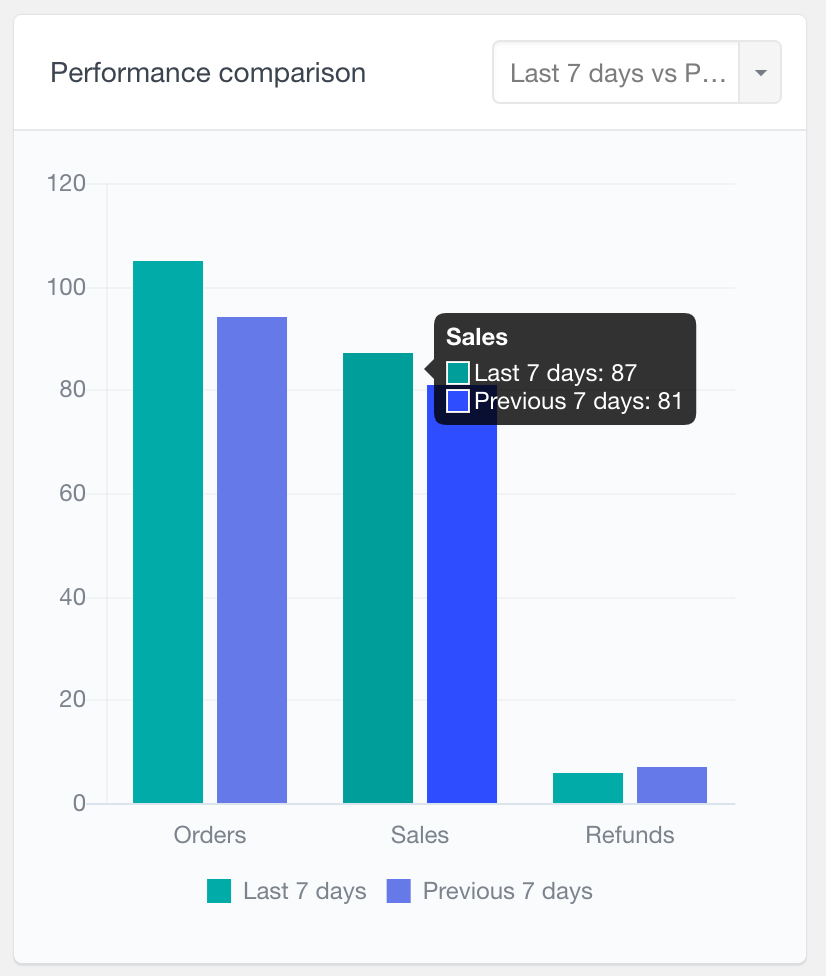
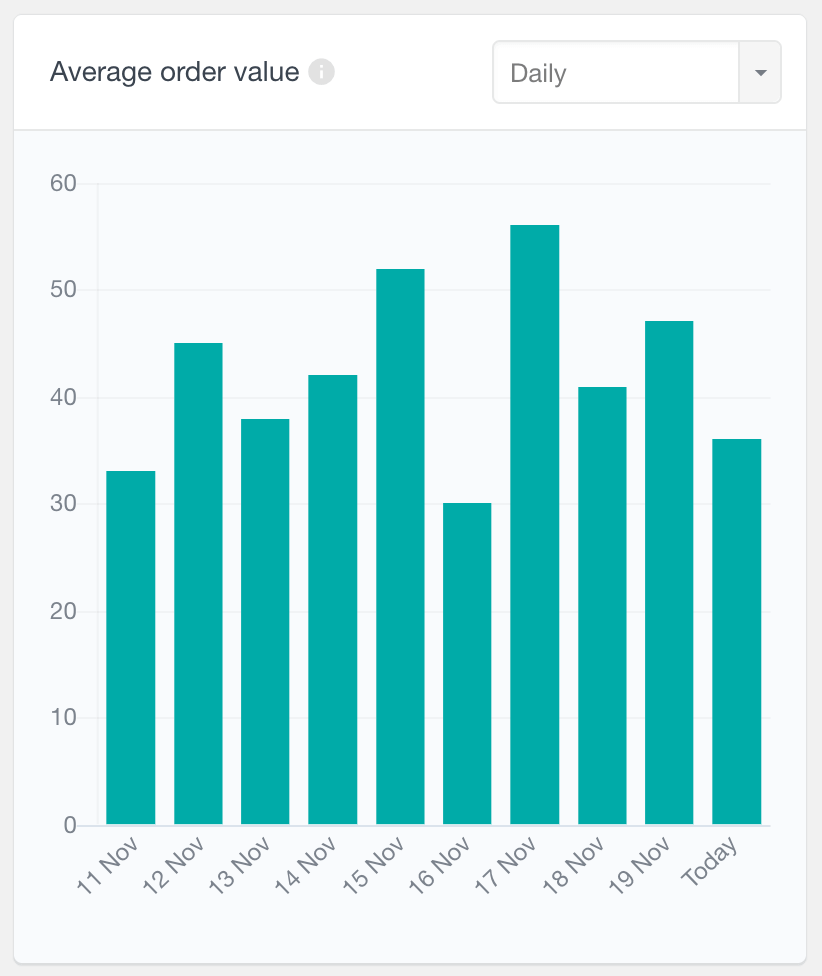
Average order value: see whether customers are spending more per order
Higher order volume doesn’t always mean larger purchases. The Average Order Value report helps you check whether customers are spending more or less per qualifying order over time. Explore changes after introducing bundles, discounts, or new products.
The report divides the total value of qualifying sales orders by their number and does not deduct partial refunds.
Cost of goods sold: monitor recorded product costs
If WooCommerce’s Cost of Goods Sold feature is enabled, Users Insights can show recorded COGS over time for qualifying sales orders. This is useful for keeping an eye on product-cost trends alongside sales activity.
Requirement: the underlying WooCommerce COGS feature must be enabled and product cost values must exist. The report covers relevant orders after those values were entered; it is not a complete profit-and-loss statement.

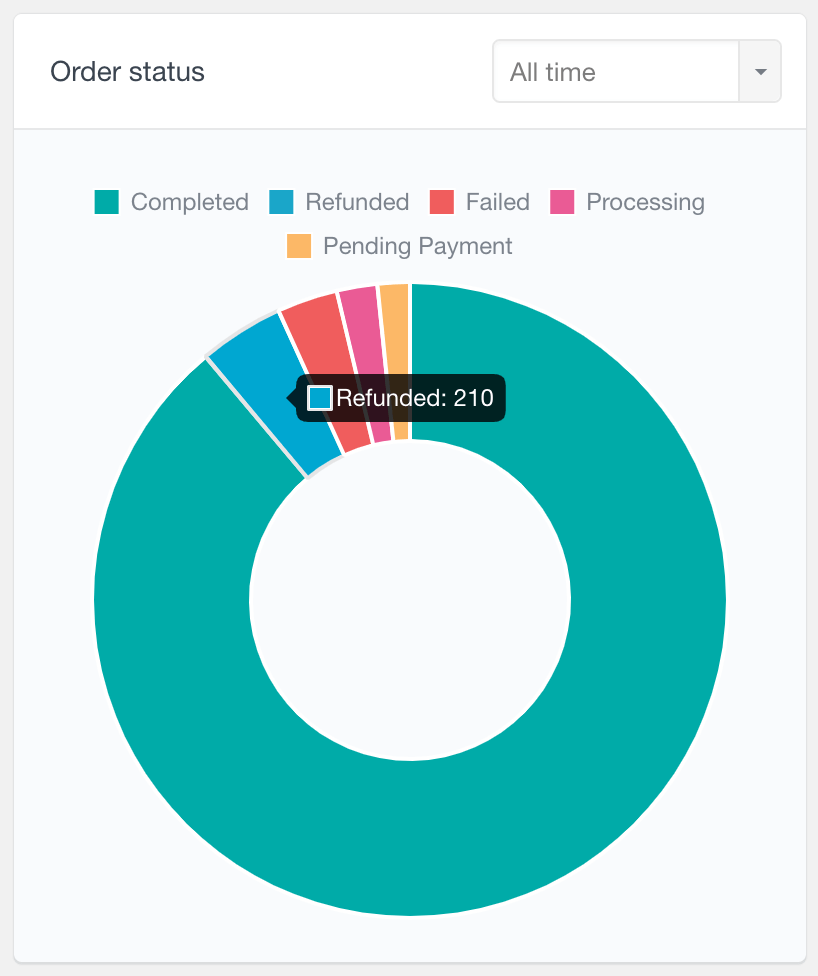
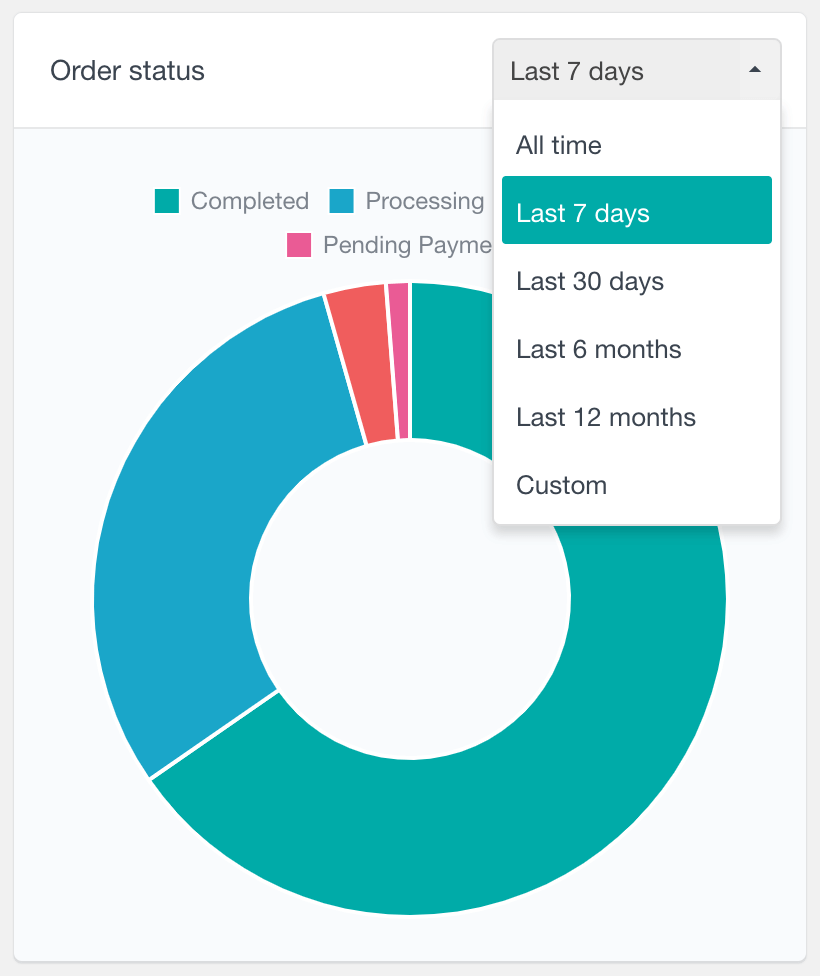
Order status breakdown: see the share of each status
The Order Status report complements the timeline above with a simple breakdown of orders by status. Check the proportion of refunded, failed, cancelled, or on-hold orders in a chosen date range to decide which parts of your order flow warrant closer attention.
Items per order: understand typical basket size
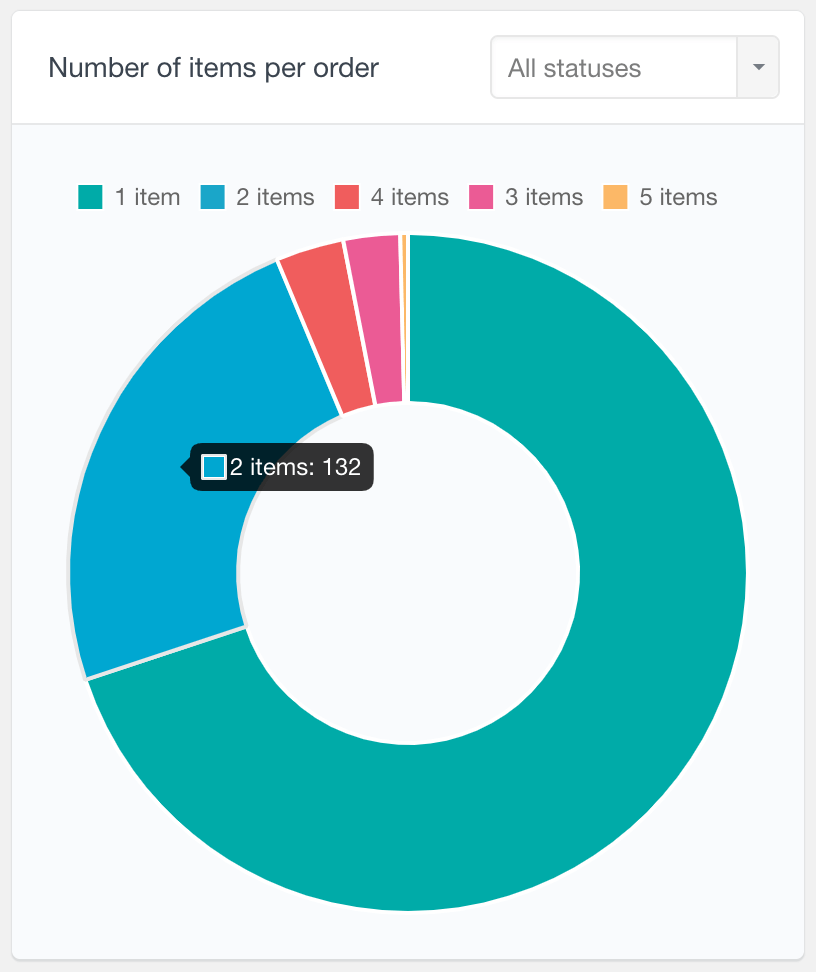
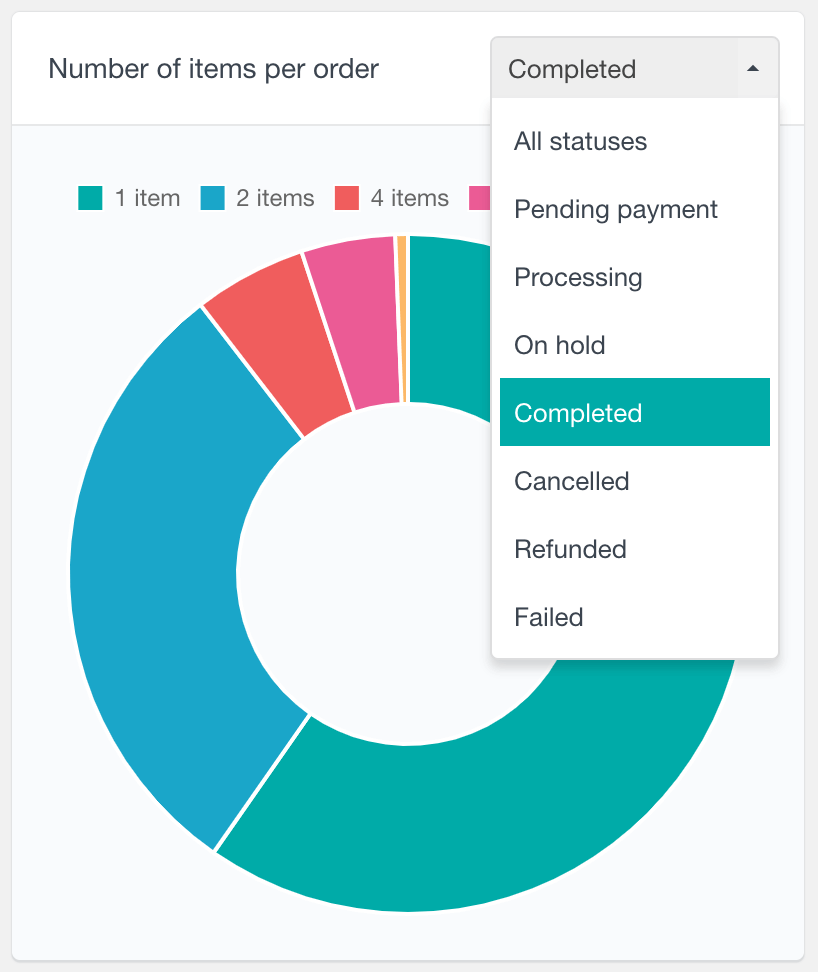
Do customers usually purchase one item or several? The Number of Items per Order report displays the distribution of item quantities per order. You can filter by order status and use the result to investigate basket composition, product bundling, or changes in purchase habits.
WooCommerce customer analytics and repeat purchases
Sales reports show what happened. Customer reports help explain whether your store is attracting new buyers or generating repeat business. Users Insights combines aggregate customer reporting with registered customer data, filters, and individual profiles.
New vs returning customers: are shoppers coming back?
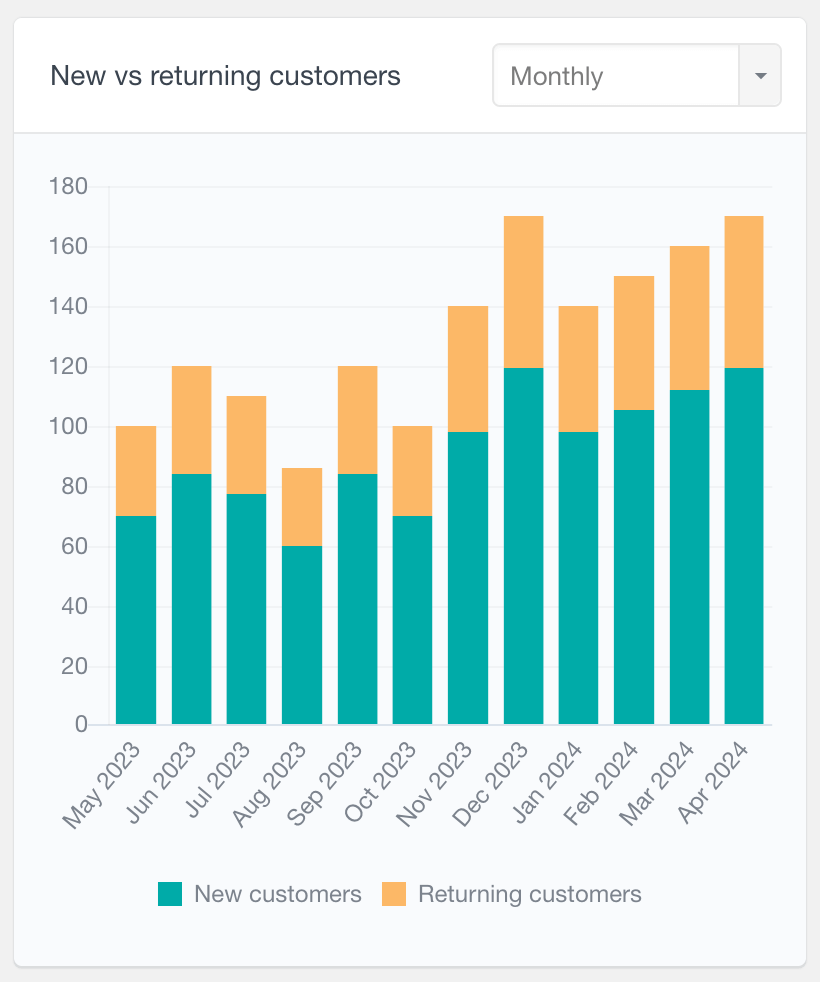
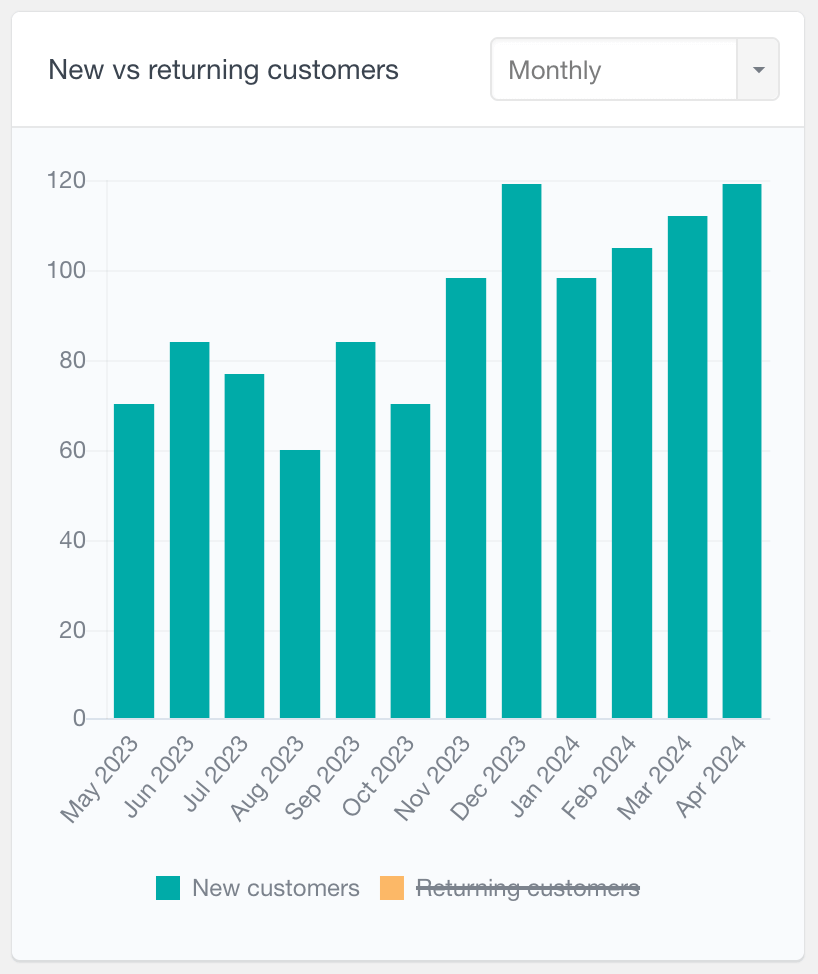
A store can grow its order volume while becoming increasingly dependent on new customers. The New vs Returning Customers report separates first-time buyers from returning buyers, helping you monitor the balance of acquisition and repeat purchasing across days, weeks, months, or years.
Toggle a category in the chart legend to focus on one group. In this report, a new customer is someone placing their first order in the selected period.
Number of orders per customer: see how many customers buy again
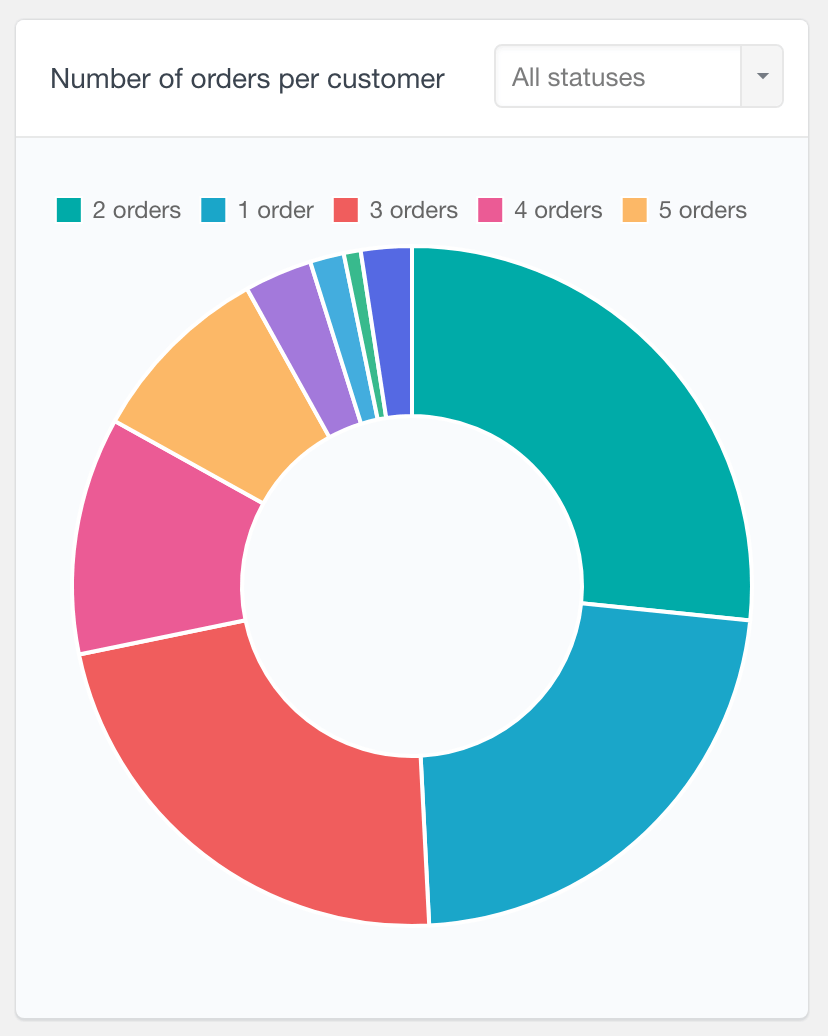
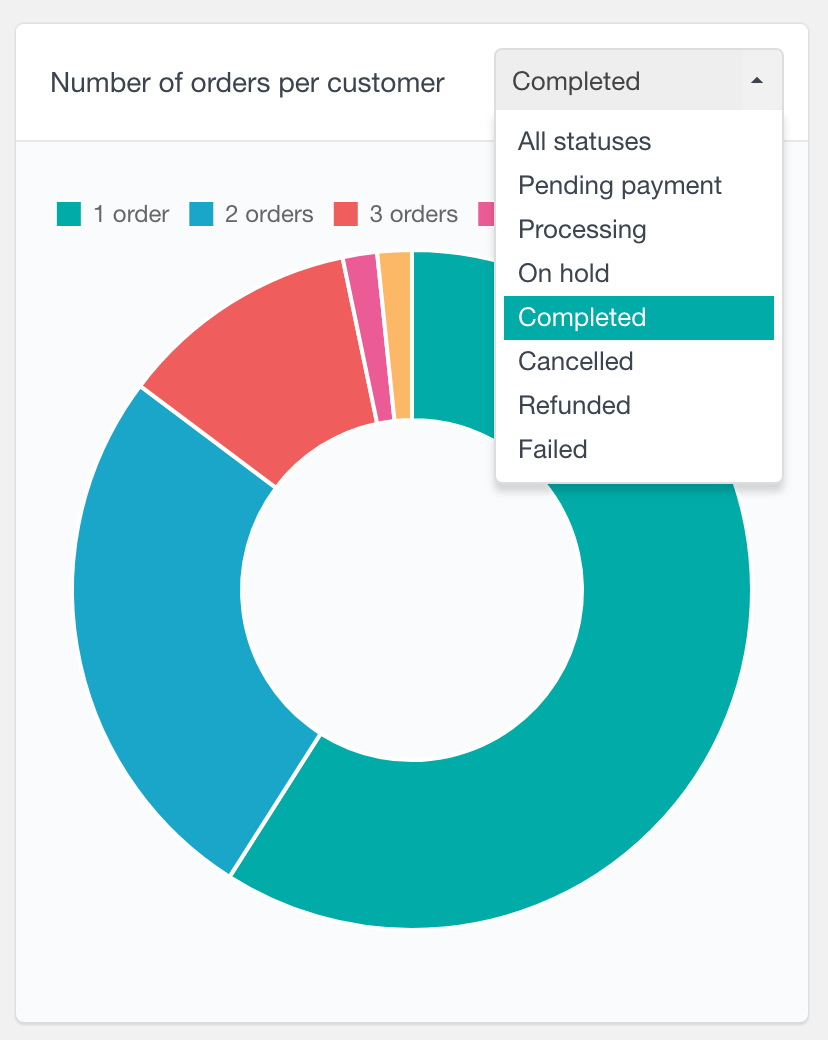
How many customers have placed only one order, and how many have placed two, three, or more? The Number of Orders per Customer chart displays that distribution, making it easier to understand repeat-purchase behavior at a glance.
Filter by order status—for example, Completed—to focus the breakdown on orders that match your chosen status.
Want to identify the actual customers behind the pattern? Users Insights’ WooCommerce customer table lets you filter registered customers by order count, last order date, lifetime value, and more, then inspect their individual histories.
WooCommerce product and category reports
Overall sales can hide big differences between products. Users Insights provides store-wide product rankings and dedicated reports for individual products and categories, so you can explore what sells, what gets refunded, and how different products perform.
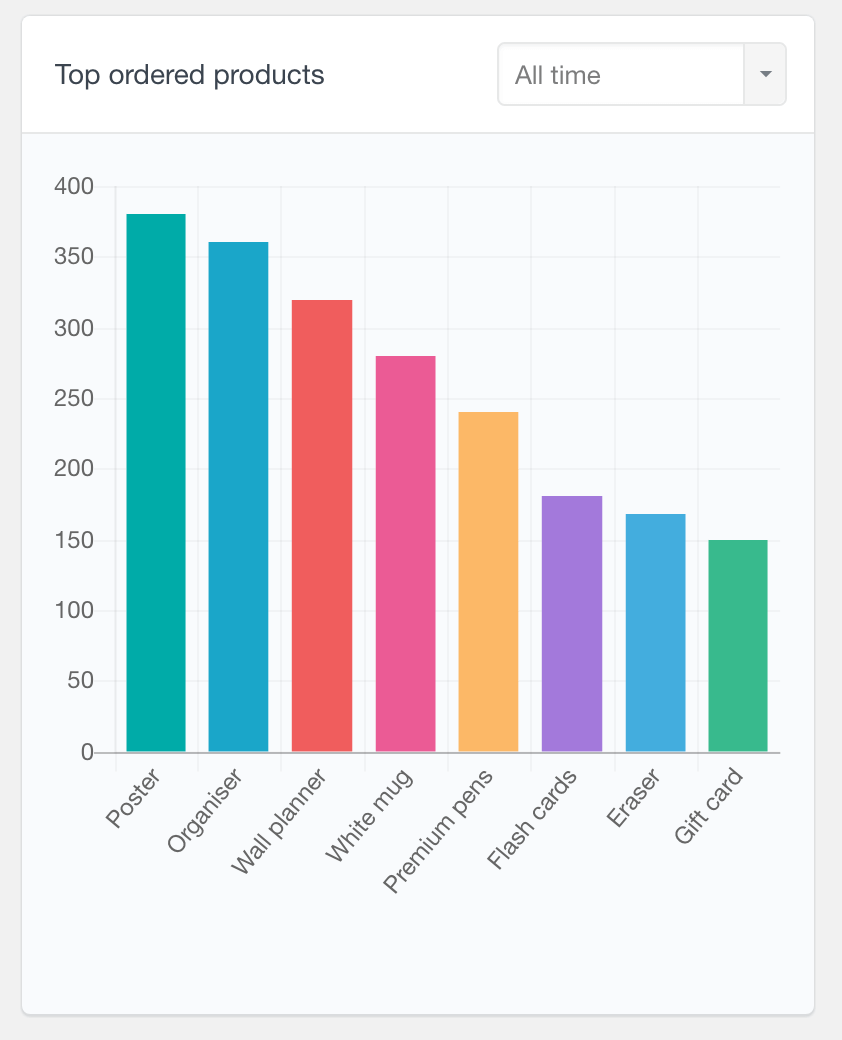
Top ordered products: find your best sellers
See which products appear in the greatest number of orders during a chosen period. Use the Top Ordered Products report to review best sellers, check whether a promotion changed product demand, or identify the products worth exploring in more detail.
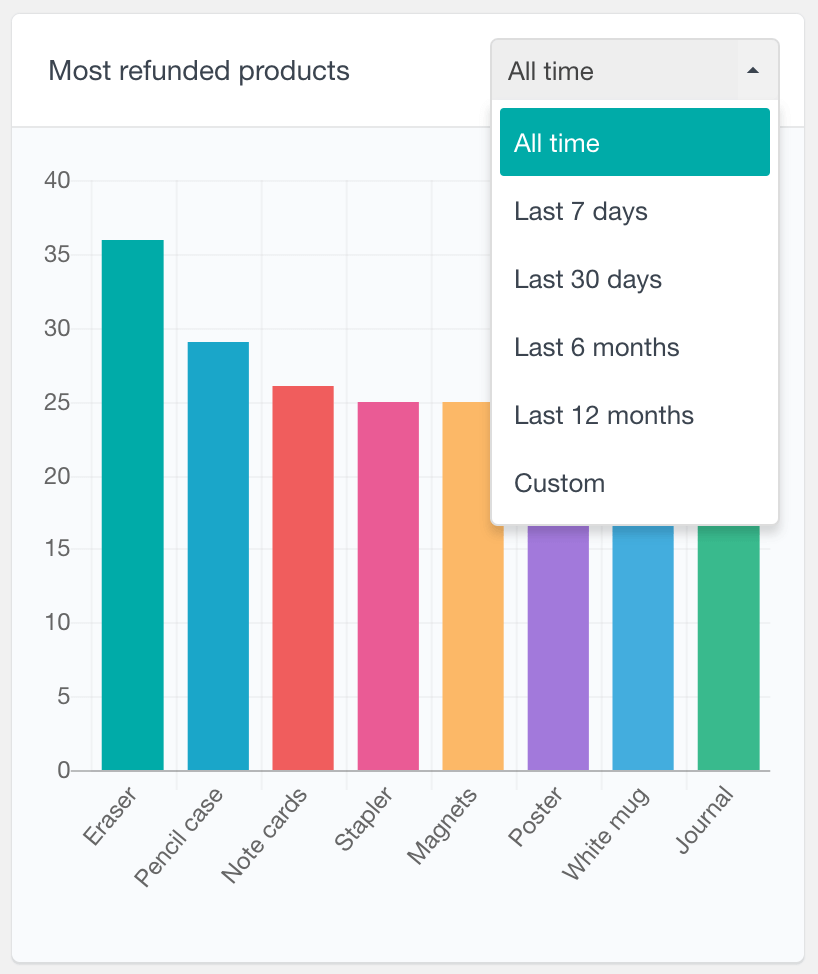
The ranking counts orders containing each product, not the number of individual units sold. You can choose common time periods or set a custom date range.
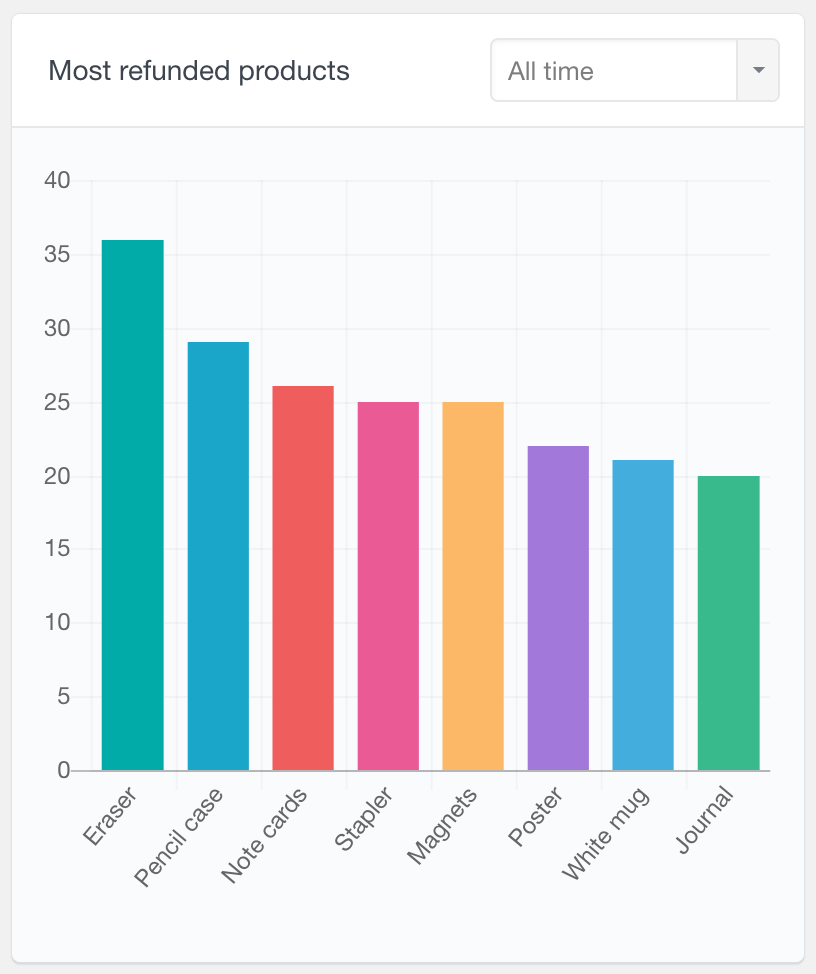
Most refunded products: find products worth investigating
Some products may appear in refunded orders more often than others. The Most Refunded Products report helps you identify items worth reviewing for possible sizing, quality, description, or customer-expectation issues.
Compare the ranking with Top Ordered Products over the same period for context. The measure counts orders containing each refunded product, not refunded units or refund amounts, so a high count alone does not establish a high refund rate.
Individual product sales, variations, and frequently bought together
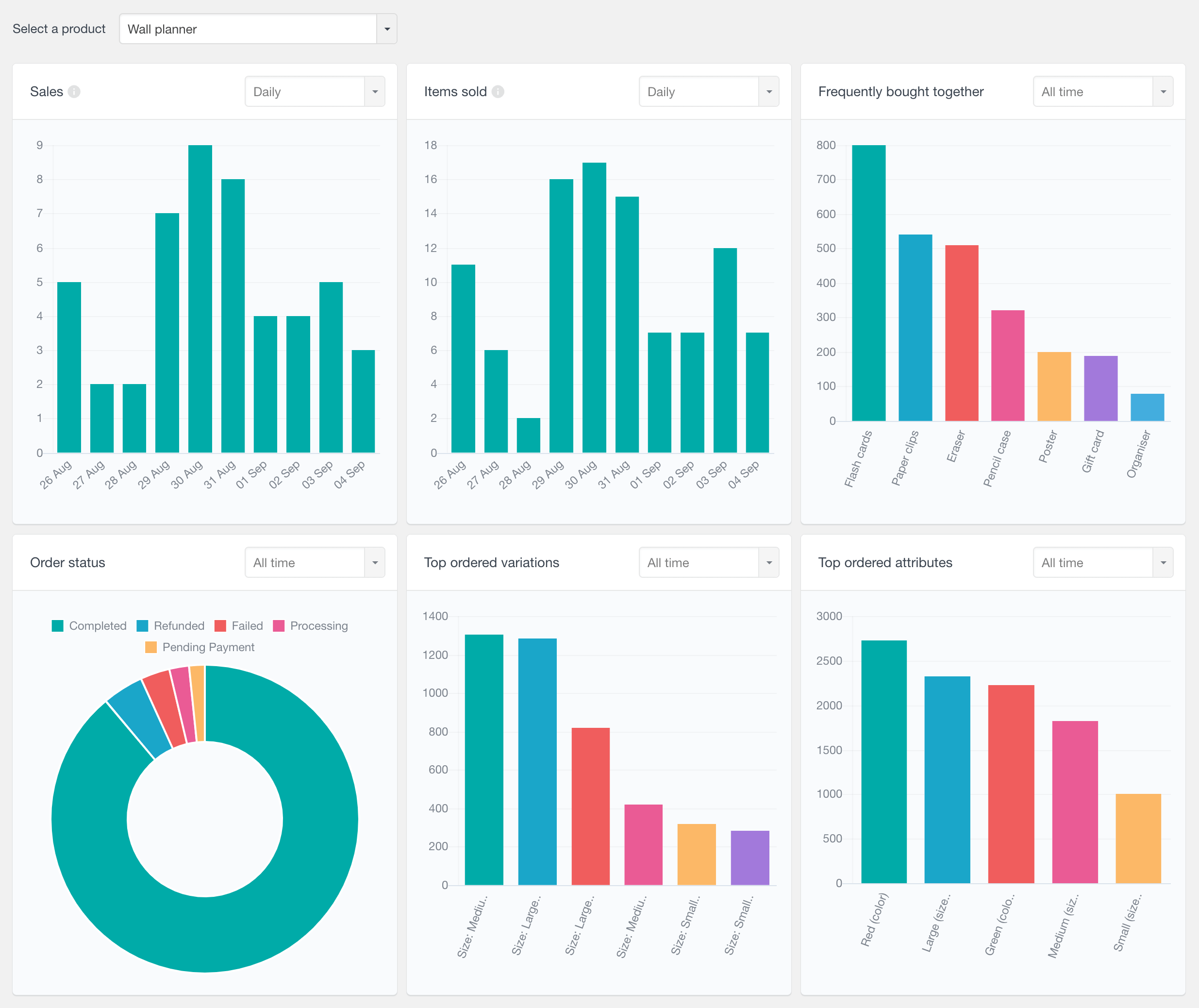
Need to understand one particular product rather than the entire catalog? The dedicated WooCommerce Product Sales Reports area lets you select a product and investigate:
- Sales and order statuses for the selected product.
- Items sold and the total value of those items.
- Performance compared with the previous period.
- Frequently bought-together products.
- Top ordered variations and attributes for variable products.
This is particularly useful when deciding which variants to stock, which products to cross-sell, or which individual item needs attention.
WooCommerce product category sales reports
Product categories deserve their own analysis. In the WooCommerce Product Category Reports area, choose a category to review sales, items sold, order statuses, sales value, and the most ordered products in that category.
Use category-level reporting to see whether changes in overall store performance are concentrated in a particular product group.
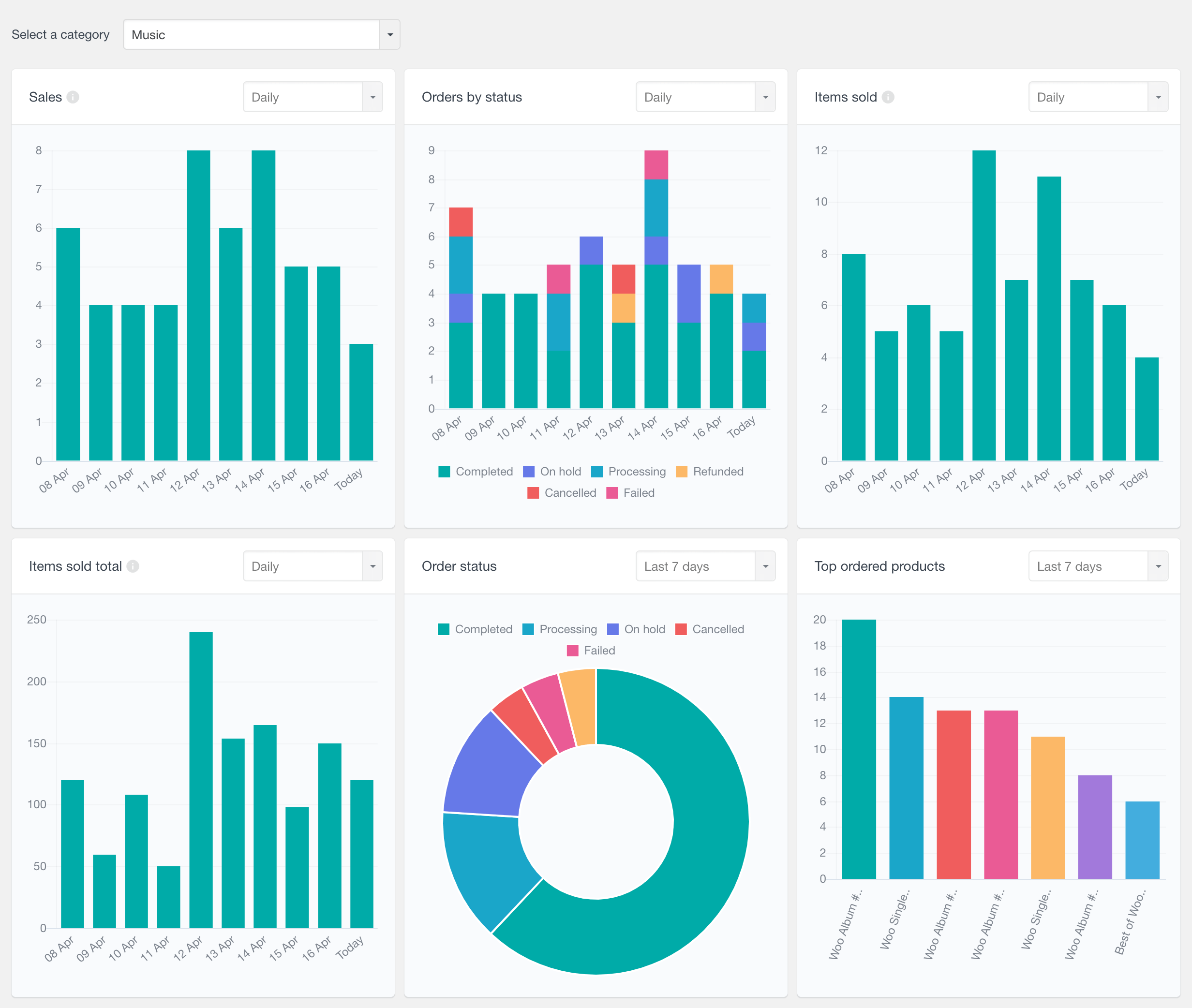
Explore more than store-wide totals. Users Insights combines sales charts with product reporting, customer histories, and filters for registered customers.
Cart, coupon, payment, and marketing reports
Sales results depend on more than product demand. These reports help you investigate abandoned carts, order origins, discount-code use, and customers’ preferred payment methods.
Abandoned carts: monitor missed purchases from logged-in customers
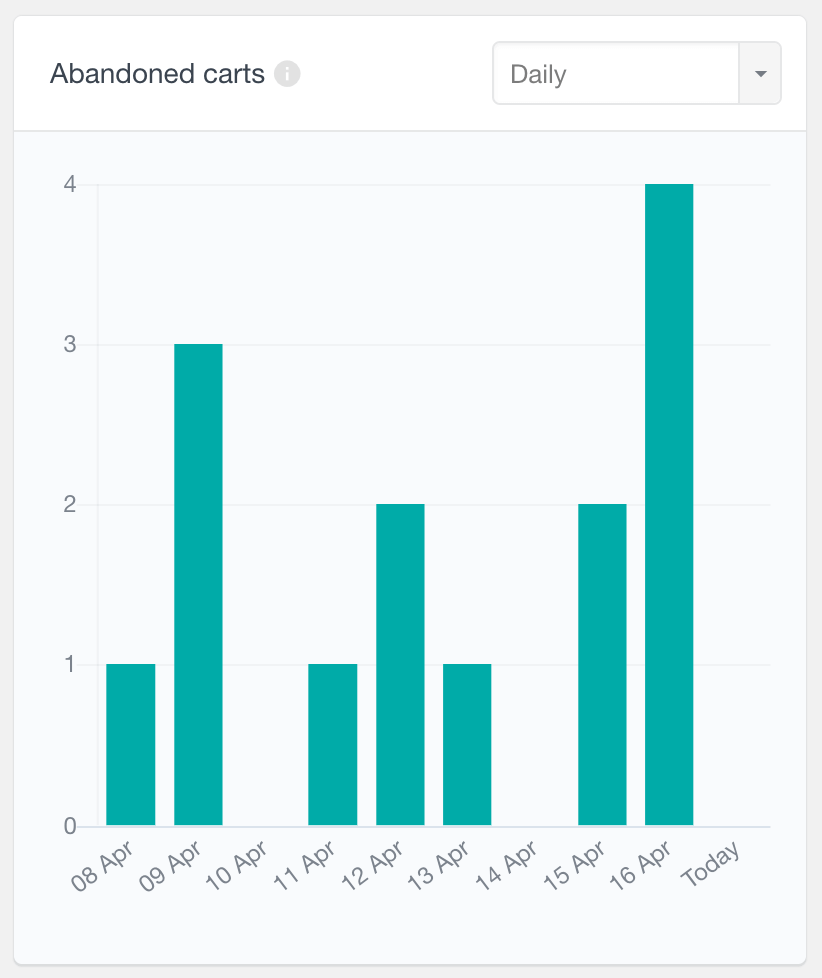
See how the number of abandoned carts changes over days, weeks, months, and years. The Abandoned Carts report can help reveal periods when cart abandonment increases, prompting a closer look at checkout, payment methods, or store changes.
Scope: this report tracks abandoned carts from logged-in users and requires WooCommerce persistent carts. It does not include guest cart abandonment or automatically send recovery emails.
Order origins: learn where tracked orders come from
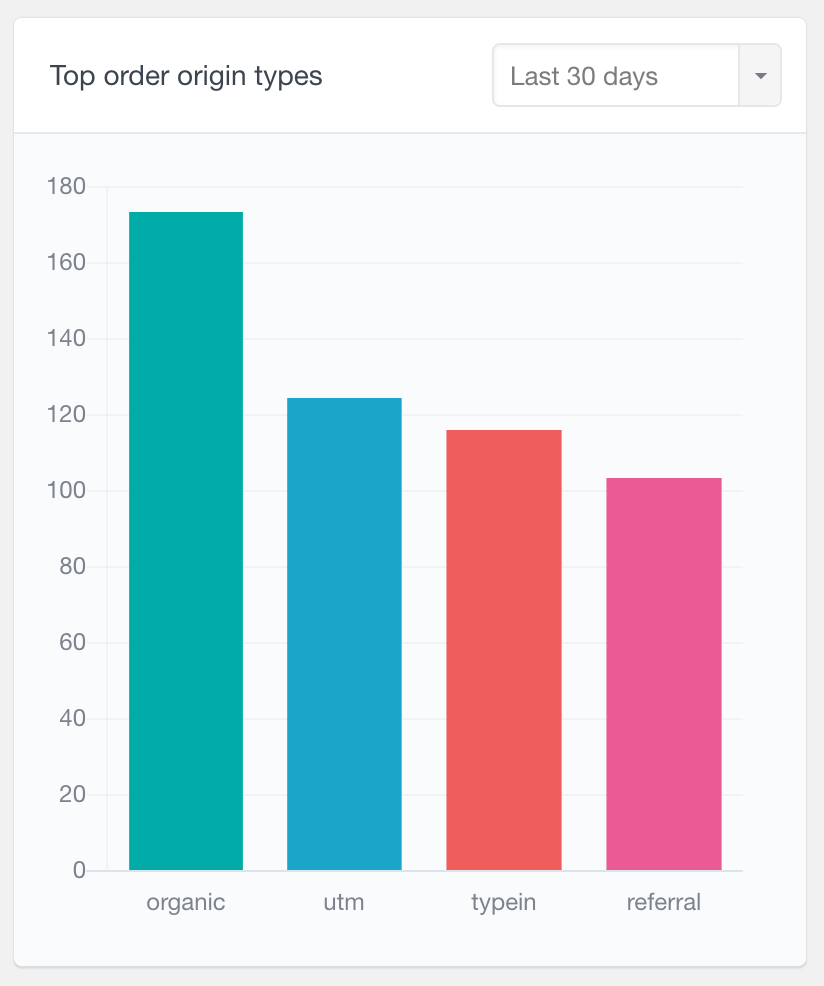
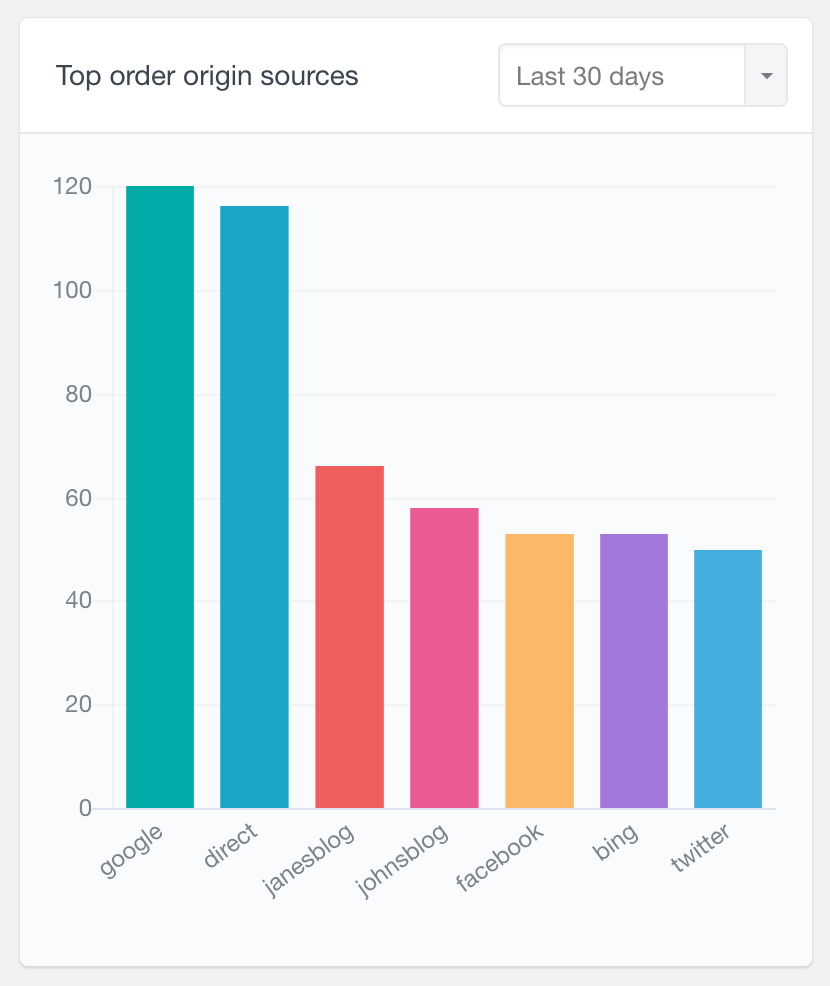
Which channels are associated with your store’s orders? Top Order Origin Types and Top Order Origin Sources summarize the attribution information saved with WooCommerce orders, including categories such as direct, organic, and referral, and source details where available.
Use the reports to compare attributed order activity and identify marketing sources worth exploring further. These are based on WooCommerce’s recorded attribution data, not an end-to-end multi-touch attribution system.
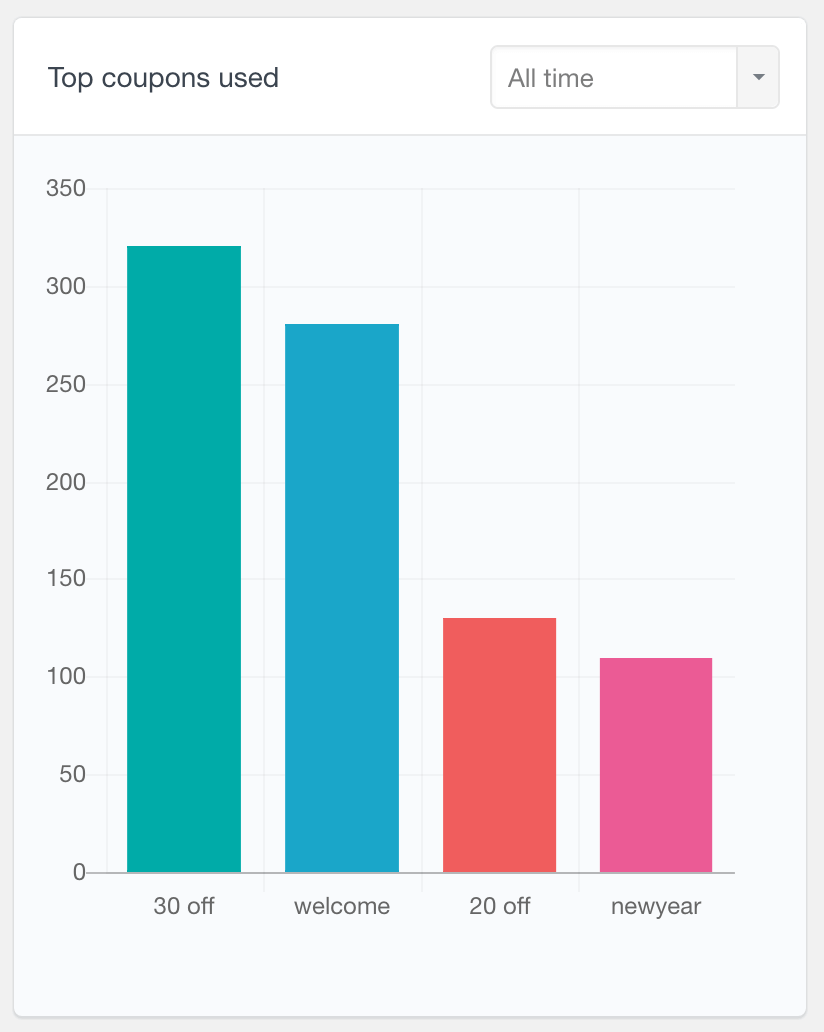
Coupons used: see which discount codes are most popular
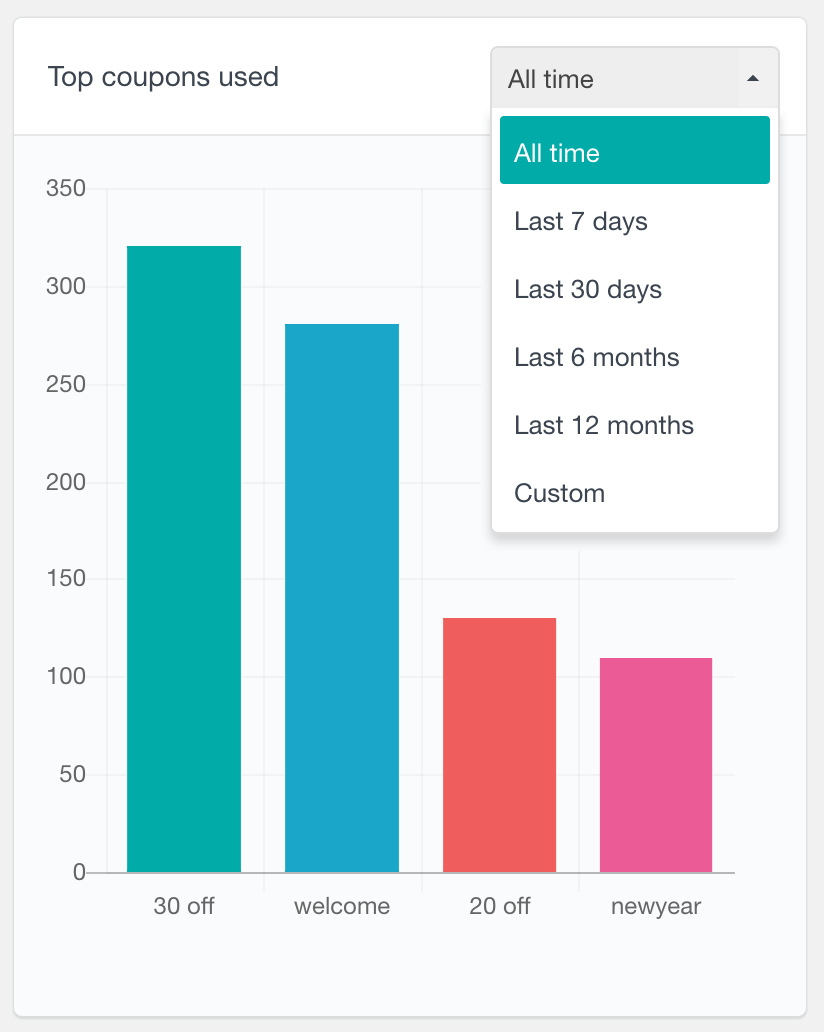
Find the coupon codes that customers use most often and examine how usage changes during a promotion. The Top Coupons Used report supports all-time and date-filtered views.
If you need to find registered customers who used a particular code, the WooCommerce Has Used Coupon customer filter provides that additional customer-level view.
Payment methods used: understand checkout preferences
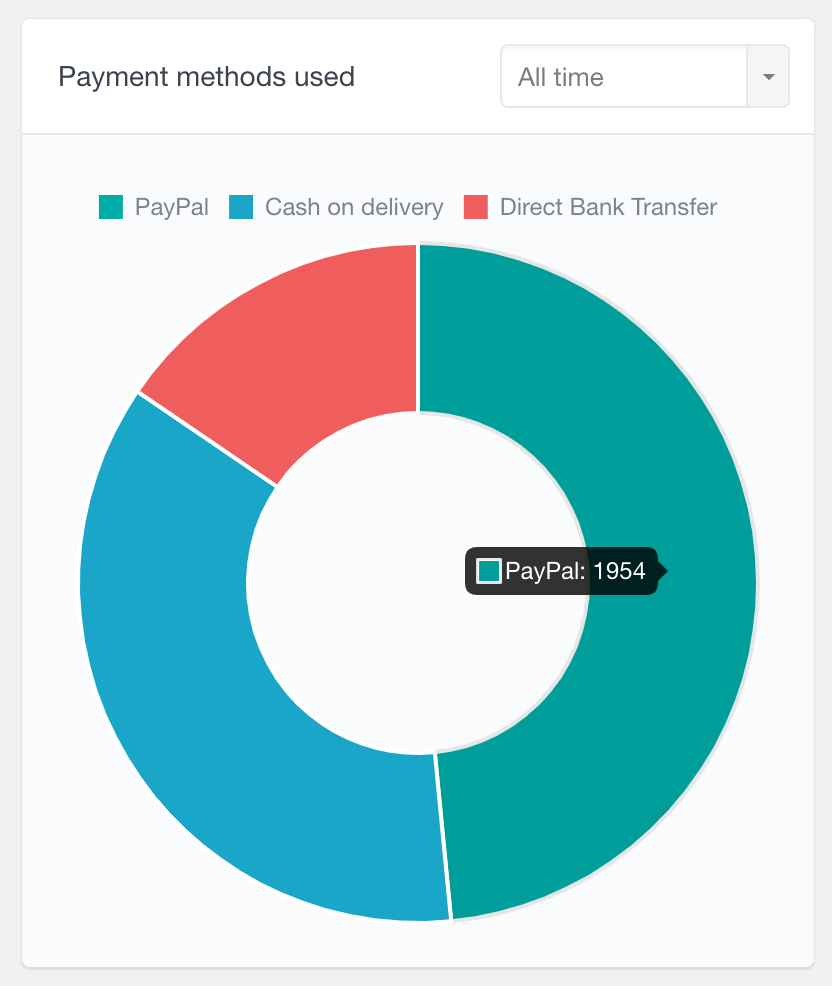
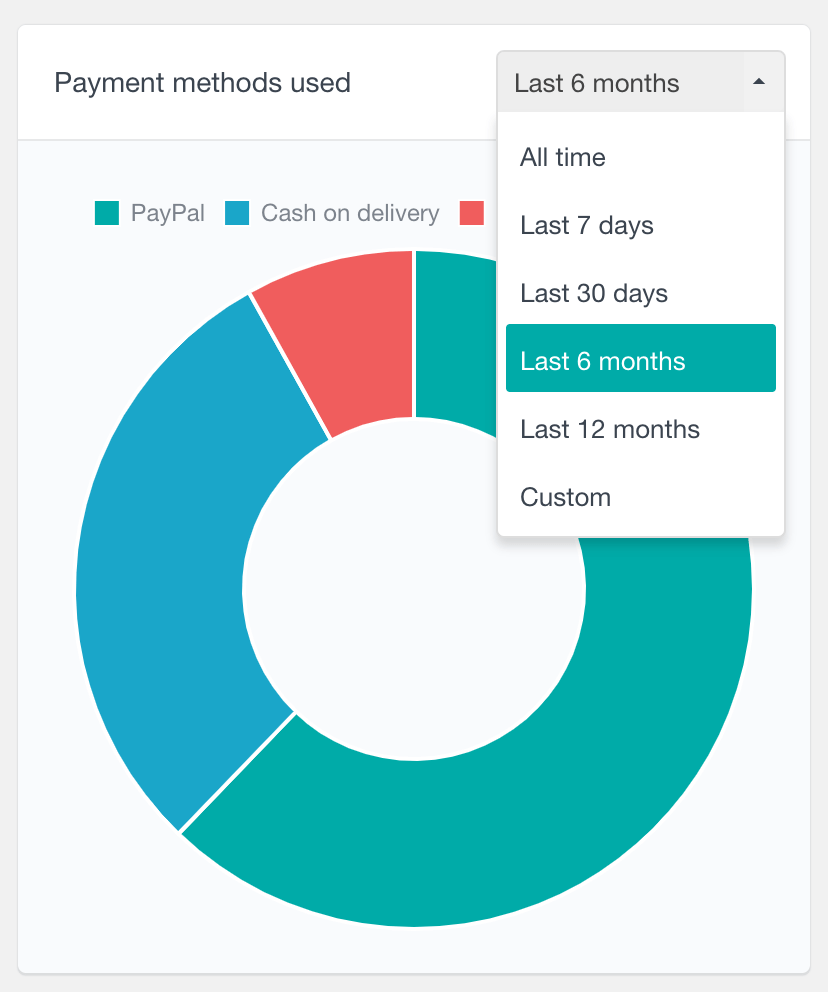
See the distribution of the payment methods used for orders, including gateways added by other WooCommerce extensions. Compare different time ranges to examine whether payment preferences changed after you introduced a new gateway.
The Payment Methods report shows method usage, not checkout success rates for individual gateways.
WooCommerce orders by country, state, and city
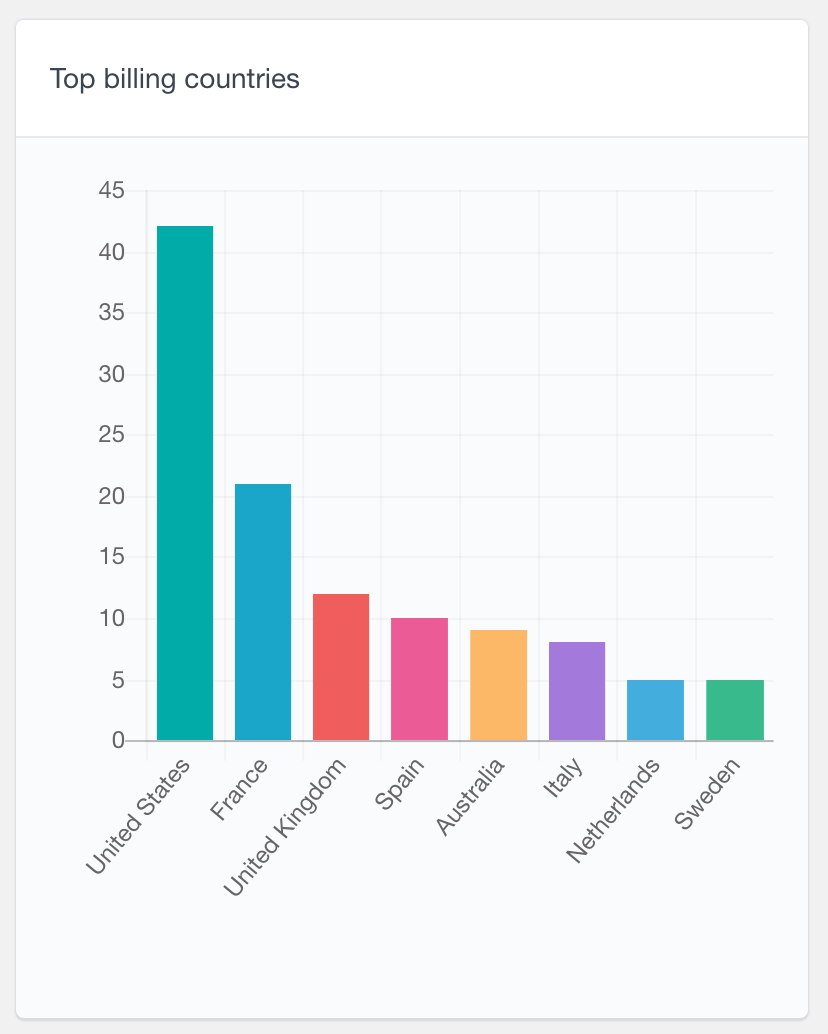
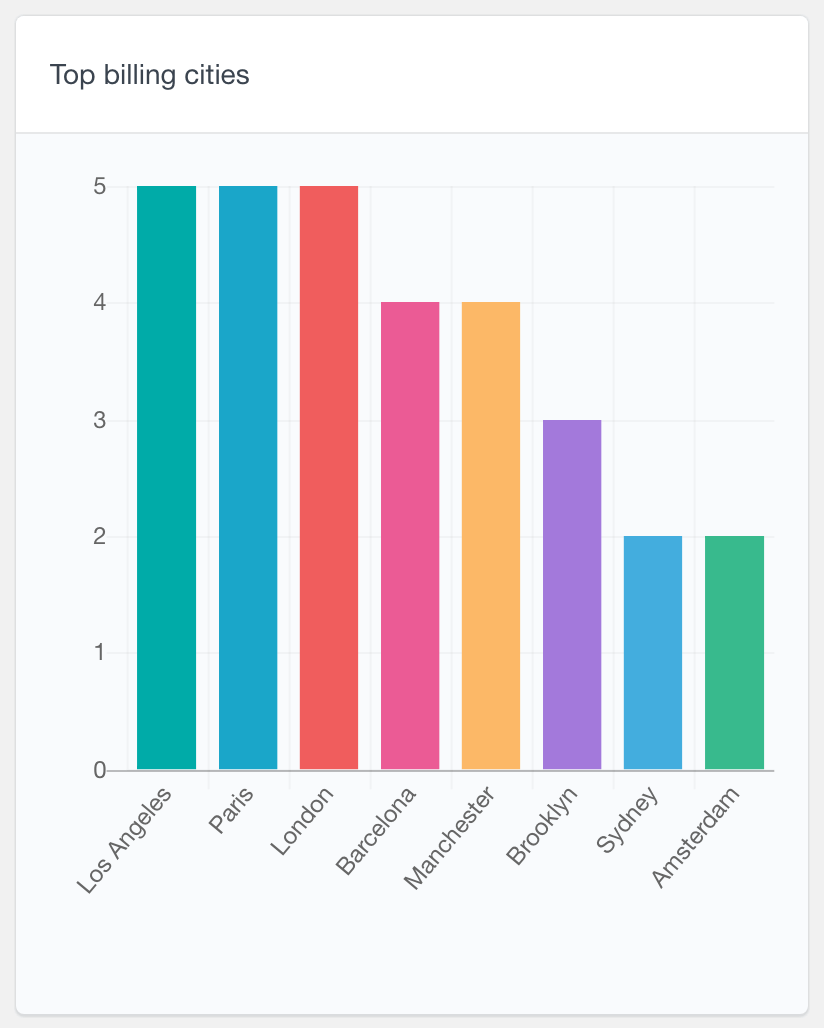
Where do your customers place orders from? WooCommerce billing-location reports group order activity by the billing country, state, or city saved at checkout. They are useful for understanding regional order distribution and deciding where to investigate demand or marketing opportunities.
Top billing countries
Compare the countries associated with the greatest number of WooCommerce orders. The Top Billing Countries report displays a ranking of billing countries, making it easier to identify major markets.
Important: the ranking is based on order activity by billing country; it is not a revenue-by-country report.
Top billing states and cities
Review the states or cities with the highest order activity, especially if most sales occur within one country. You can use the geographic breakdown to investigate regional demand, distribution needs, or differences between markets.
For individual registered customer filtering, Users Insights also offers billing country, state, and city fields in the customer table.
Go from WooCommerce reporting to customer action
A sales chart can show that repeat purchases are falling. The next question is: which customers should you investigate? This is where Users Insights adds a different kind of WooCommerce analysis.
With its WooCommerce customer table, Smart Filters, and profile pages, you can work with registered customers using the purchase information already stored in WordPress.
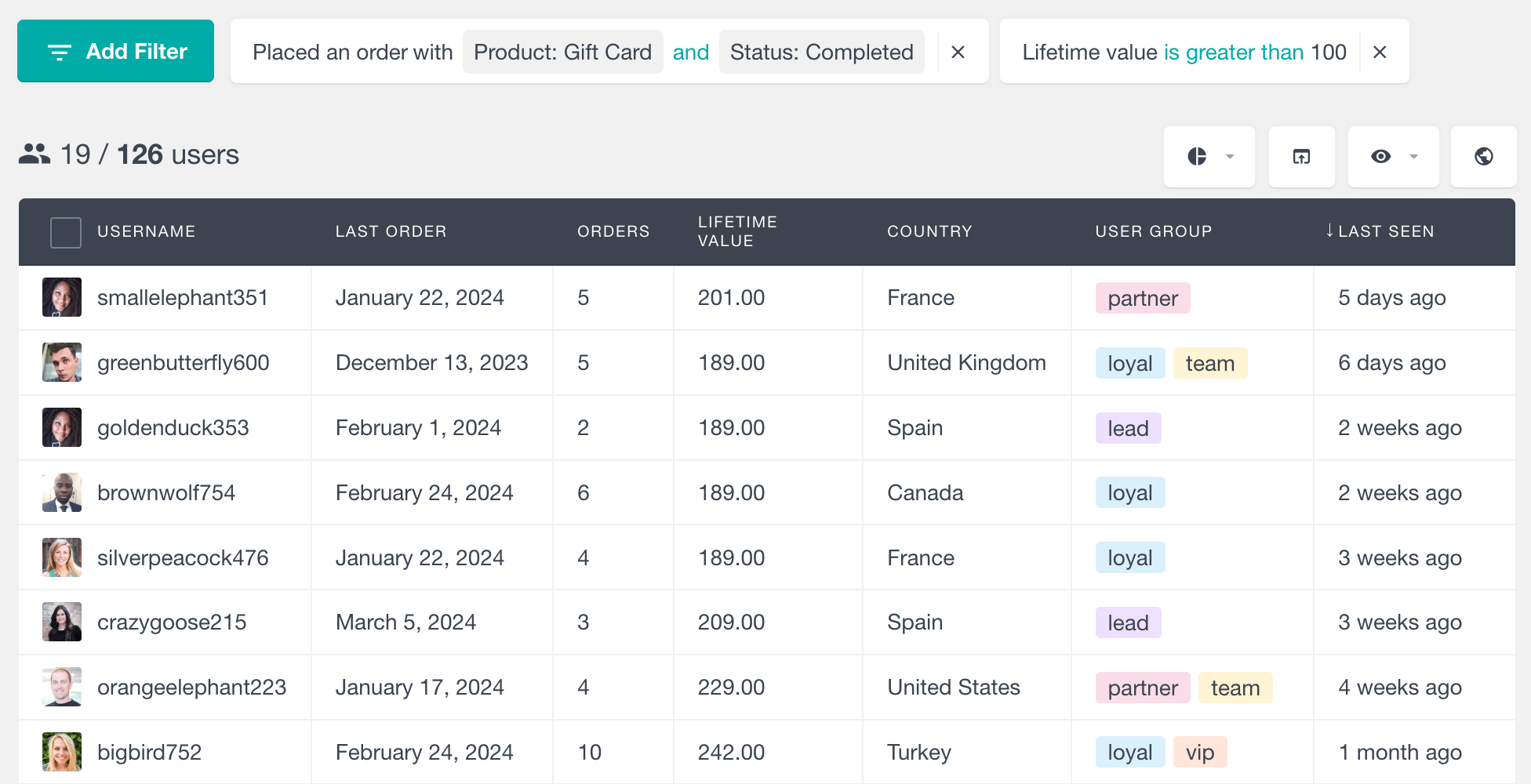
Build practical customer segments with Smart Filters
For example, you can find registered customers who:
- Purchased a specific product or something from a selected category.
- Placed an order during a particular period or with a specified status.
- Have made several orders or reached a particular lifetime spending threshold.
- Have not ordered recently.
- Used a particular coupon, or are located in a specific billing country.
You can combine filters to narrow down the list. For example, find customers who bought a particular product last year and have not ordered again recently, then export that filtered customer list as CSV for further analysis or use in another tool.
Explore a customer’s WooCommerce order history
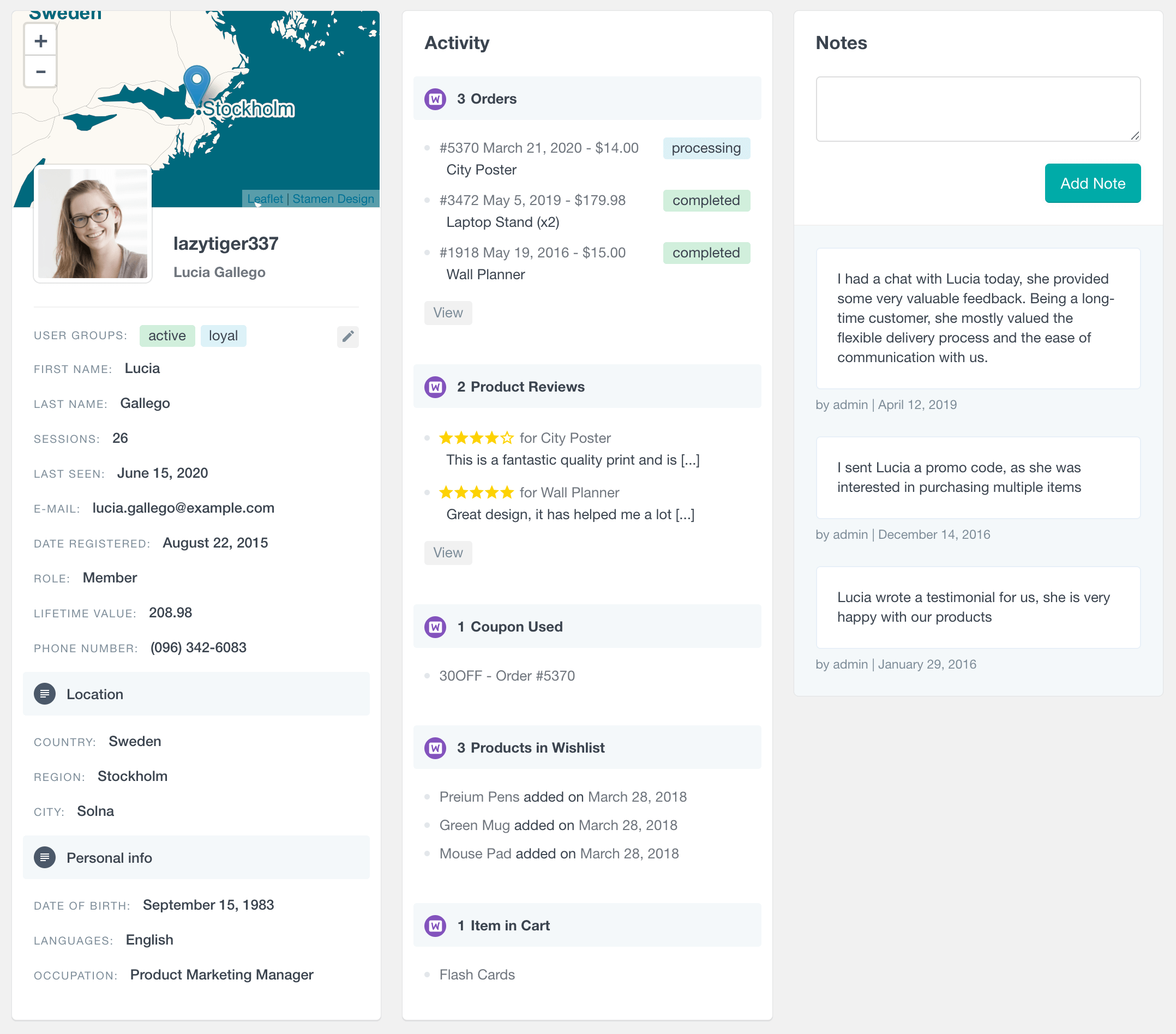
Open a registered customer’s profile to review recent orders, products purchased, order statuses, and other available user information. Related modules may also show coupon usage, cart items, reviews, notes, and activity details in the same profile.
This complements the aggregate reports: you can investigate a trend in the dashboard, then examine the registered customers associated with a particular purchasing pattern.
Looking for subscriber information instead? Users Insights also has a separate WooCommerce Subscriptions integration for subscriber data, subscription statuses, next payments, and customer filtering. It is not the same as a full subscription revenue or churn analytics dashboard.
How to get started with Users Insights
- Install and activate Users Insights on your WordPress site, then enable the WooCommerce module.
- Open the Reports area to explore sales, orders, customers, products, and other metrics. Reports that read existing WooCommerce data can analyze orders from before installation.
- Investigate your customers through the Users Insights user table, profiles, and Smart Filters. Export filtered registered customer information when you need to work with it outside WordPress.
Users Insights reads data already stored on your WordPress site. Additional activity data that requires its own tracking, such as Last Seen or Geolocation, starts being collected after the relevant feature is enabled.
Frequently asked questions
Does Users Insights replace WooCommerce Analytics?
No. WooCommerce already includes reporting and analytics features. Users Insights adds its own reporting views together with registered customer profiles, advanced user filters, and user data exports. Choose the views and workflows that meet your needs.
Can I export WooCommerce customer data?
Yes. You can filter registered customers using the supported fields and export the selected user columns as a CSV file. This is different from exporting every aggregate chart as a downloadable report.
Can I see WooCommerce Subscriptions information?
Yes. The separate WooCommerce Subscriptions module supports searching and filtering subscriber information, including subscription status and next payment dates. Explore the WooCommerce Subscriptions integration.
Do I need coding skills or a separate analytics account?
No coding skills are required for the built-in reports and filters. Users Insights works inside WordPress and reads available data from the site’s database.
How much does Users Insights cost? Is there a trial?
The Personal license starts at $139 USD for one site and includes one year of updates. There is no free trial, but purchases are covered by a 14-day money-back guarantee. See current pricing and license details, including renewals.
Understand your WooCommerce store and its customers in one place
Review sales and orders, analyze products and customer activity, and turn registered customer data into useful filtered lists—all from your WordPress dashboard.
Get Users Insights — From $139 USD
Personal license: 1 site · 1 year of updates · 14-day money-back guarantee. View all licenses.
Explore related features: Product sales reports · Category reports · WooCommerce customer management · User data exports.