
WooCommerce RFM Segmentation
Find your best customers, at-risk buyers, and one-time purchasers inside WooCommerce.
WooCommerce stores collect a lot of customer data: orders, spend, product history, login activity, user roles, custom profile fields, and more.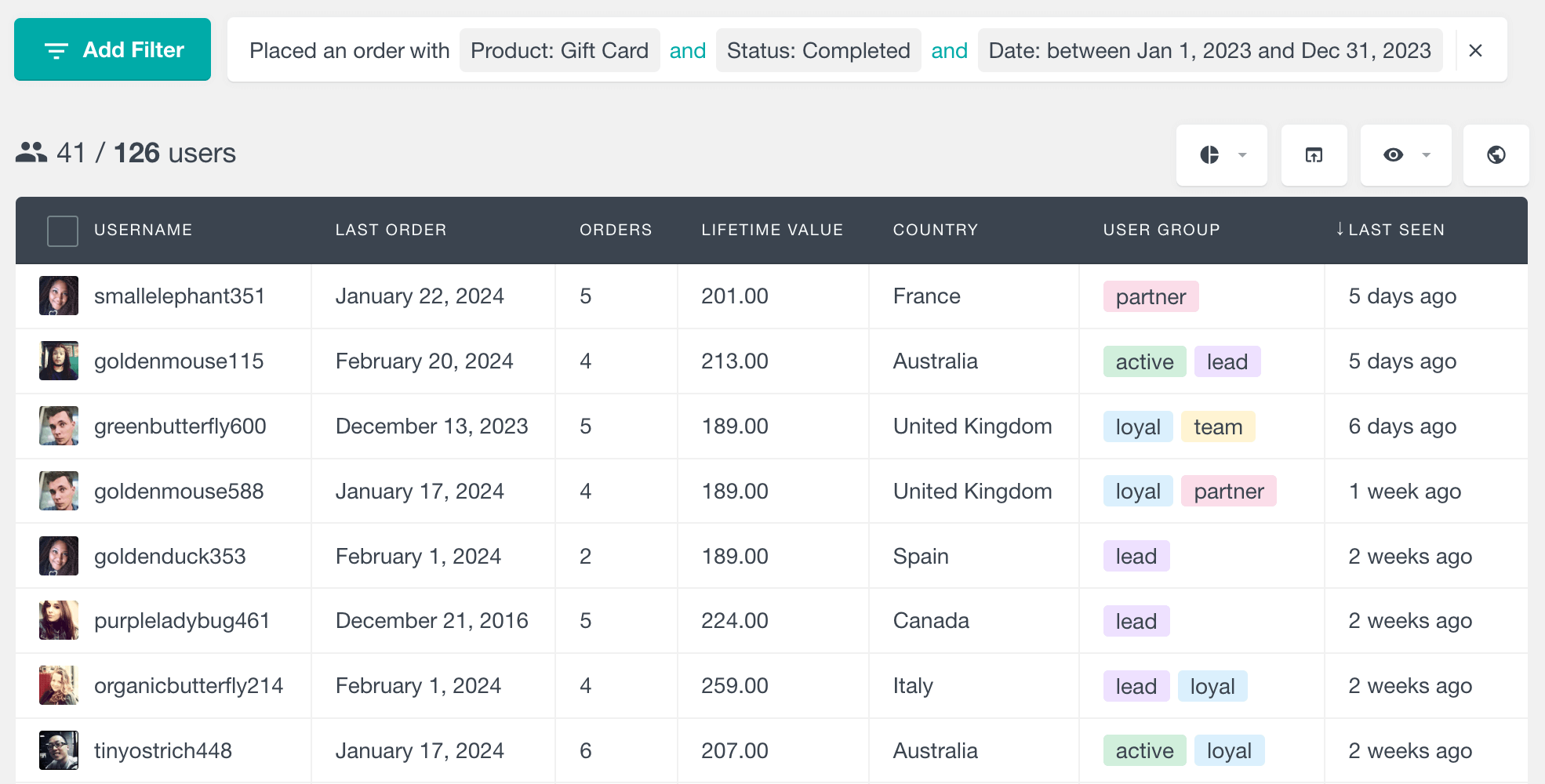
The problem is that most of this data is hard to use when you need to answer practical questions like:
-
- Which customers bought recently?
- Which customers order again and again?
- Which customers have the highest lifetime value?
- Which repeat buyers have not been active lately?
- Which customers should be added to a VIP, win-back, or loyalty segment?
That is where WooCommerce RFM segmentation becomes useful.
RFM stands for recency, frequency, and monetary value. In plain English, it helps you group customers based on:
- Recency: How recently they purchased or were active
- Frequency: How often they buy
- Monetary value: How much they have spent
Users Insights helps you build practical RFM-style customer segments directly inside your WordPress dashboard using WooCommerce customer data, Smart Filters, User Groups, customer profiles, reports, and CSV export.
What is WooCommerce RFM segmentation?
WooCommerce RFM segmentation is a way to organize customers by purchase behavior.
Instead of treating every customer the same, you group them based on how valuable, loyal, recent, or inactive they are.
| Segment | Meaning | Example use |
|---|---|---|
| VIP customers | Recent buyers with many orders and high lifetime value | Loyalty rewards, early access, personal offers |
| Loyal repeat buyers | Customers with multiple orders but moderate spend | Cross-sells, bundles, subscription offers |
| Big spenders | High lifetime value customers, even if they buy less often | Premium offers, concierge support |
| At-risk customers | Previously valuable customers who have not ordered or logged in recently | Win-back emails |
| One-time customers | Customers with only one order | Second-purchase campaigns |
| Dormant customers | Customers with old purchase or activity history | Re-engagement or cleanup campaigns |
In a spreadsheet, this usually means exporting orders, calculating scores, and manually updating lists.
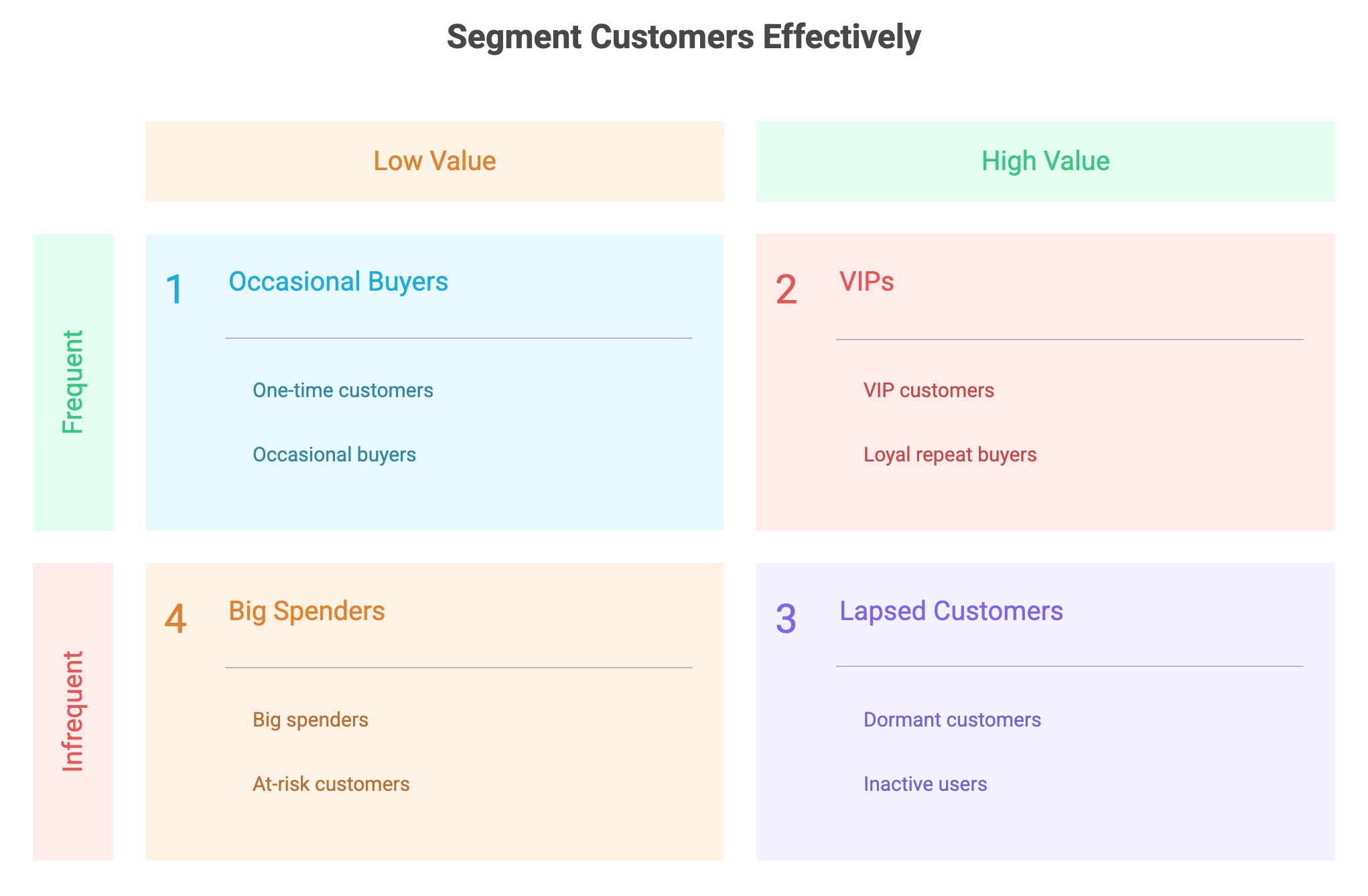
In Users Insights, you can create useful RFM-style segments by filtering customers with fields like Orders, Lifetime value, Last seen, Role, and WooCommerce order data, then saving or organizing the results with User Groups.
Who needs WooCommerce RFM segmentation?
RFM segmentation is useful for any WooCommerce store that wants to act on customer data, not just report on sales totals.
It is especially useful if you:
- Run email campaigns and want better customer lists
- Want to identify your most valuable WooCommerce customers
- Need a simple way to find inactive or at-risk buyers
- Want to export customer segments to an email marketing tool
- Sell repeat-purchase products, subscriptions, memberships, courses, or digital products
- Want to inspect individual customer history before support, sales, or retention outreach
- Need customer segments inside WordPress without building custom SQL reports
The main benefit is focus.
A WooCommerce order report tells you what happened. RFM segmentation tells you who to do something about.
How Users Insights helps with WooCommerce RFM segmentation
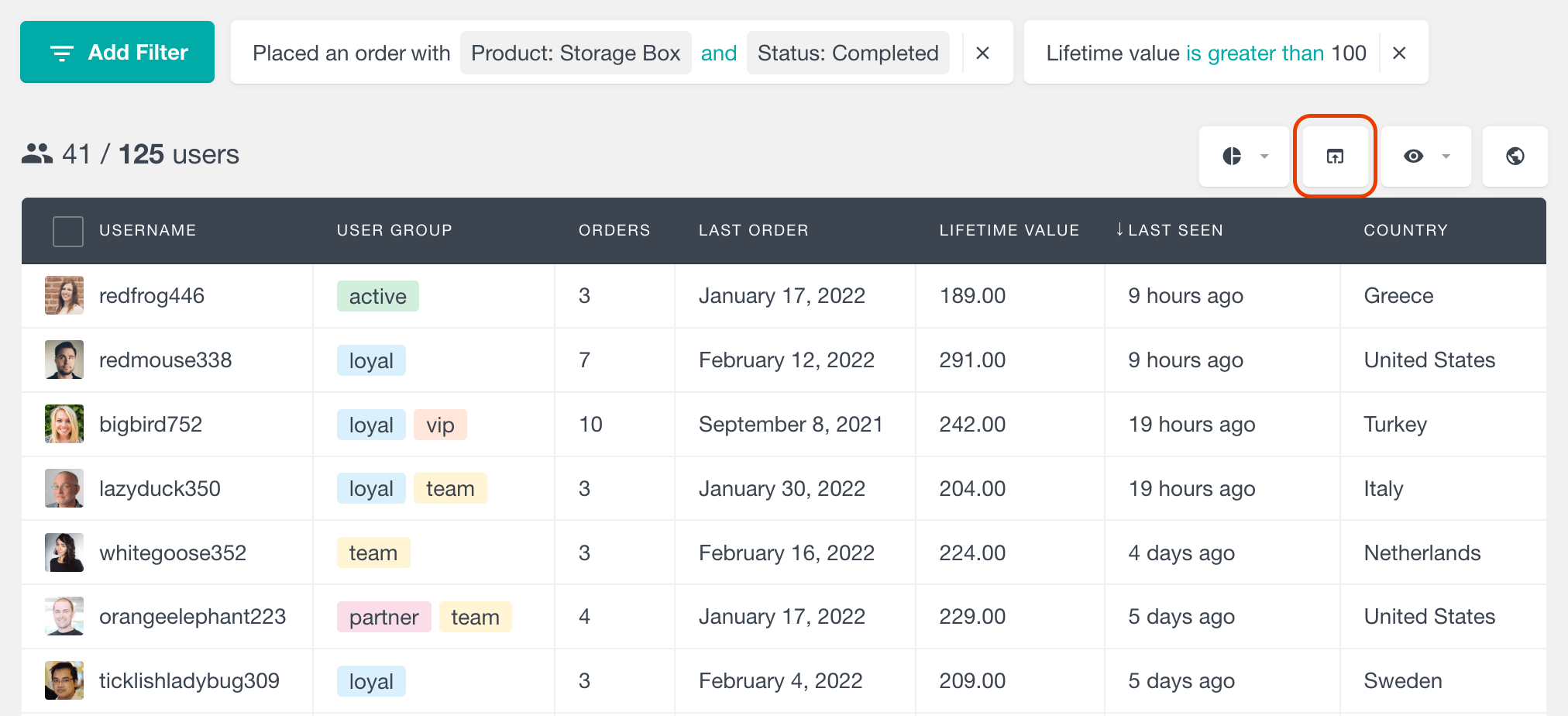
Users Insights does not force you into a rigid scoring model. Instead, it gives you the customer-level fields, filters, reports, and profiles you need to create practical WooCommerce customer segments.
For RFM analysis, the most relevant Users Insights features are:
Smart Filters
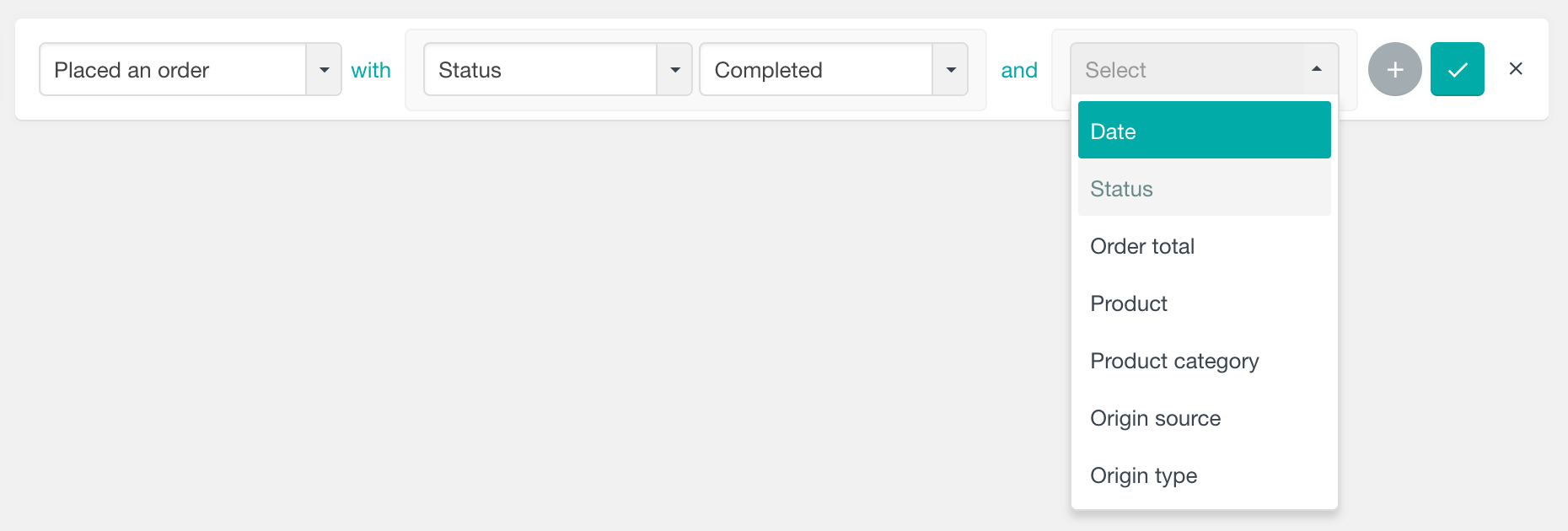
Smart Filters let you narrow your WooCommerce customer list by multiple conditions.
For RFM segmentation, you can combine filters such as:
- Orders is greater than a selected number
- Lifetime value is greater than a selected amount
- Last seen is more than a selected number of days ago
- Role is Customer
- User Group includes or excludes a saved segment
- Placed an order with a selected product, category, status, date range, or order value
This lets you move from broad customer reporting to precise customer lists.
More info: WordPress Users Smart Filters
Orders
The Orders field shows how many WooCommerce orders each customer has placed.
This is the “frequency” part of RFM.
You can use it to find:
- Customers with exactly one order
- Customers with more than one order
- Customers with many repeat orders
- Customers with no orders, if you want to separate registered users from actual customers
Example segment:
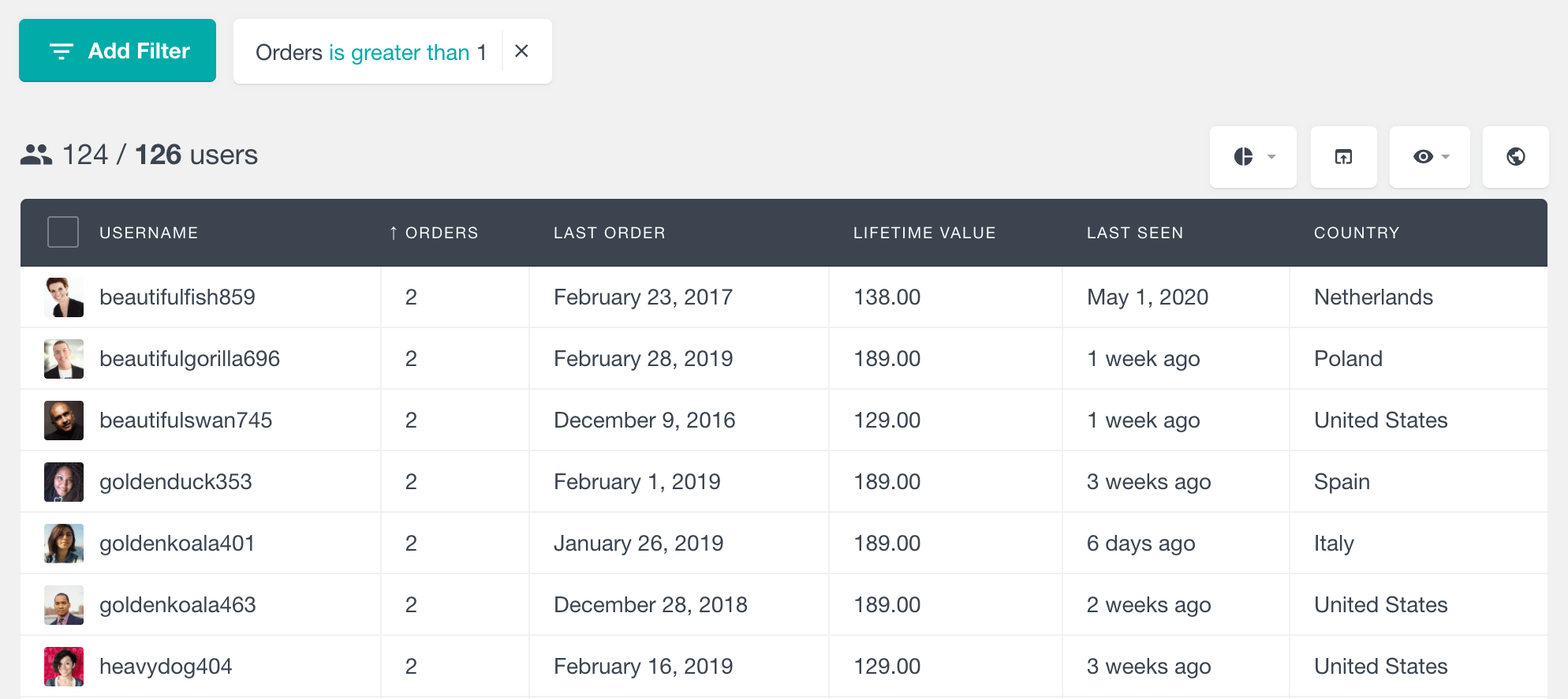
Customers with Orders greater than 1
This gives you a useful repeat-buyer list without exporting your WooCommerce order table.
Lifetime value
The Lifetime value field shows how much a customer has spent through successful WooCommerce orders.
This is the “monetary value” part of RFM.
You can use it to find:
- High-value customers
- Low-value customers
- Customers above a specific spend threshold
- Repeat customers who spend less than expected
- VIP customers who deserve a separate group or campaign
Example segment:
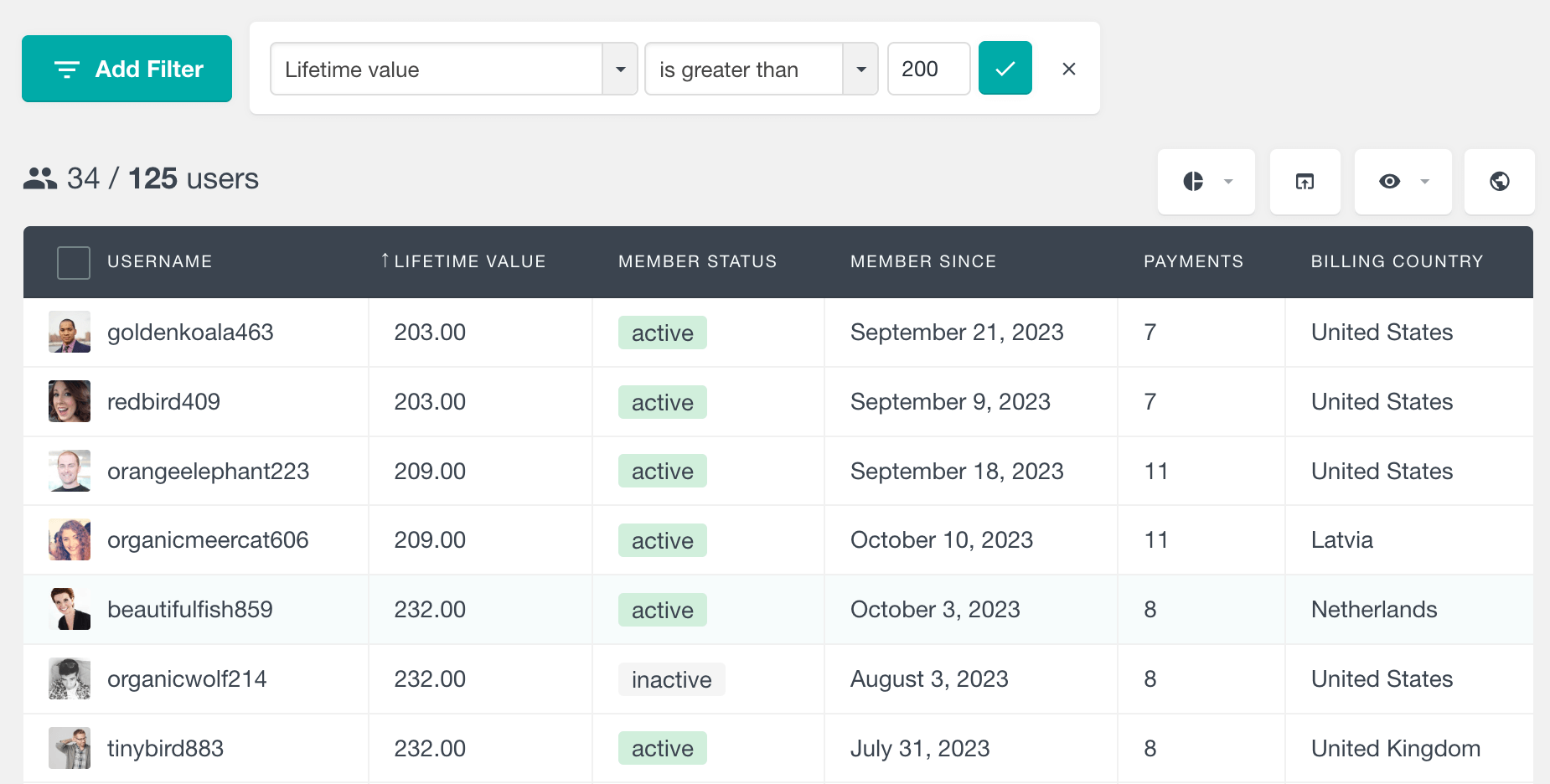
Customers with Lifetime value greater than $200
This gives you a clear list of customers who have already proven they are valuable to your store.
Last seen
The Last seen field shows the most recent time a user was detected as active.
This is not exactly the same as “last order date,” but it is useful for understanding engagement.
For example, a customer may not have purchased recently, but they may still be logging in, browsing account pages, viewing member content, or returning to the site.
You can use Last seen to separate:
- Recently active customers
- Inactive customers
- High-value customers who have gone quiet
- One-time customers who returned recently but have not purchased again
Example segment:
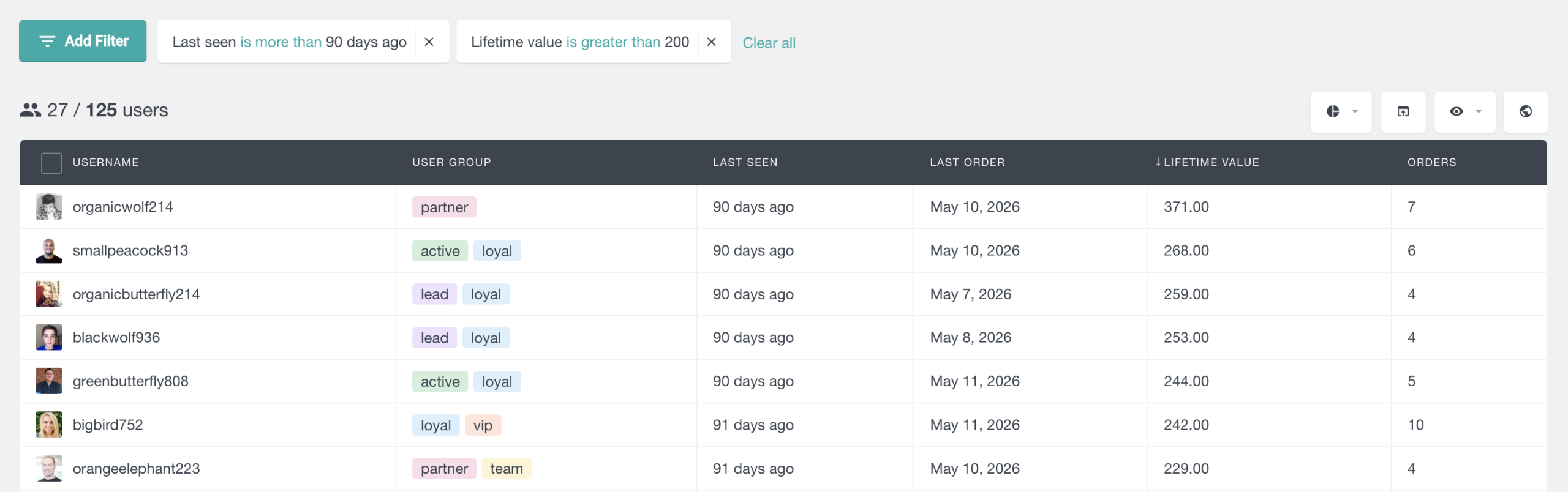
Lifetime value greater than $200
Last seen more than 90 days ago
This is a strong at-risk customer segment.
Learn more about user activity tracking: WordPress Users Session Detection
User Group
User Groups let you organize customers into named segments inside Users Insights.
For RFM segmentation, you can create groups such as:
- VIP customers
- At-risk customers
- One-time buyers
- Loyal repeat customers
- Wholesale customers
- Win-back campaign
- Holiday promo audience
This is useful when a segment matters beyond a single search.
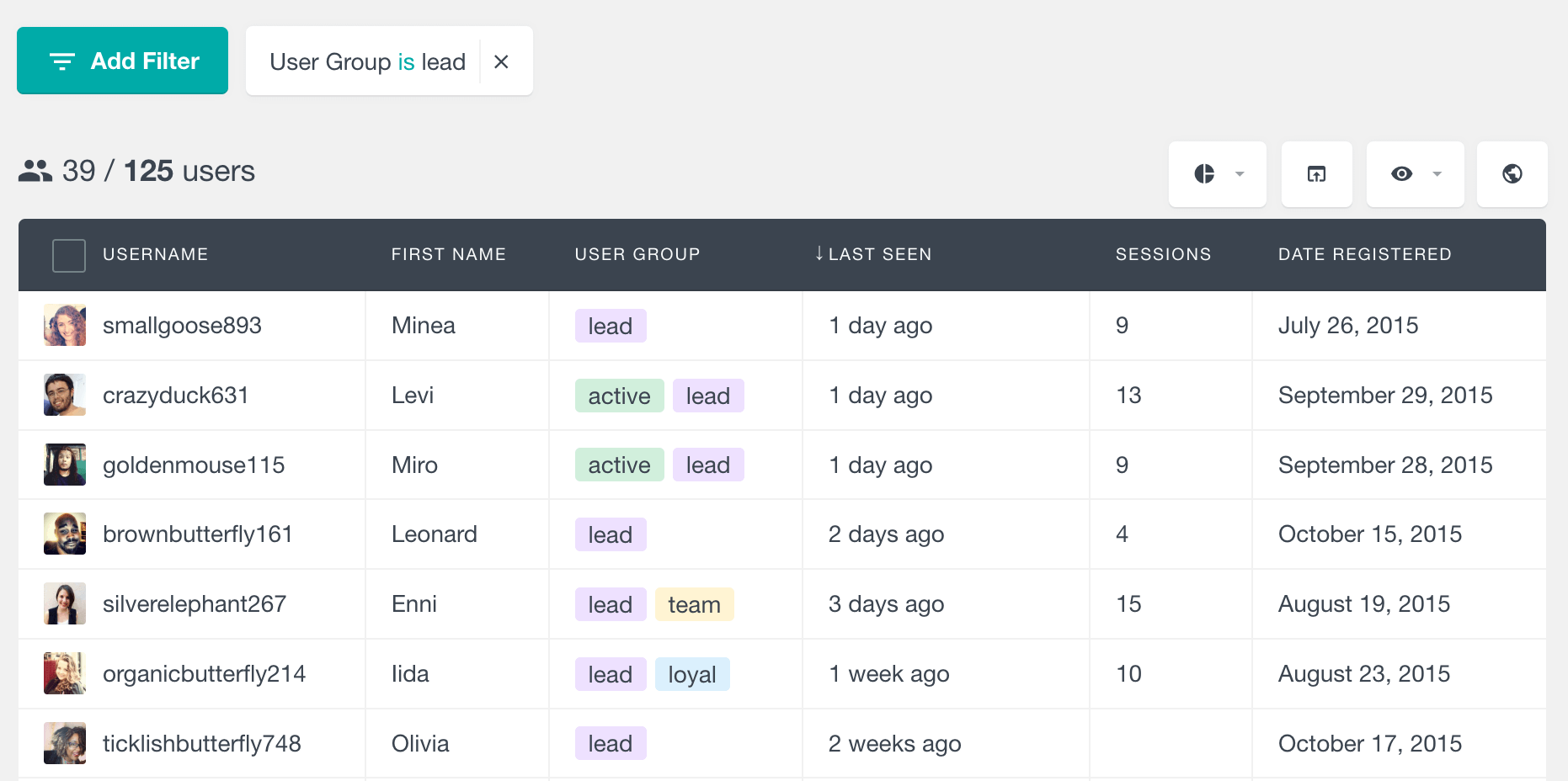
For example, you might filter customers by Orders and Lifetime value, review the list, then assign those users to a VIP customers group. Later, you can filter by that group, view its report, or export the segment.
Learn more about user groups: WordPress User Groups
Role
The Role field helps you keep your RFM segments clean.
Most WooCommerce stores have more than just customers in WordPress. You may also have administrators, shop managers, editors, subscribers, wholesale users, members, students, or custom roles created by other plugins.
Filtering by role helps you avoid mixing internal users with real customer segments.
Role is Customer
Orders greater than 1
Lifetime value greater than $250
This keeps the segment focused on actual WooCommerce customers.

Custom fields
Custom fields let you add or expose additional user data that matters to your store.
For RFM segmentation, custom fields can be useful for storing or displaying extra customer attributes such as:
- Customer tier
- Sales owner
- Preferred product category
- B2B/B2C status
- Account type
- Manual risk score
- Offline customer notes or imported CRM attributes
This gives you another layer of segmentation beyond WooCommerce order data.
Customer type is Wholesale
Lifetime value greater than $1,000
Last seen within the last 30 days
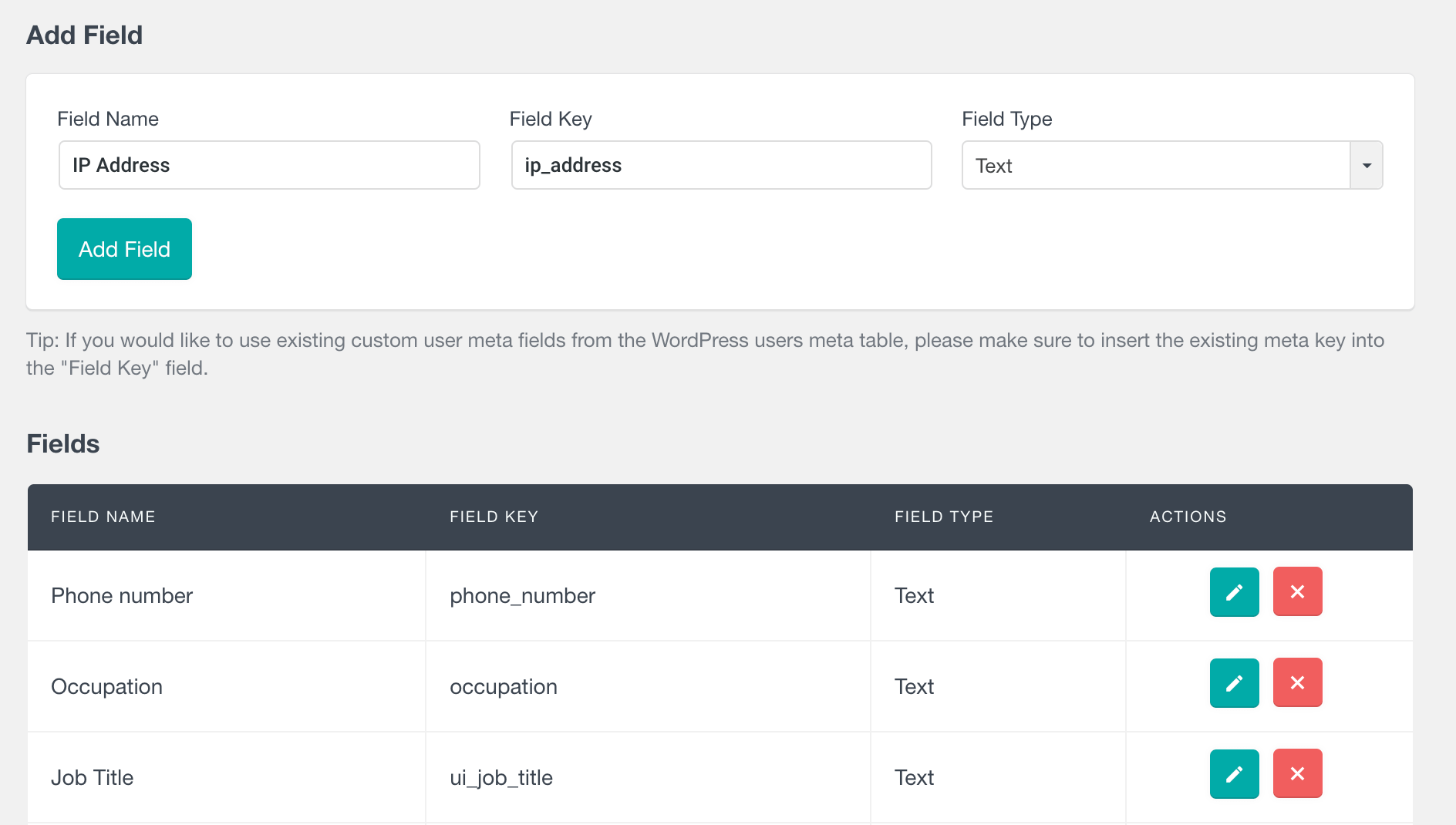
Learn more about custom user fileds: Custom WordPress User Fields
A practical WooCommerce RFM workflow in Users Insights
You do not need a perfect scoring formula to start using RFM. For most WooCommerce stores, the first useful step is to build a few practical customer segments.
Here is a simple workflow.
Step 1: Choose the customer fields you want to see
Start in the Users Insights table and enable the columns that help you inspect customer behavior.
Useful columns for WooCommerce RFM segmentation include:
- Name
- Role
- User Group
- Orders
- Successful orders
- Lifetime value
- First order
- Last order
- Last seen
- Billing country, state, or city
- Any relevant custom fields
This gives you a customer-level view of WooCommerce behavior without jumping between order records.
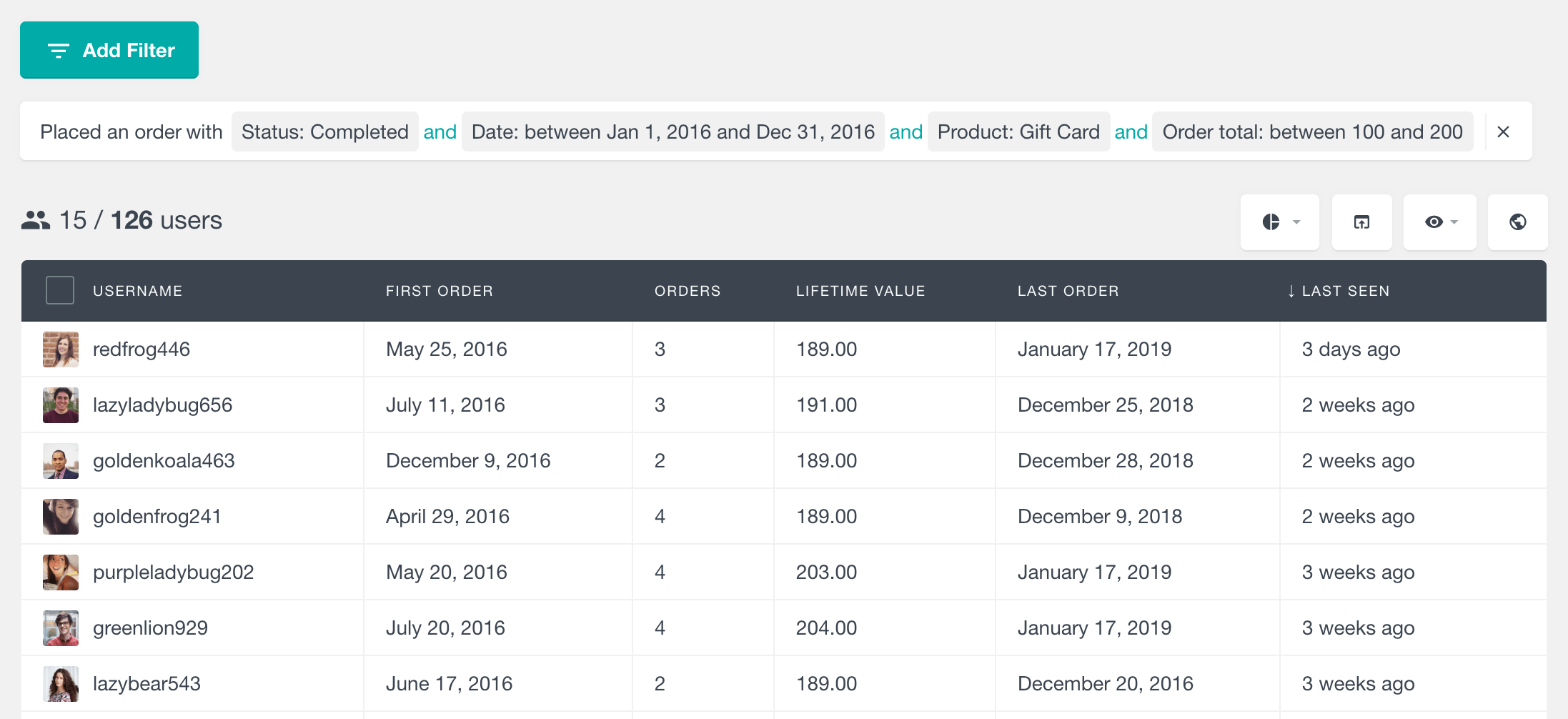
Step 2: Build your recency filter
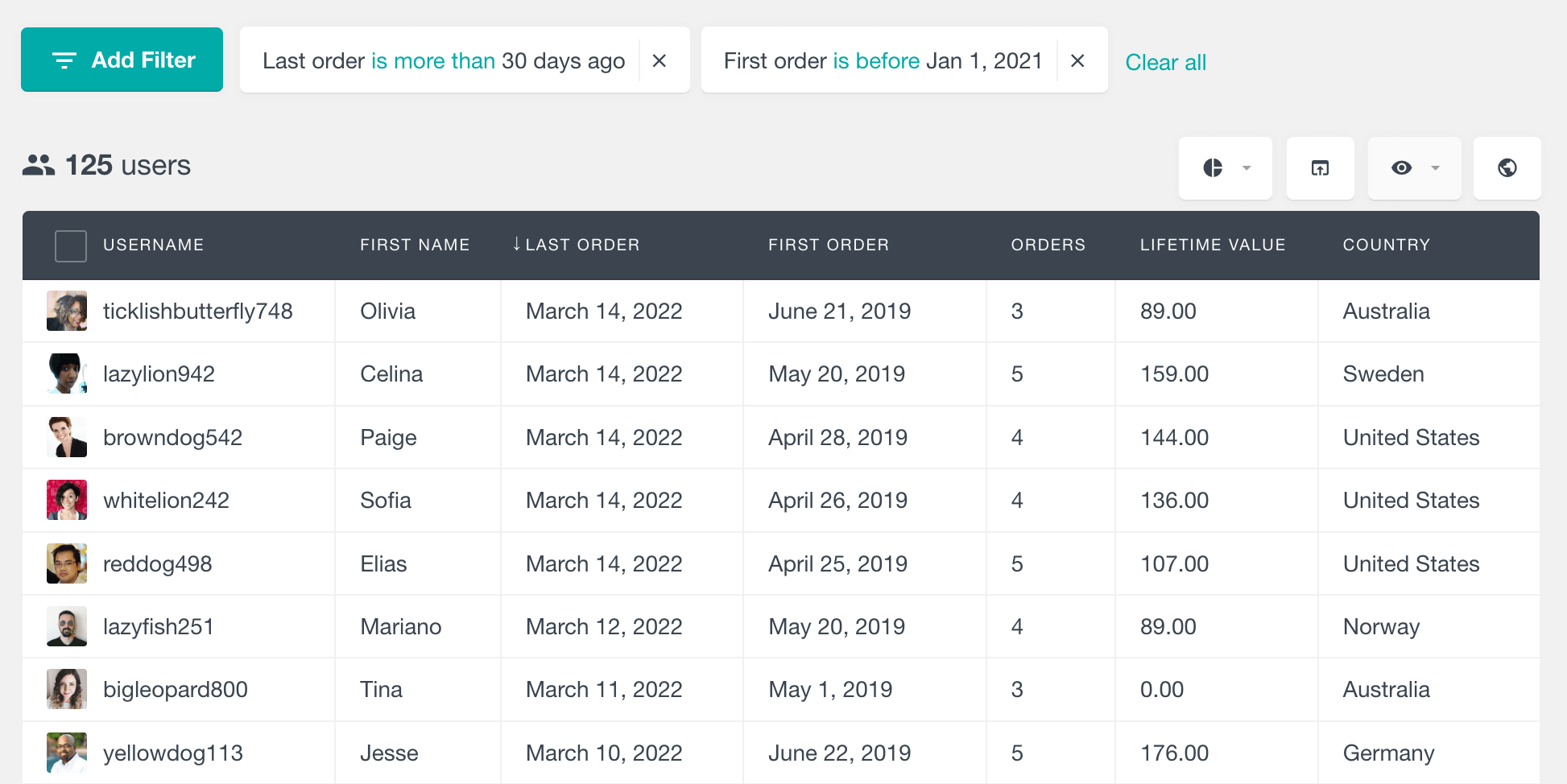
Recency usually means “how recently did this customer buy?”
Depending on the segment, you can use WooCommerce order dates or activity data.
Useful recency-style filters include:
- Last order before a selected date
- Last order after a selected date
- Placed an order within a date range
- Last seen more than X days ago
- Last seen less than X days ago
Example win-back segment:
Role is Customer
Orders greater than 1
Last seen more than 90 days ago
This finds repeat customers who have not been active recently.
Step 3: Add frequency with Orders
Frequency is based on how many times a customer has ordered.
Useful filters include:
- Orders is 1
- Orders is greater than 1
- Orders is greater than 3
- Successful orders is greater than 2
Example repeat-buyer segment:
Role is Customer
Orders greater than 2
Example one-time buyer segment:
Role is Customer
Orders is 1
This is one of the fastest ways to split your customer base into first-time buyers and repeat customers.
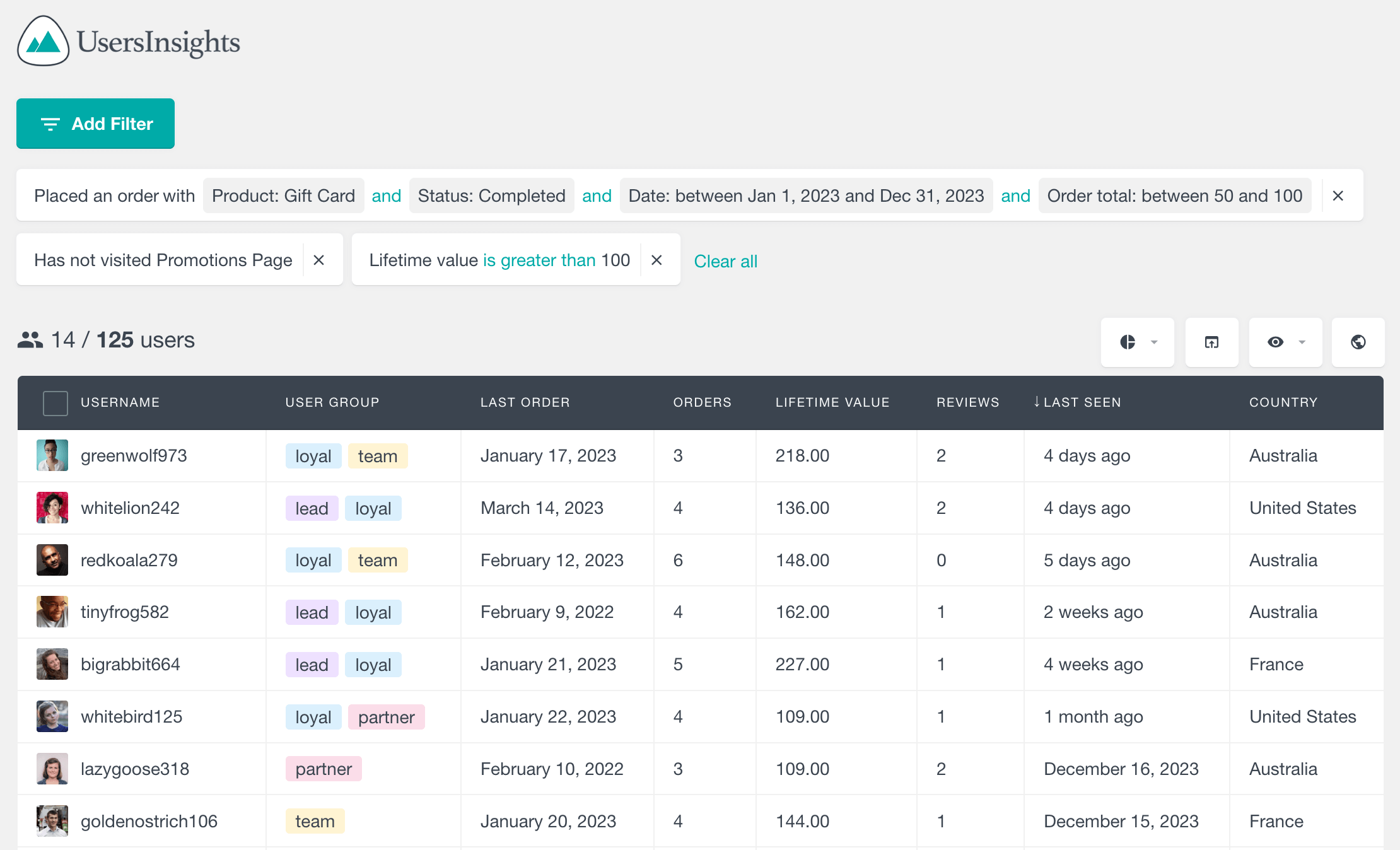
Step 4: Add monetary value with Lifetime value
Monetary value shows how much a customer has spent.
Useful filters include:
- Lifetime value greater than $100
- Lifetime value greater than $500
- Lifetime value smaller than $50
- Lifetime value between two thresholds, if you want mid-tier segments
Example VIP segment:
Role is Customer
Orders greater than 3
Lifetime value greater than $500
Last seen less than 60 days ago
This gives you a practical list of high-value, recently active repeat customers.
Step 5: Review customer profiles before acting
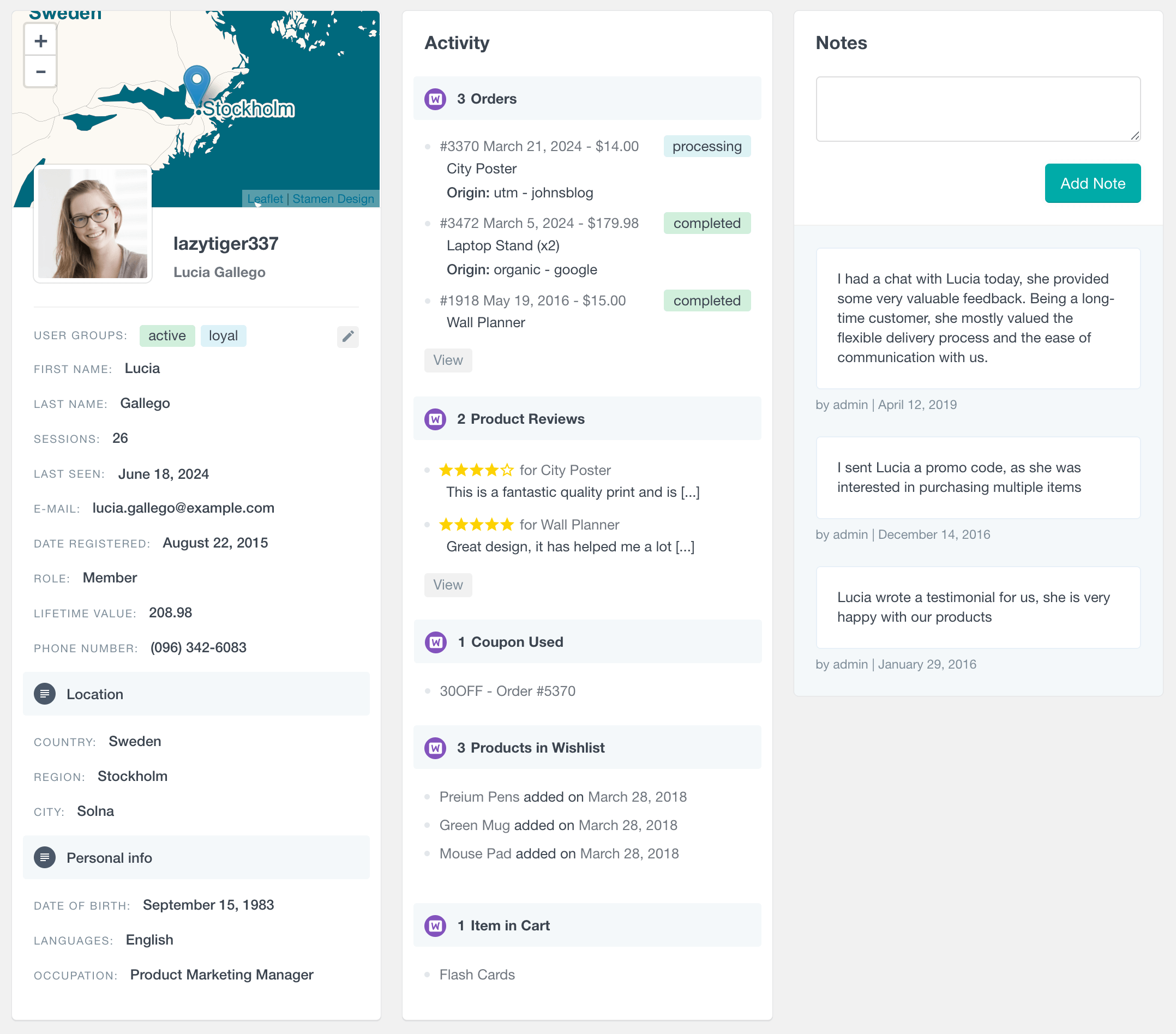
A segment is useful, but a customer profile gives you the context.
In Users Insights, you can open an individual customer profile to inspect related WooCommerce activity and customer data.
For RFM workflows, this helps you answer questions like:
- What did this customer buy?
- How many orders have they placed?
- What was the value of recent orders?
- Are there notes or custom fields attached to this customer?
- Does their behavior look like a real VIP, a support-heavy customer, or a one-off bulk buyer?
This matters because not every “high value” customer should be treated the same.
A customer with one unusually large order may need a different campaign than a customer who buys every month.
Learn more about custom user profiles: WordPress User Profile Pages
Step 6: Save the filter as a custom segment
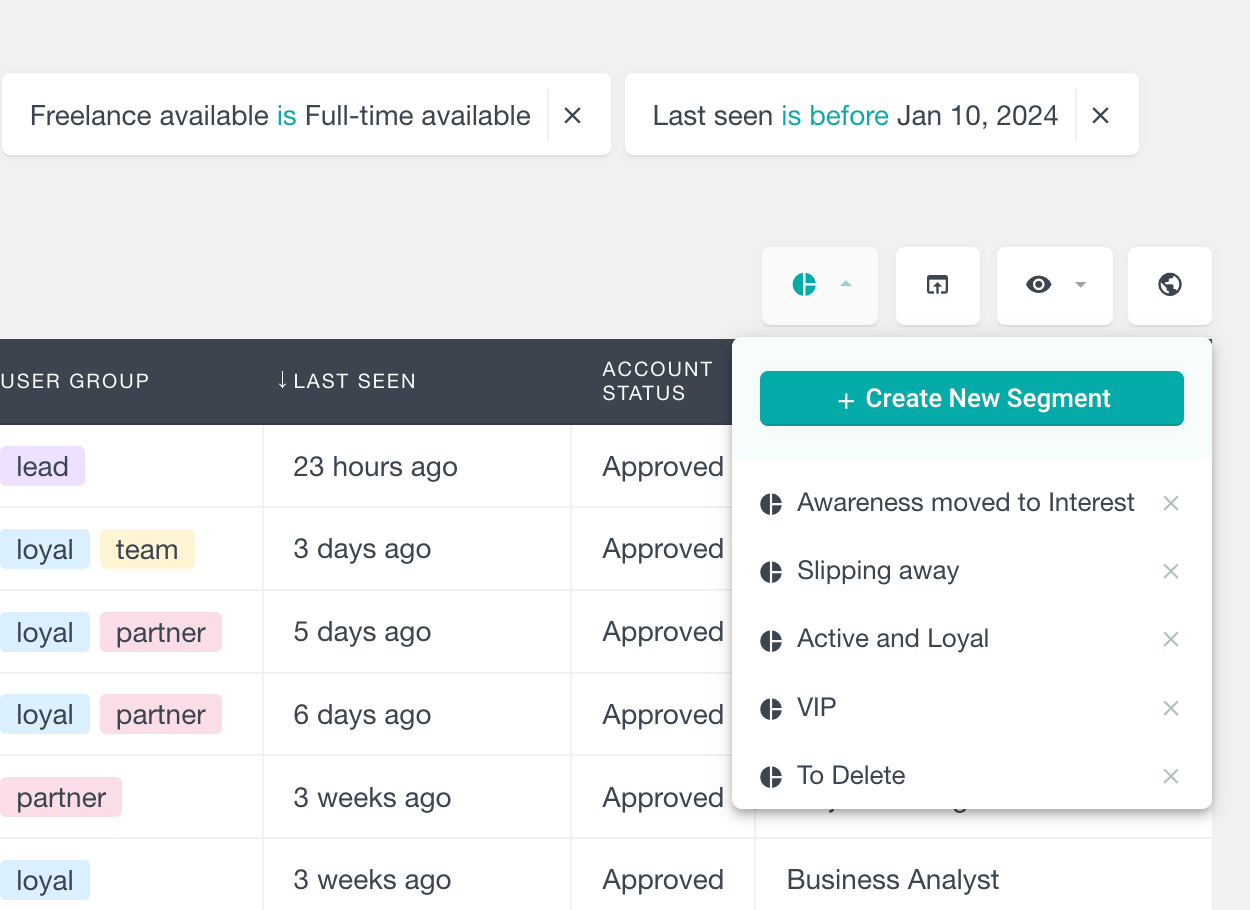
Once you have a useful RFM filter, the most natural next step is to save it as a custom segment.
Custom segments are especially useful for RFM workflows because the customer list can update as your WooCommerce data changes. For example, a customer can move into a “VIP customers” segment after reaching your order or lifetime value threshold, or fall into an “At-risk customers” segment after a longer period of inactivity.
For example, you could save custom segments such as:
- VIP customers: Orders greater than 3, Lifetime value greater than $500, Last seen less than 90 days ago
- At-risk high-value customers: Lifetime value greater than $300, Orders greater than 2, Last seen more than 90 days ago
- One-time buyers: Role is Customer, Orders is 1
- Active repeat buyers: Orders greater than 2, Last seen less than 30 days ago
User Groups can still be useful when you want to manually organize or label specific customers, such as a reviewed VIP list, wholesale accounts, or a campaign audience that should not change automatically. But for reusable RFM logic, custom segments are usually the better fit because they preserve the filter criteria behind the segment.
Step 7: Export the segment
After filtering your customer list, you can export the visible table data to CSV.
This is useful when you want to:
- Import the segment into an email marketing platform
- Share the list with a sales or support team
- Build a campaign audience
- Analyze the segment further in a spreadsheet
- Keep a dated record of a customer cohort
Because the export follows the current table view, you can choose which columns to include before exporting.
Learn more about creating custom exports: Export WordPress Users
Practical RFM segment examples for WooCommerce stores
The best RFM segments are not academic. They map to actions.
Here are practical examples you can build with Users Insights.
VIP customers
Use this when you want to find your best customers.
Example filters:
Role is Customer
Orders greater than 3
Lifetime value greater than $500
Last seen less than 90 days ago
What to do next:
- Add them to a VIP User Group
- Send early access offers
- Offer loyalty rewards
- Invite them to a customer feedback survey
- Exclude them from aggressive discount campaigns
At-risk high-value customers
Use this when you want to recover valuable customers before they disappear.
Example filters:
Lifetime value greater than $300
Orders greater than 2
Last seen more than 90 days ago
What to do next:
- Export the list for a win-back campaign
- Send a personal discount or reminder
- Review their order history before outreach
- Add them to an At-risk User Group
One-time buyers
Use this when you want to improve second-purchase conversion.
Example filters:
Role is Customer
Orders is 1
Optional extra filters:
Last seen less than 30 days ago
Lifetime value greater than $50
What to do next:
- Send a second-purchase incentive
- Recommend related products
- Create a “new customer onboarding” email sequence
- Compare this group with the Number of orders per customer report
Recent high-intent customers
Use this when you want to find customers who are active now.
Example filters:
Last seen less than 7 days ago
Orders greater than 0
Optional:
Lifetime value greater than $100
What to do next:
- Send timely product recommendations
- Invite them to join a loyalty program
- Review whether they have items in cart or recent activity
- Segment by product purchased or category purchased
Lapsed repeat buyers
Use this when customers used to buy more often but have gone quiet.
Example filters:
Orders greater than 2
Last seen more than 120 days ago
What to do next:
- Add them to a win-back User Group
- Export them for a reactivation campaign
- Check if their last orders came from a specific product line
- Offer a product-specific incentive instead of a generic storewide discount
High-value customers by role or custom field
Use this when your store has different customer types.
Example filters:
Role is Wholesale Customer
Lifetime value greater than $1,000
Or:
Custom field “Customer type” is B2B
Orders greater than 5
What to do next:
- Prioritize account-based outreach
- Offer bulk order incentives
- Assign a sales owner
- Export a list for manual review
Reports that support WooCommerce RFM analysis
RFM segmentation works best when you combine customer lists with visual reports.
Users Insights reports help you understand the shape of your customer base before you drill into specific customers.
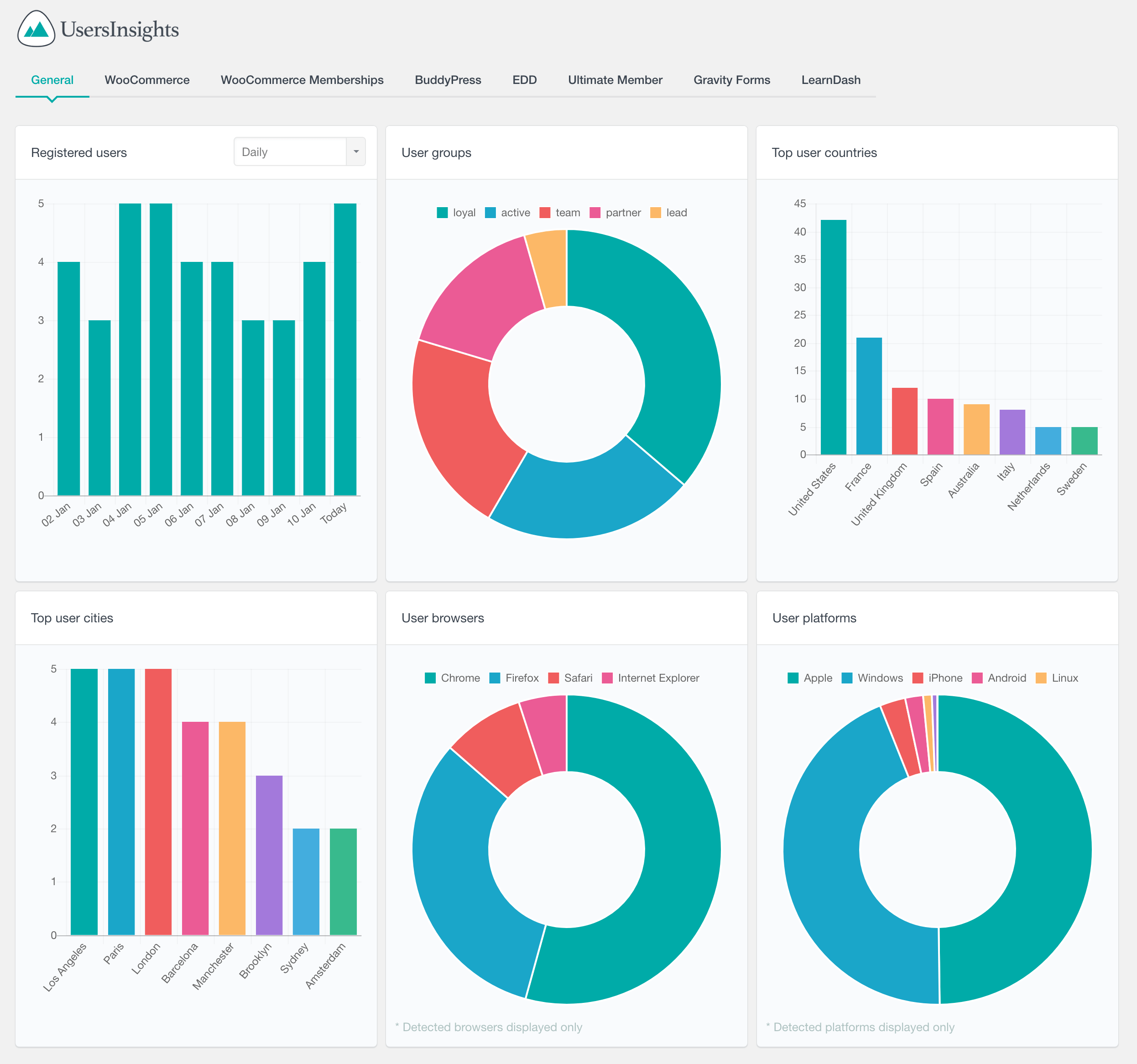
User groups report
The User groups report helps you see how your users are distributed across the groups you manage in Users Insights.
For RFM segmentation, this is useful after you create groups such as:
- VIP customers
- At-risk customers
- One-time buyers
- Repeat buyers
- Wholesale customers
Instead of treating User Groups only as labels, you can use the report to see how large each segment is.
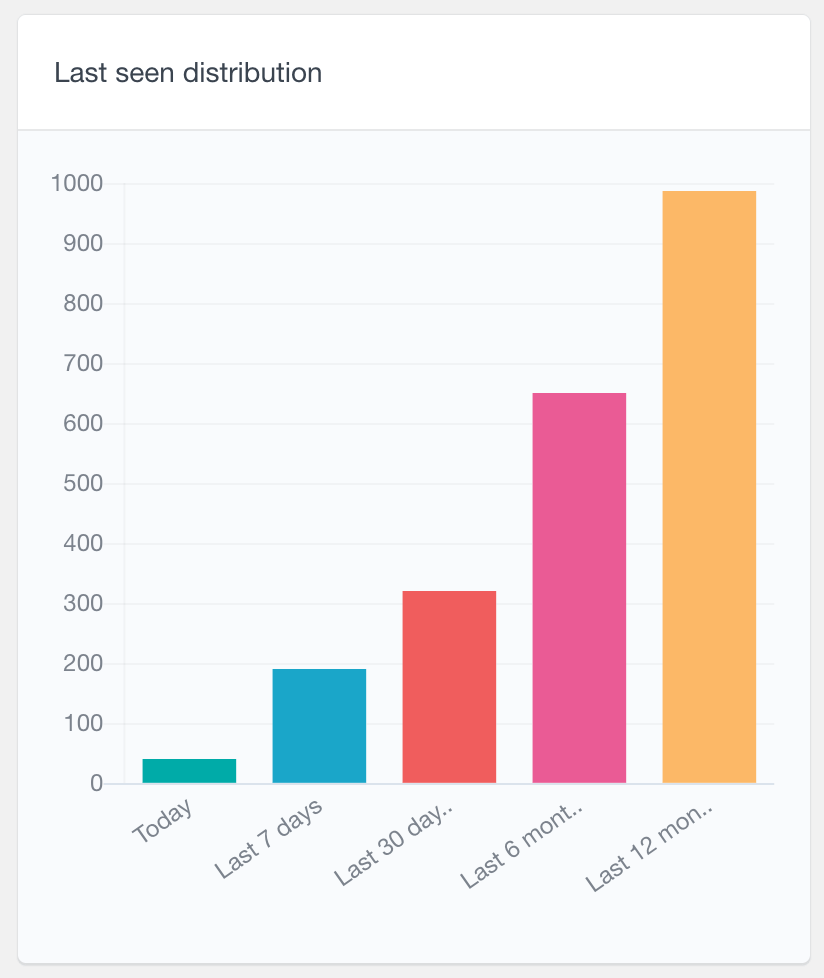
Last seen distribution report
The Last seen distribution report helps you understand how recently users have been active.
For RFM work, this gives you a quick engagement health check.
You can use it to spot whether your customer base is mostly active, slowly cooling off, or heavily inactive.
This is especially useful before building win-back segments.
Learn More about WooCommerce reports: WooCommerce Reports
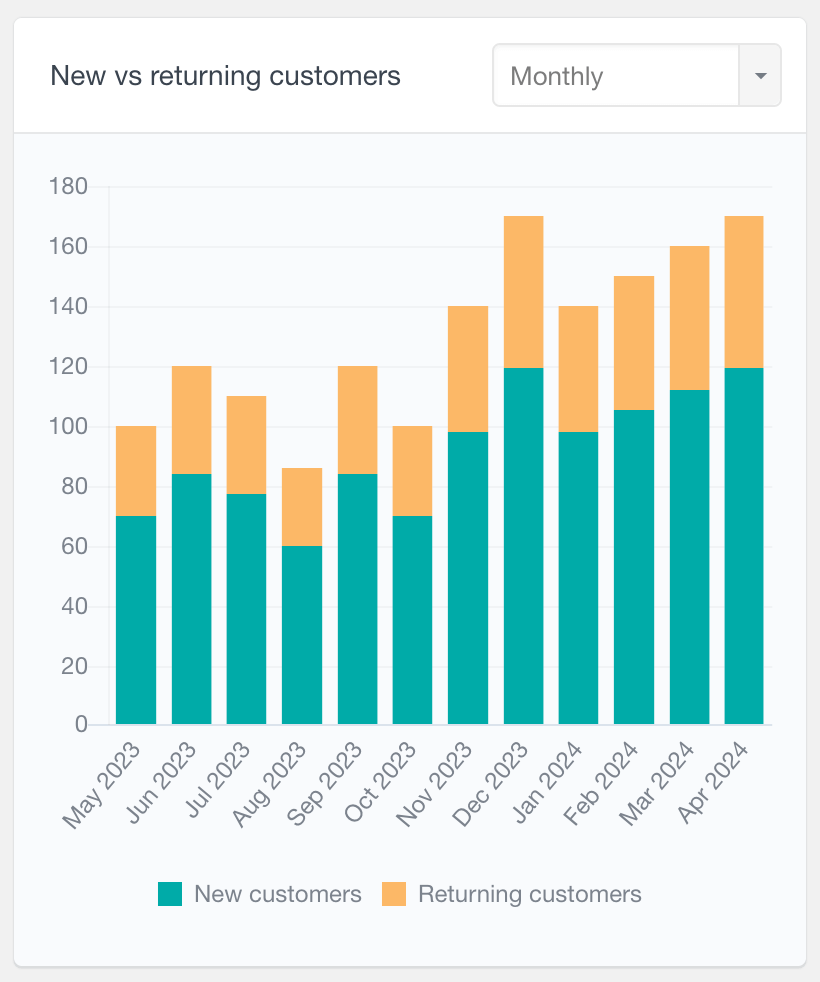
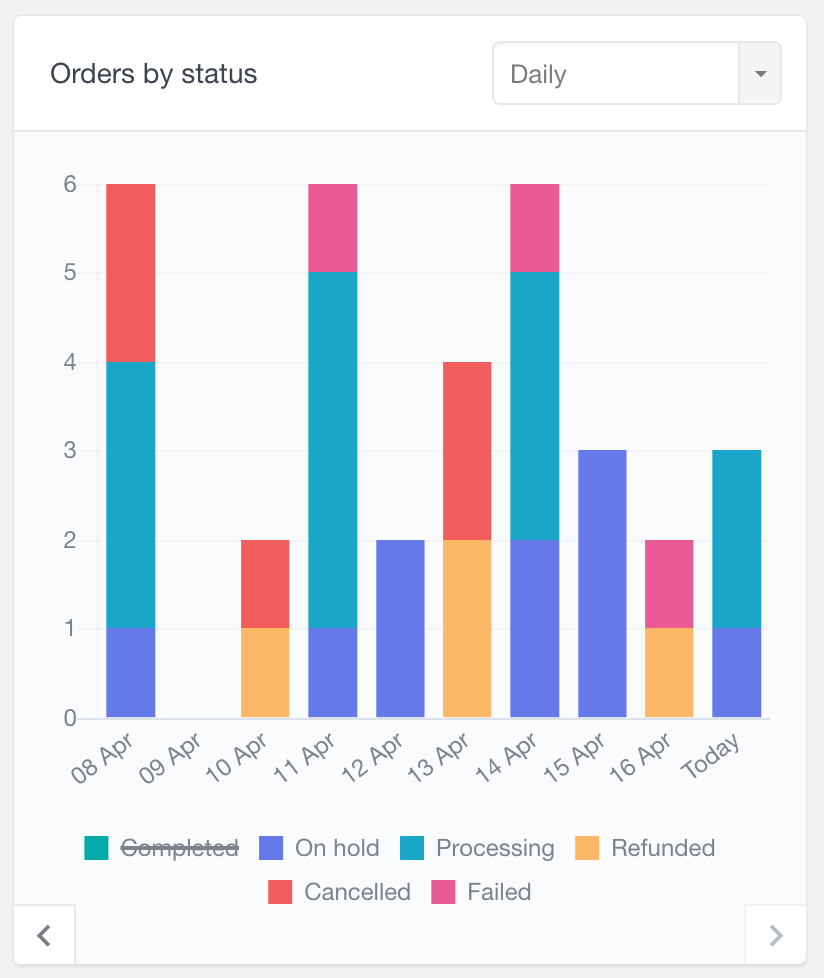
New vs returning customers report
The New vs returning customers report helps you compare first-time customer activity with repeat customer activity over time.
This matters because RFM segmentation is not only about identifying the best customers. It is also about understanding whether your store is becoming more dependent on new acquisition or repeat purchasing.
Use this report to answer:
- Are returning customers growing?
- Are we relying too much on new customers?
- Did a campaign bring back existing buyers?
- Are seasonal campaigns attracting new or repeat customers?
Learn more about returning customers in WooCommerce: WooCommerce returning customers Reports
Number of orders per customer report
The Number of orders per customer report helps you see how many customers buy once, twice, or many times.
This is one of the most useful reports for RFM analysis because it shows the repeat-purchase shape of your store.
For example, if most customers have one order, your biggest opportunity may be second-purchase campaigns.
If you have a healthy group of customers with three or more orders, your next opportunity may be VIP segmentation, loyalty offers, or product recommendations.
Related Users Insights features and pages
To go deeper, explore these related Users Insights pages:
- WooCommerce Customer Data
- WooCommerce Reports
- WordPress Users Smart Filters
- WordPress User Groups
- WordPress Users Export
- WordPress User Profile Pages
- WordPress User Reports
- WooCommerce Customer List by Product
Build better WooCommerce customer segments inside WordPress
Your best customers, one-time buyers, and at-risk repeat purchasers are already in your WooCommerce data.
The hard part is finding them quickly, understanding their behavior, and turning that data into useful action.
Users Insights gives you a practical way to build WooCommerce RFM-style segments inside WordPress using Smart Filters, Orders, Lifetime value, Last seen, Role, User Groups, customer profiles, reports, and CSV export.